
Modules
Learn how to manage the Modules settings on Loyalife.
In this section, admins can enable the Approval Workflow, Fraud Prevention, Migrate Data and Upload Records. Additionally, this section allows you to import and export LOYALIFE data.
1. Approval Workflow Settings
The Approval workflow supports a 2-step approval process, where one user acts as the maker (initiator) and another as the checker (approver). The following settings are available:
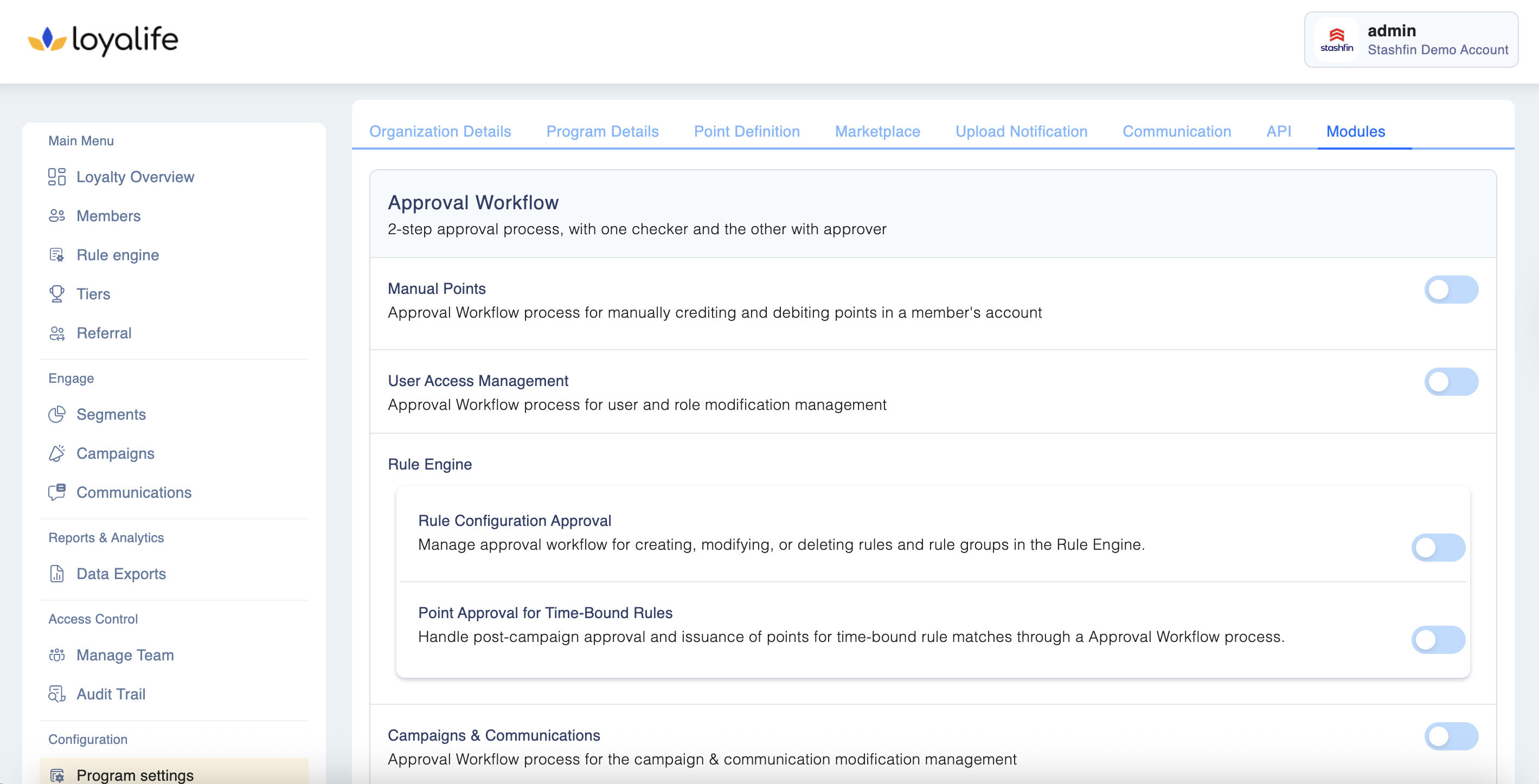
1.1 Manual Points
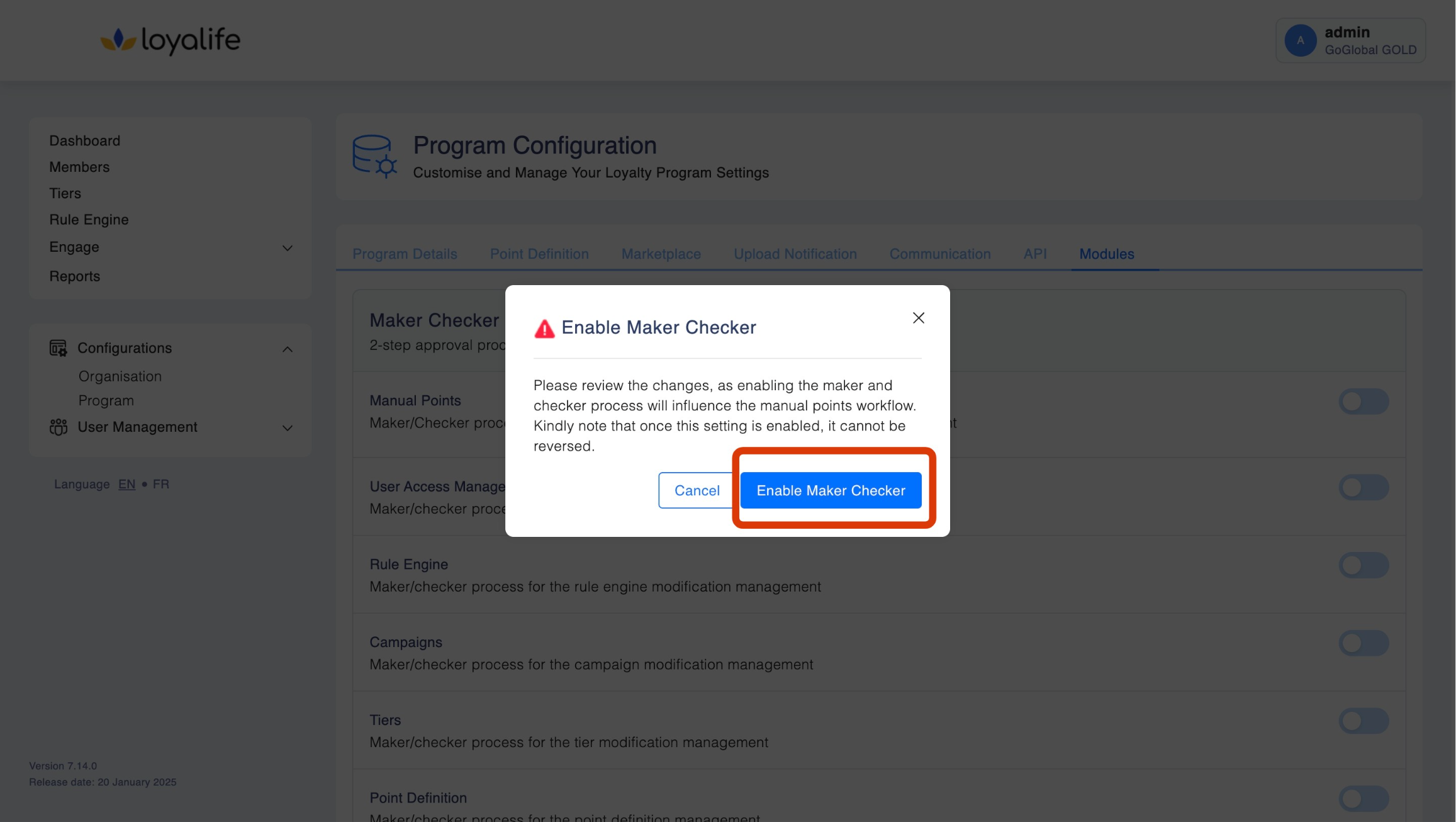
Here you can enables the Maker/Checker process for manually crediting and debiting points in a member's account.
Navigate to Configurations > Program > Module, toggle the button next to the feature, and then enable or disable it.
Note: Once this setting is enabled, it cannot be reversed.
1.2. User Access Management
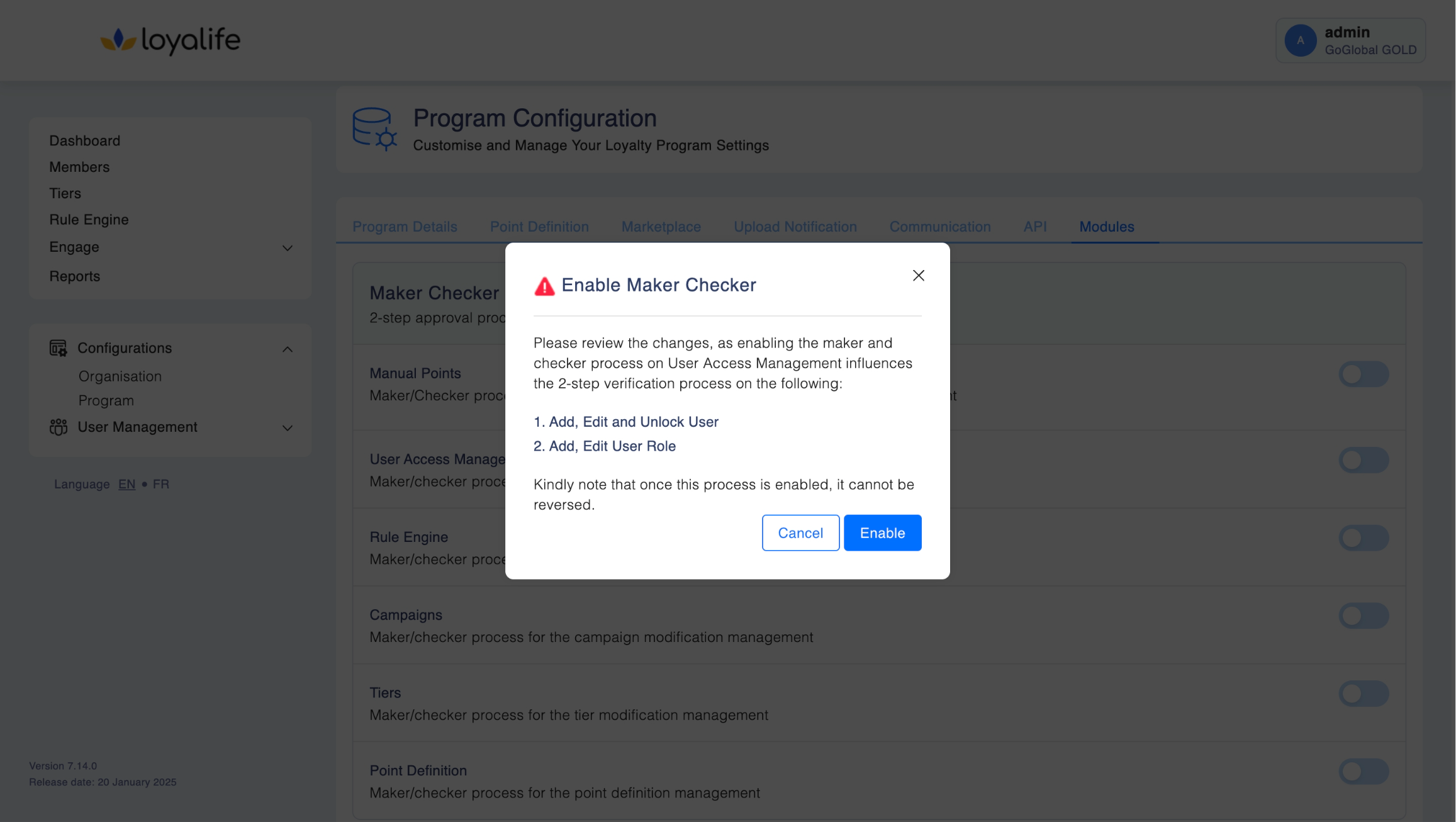
Here you can enables the Maker/Checker process for managing user and role modifications.
- This setting influences the 2-step verification process for:
- Adding, editing, and unlocking users
- Adding and editing user roles
Navigate to Configurations > Program > Module, toggle the button next to the feature, and then enable or disable it.
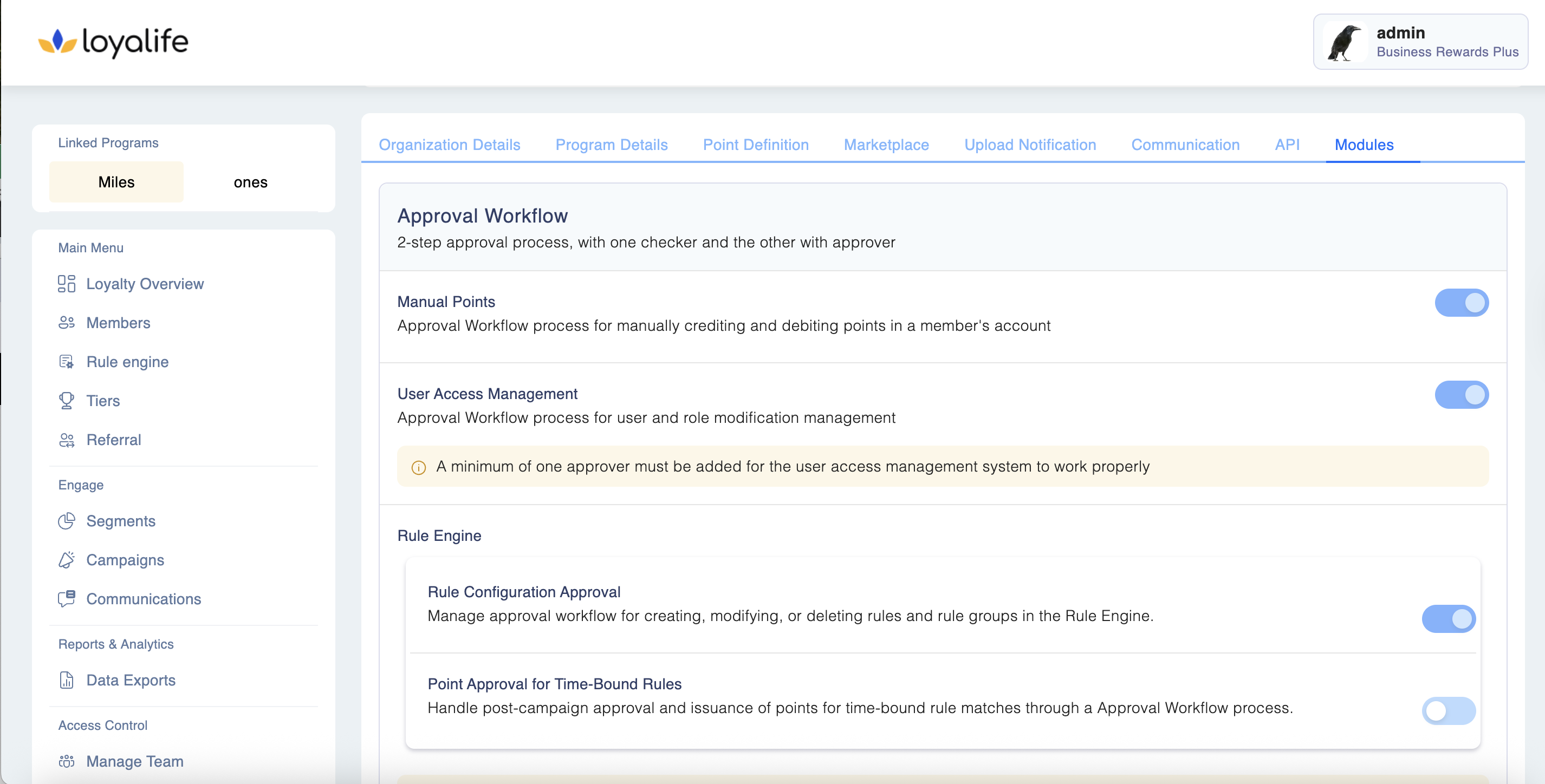
Note: A minimum of one approver must be added for the system to function properly.
1.3 Rule Engine
1.3.1 Rule Configuration Approval: Enables the Maker/Checker process for rule modifications by using the toggle next to the Rule Configuration Approval and then enable or disable it.
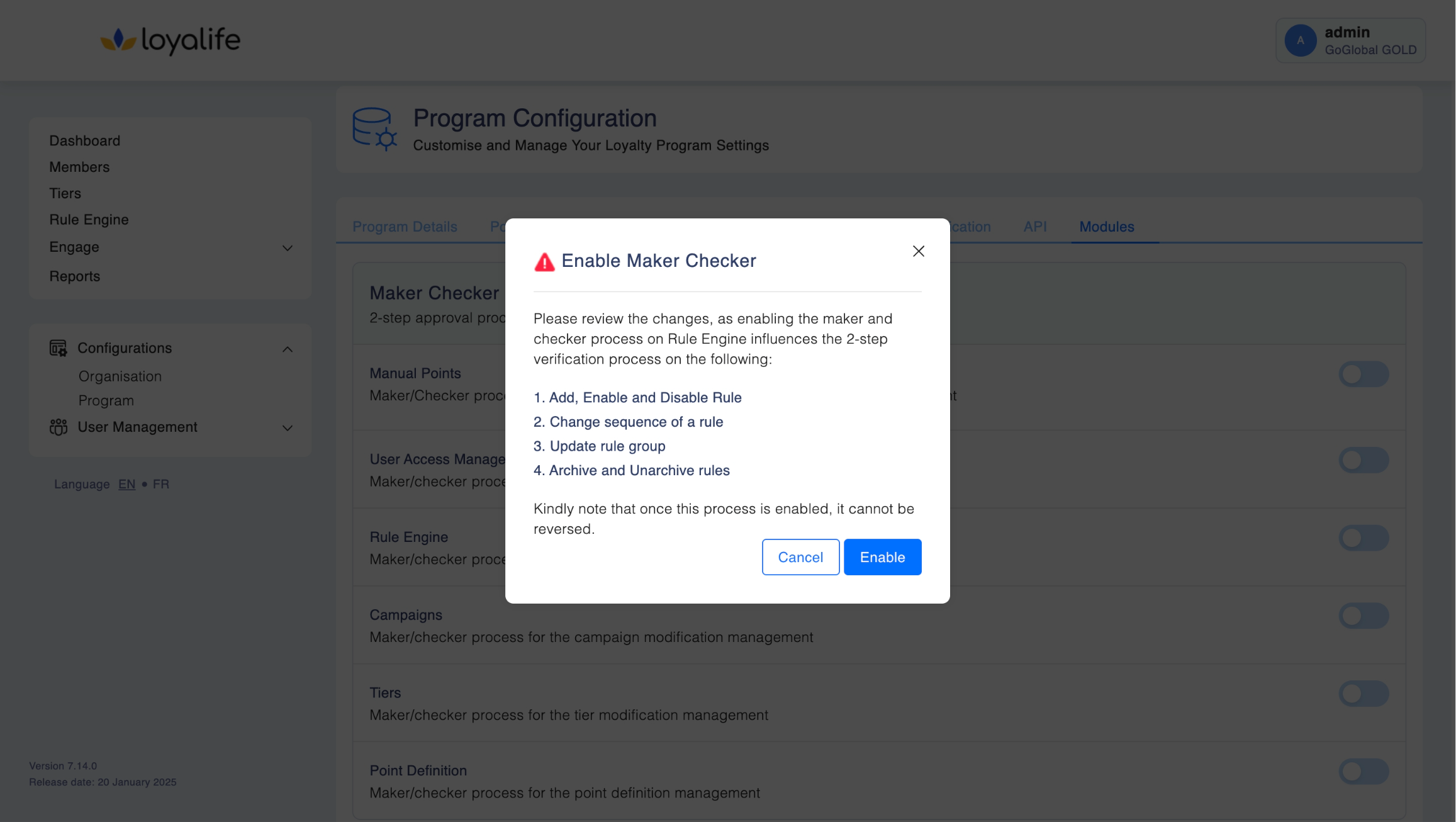
This setting influences the 2-step verification process for:
- Adding, enabling, and disabling rules
- Changing the sequence of a rule
- Deleting rules and Rule groups
- Updating rule groups
- Archiving and unarchiving rules
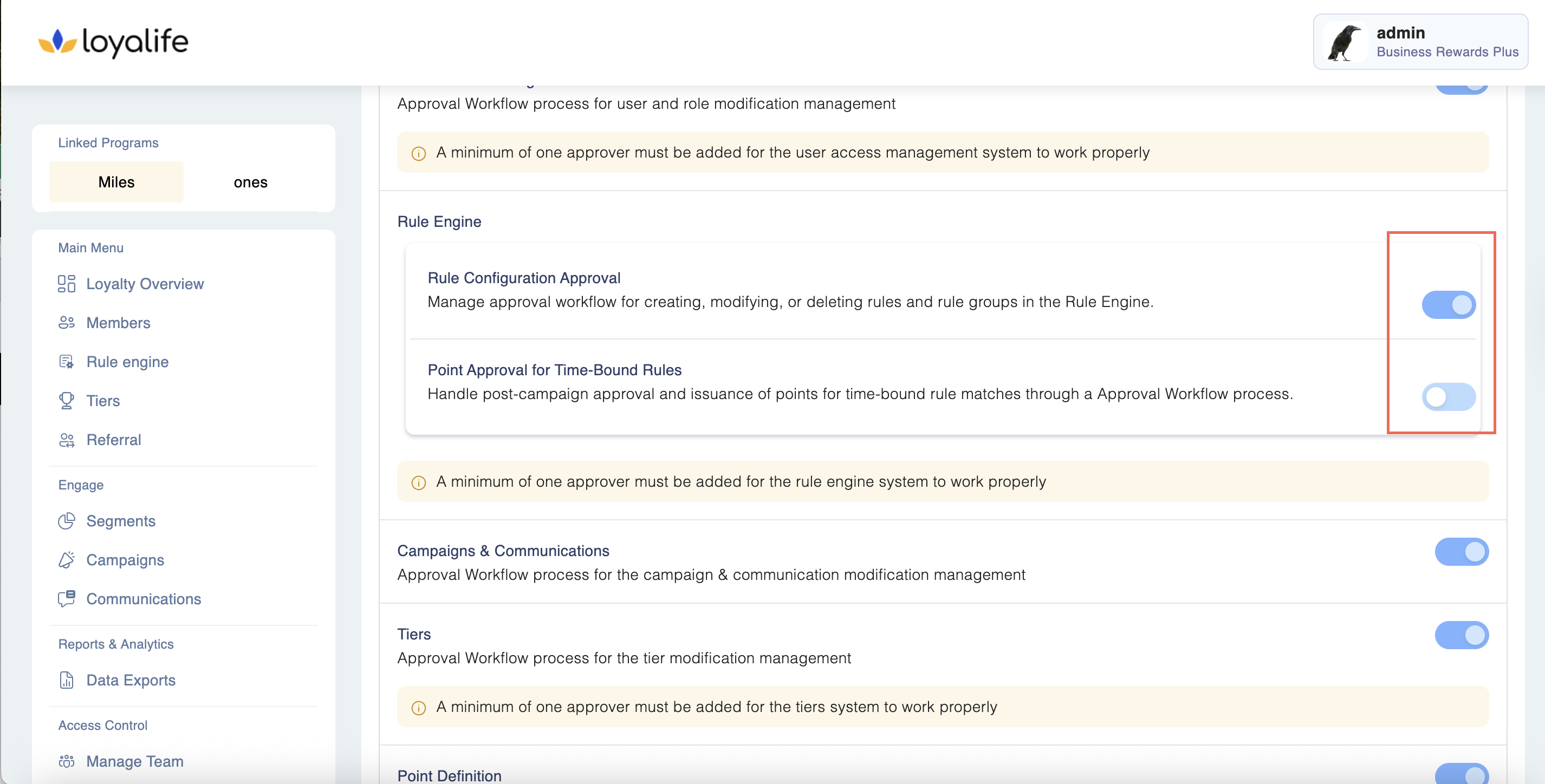
1.3.1 Points Approval for Time Bound Rules: Enables the Maker/Checker process for points approval for time-bound rules by using the toggle next to the points approval for time-bound rules and then enable or disable it.
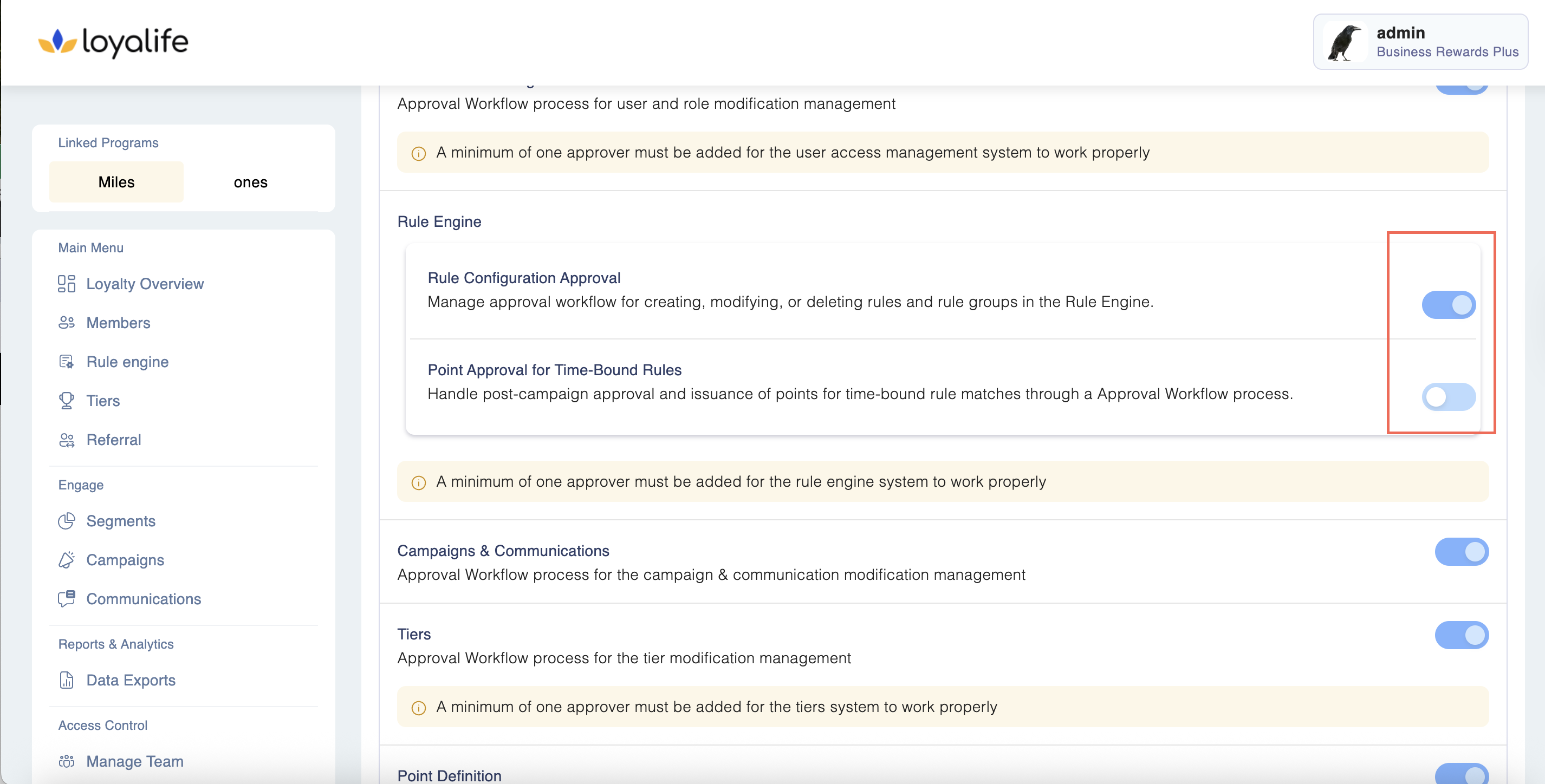
This setting influences the 2-step verification process for:
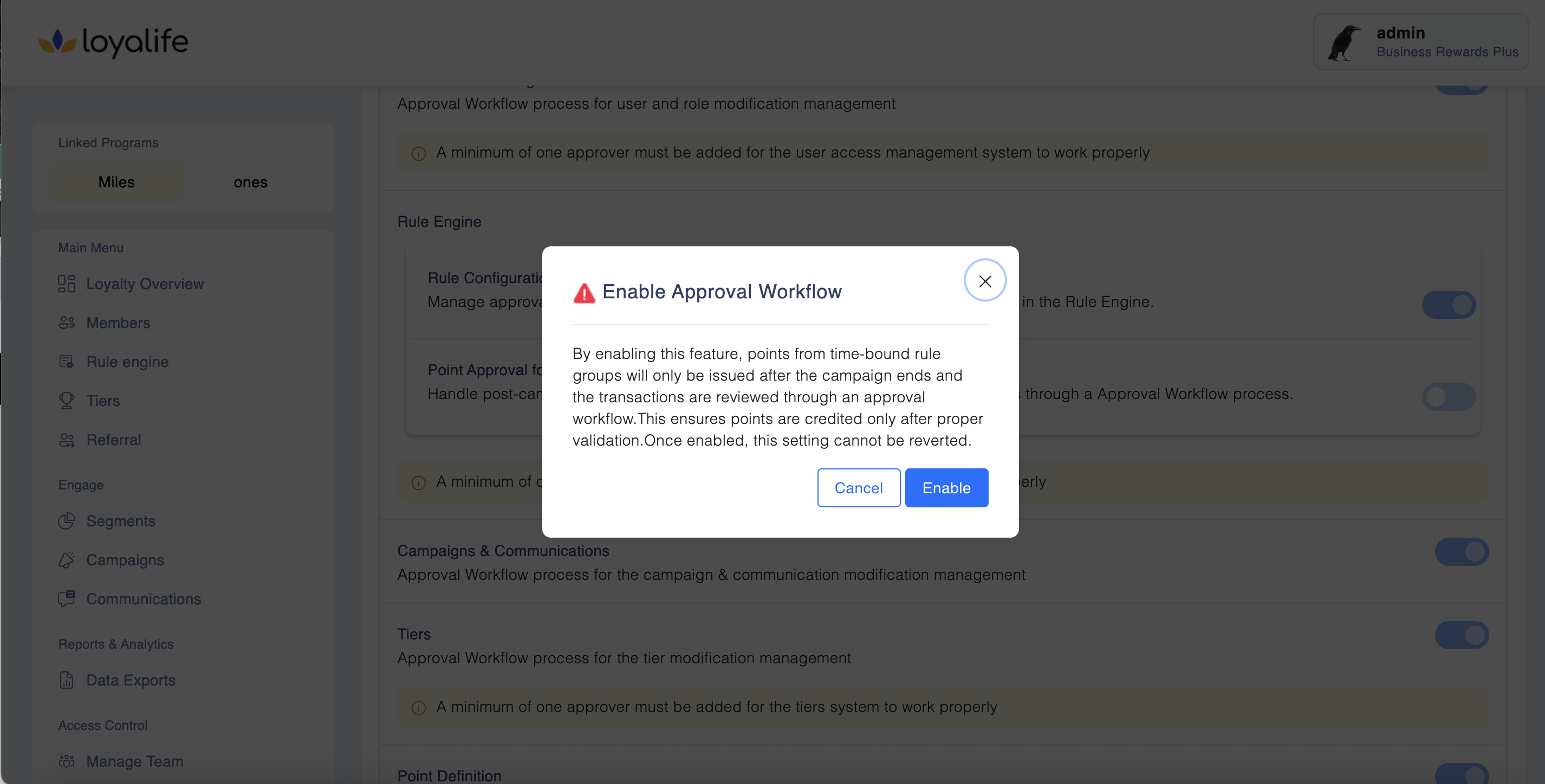
- By enabling this feature, points from time-bound rule groups will only be issued after the campaign ends and the transactions are reviewed through an approval workflow. This ensures points are credited only after proper validation. Once enabled, this setting cannot be reverted.
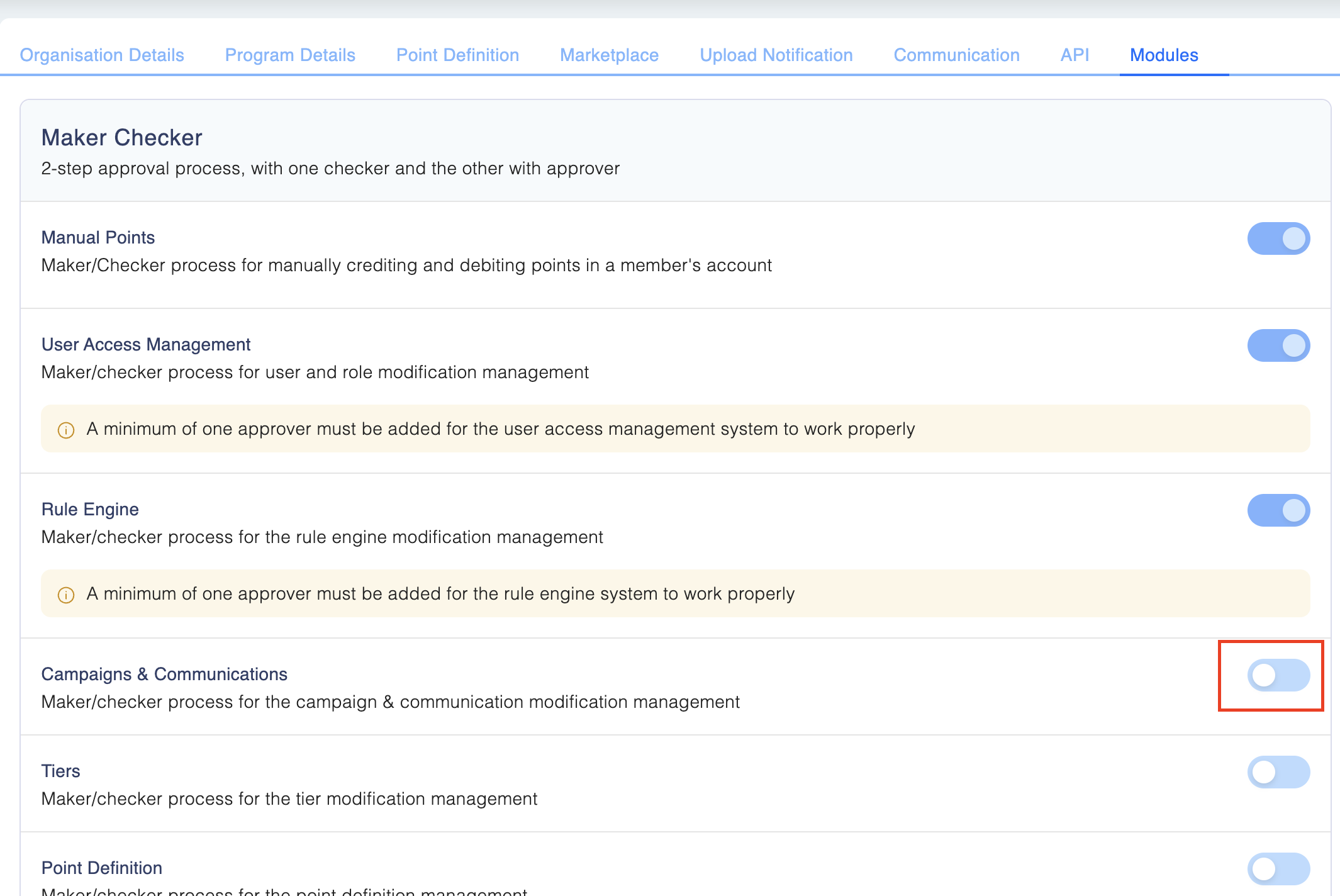
1.4 Campaigns
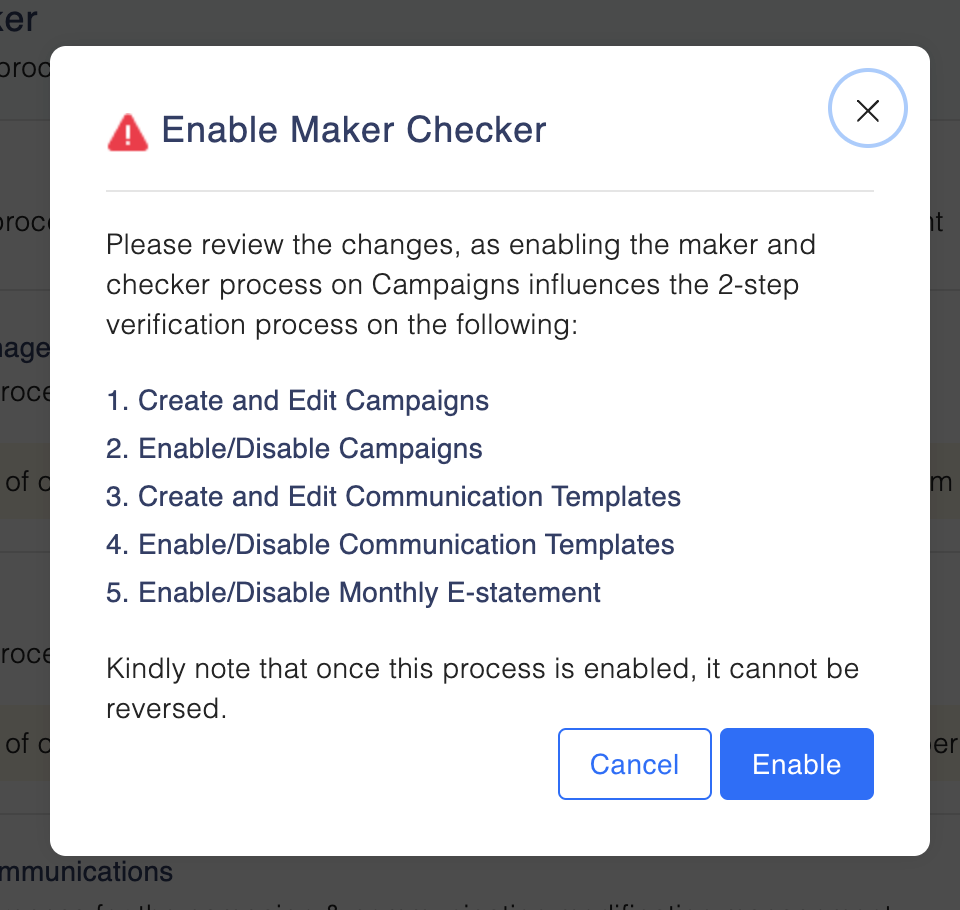
Enables the Maker/Checker process for campaign modifications by using the toggle next to the feature and then enable or disable it.
This setting influences the 2-step verification process for:
- Creating and editing campaigns
- Enabling and disabling campaigns
- Create and Edit Communication templates
- Enable and disable communication templates
- Enable and disable monthly e-statement
1.5 Tiers
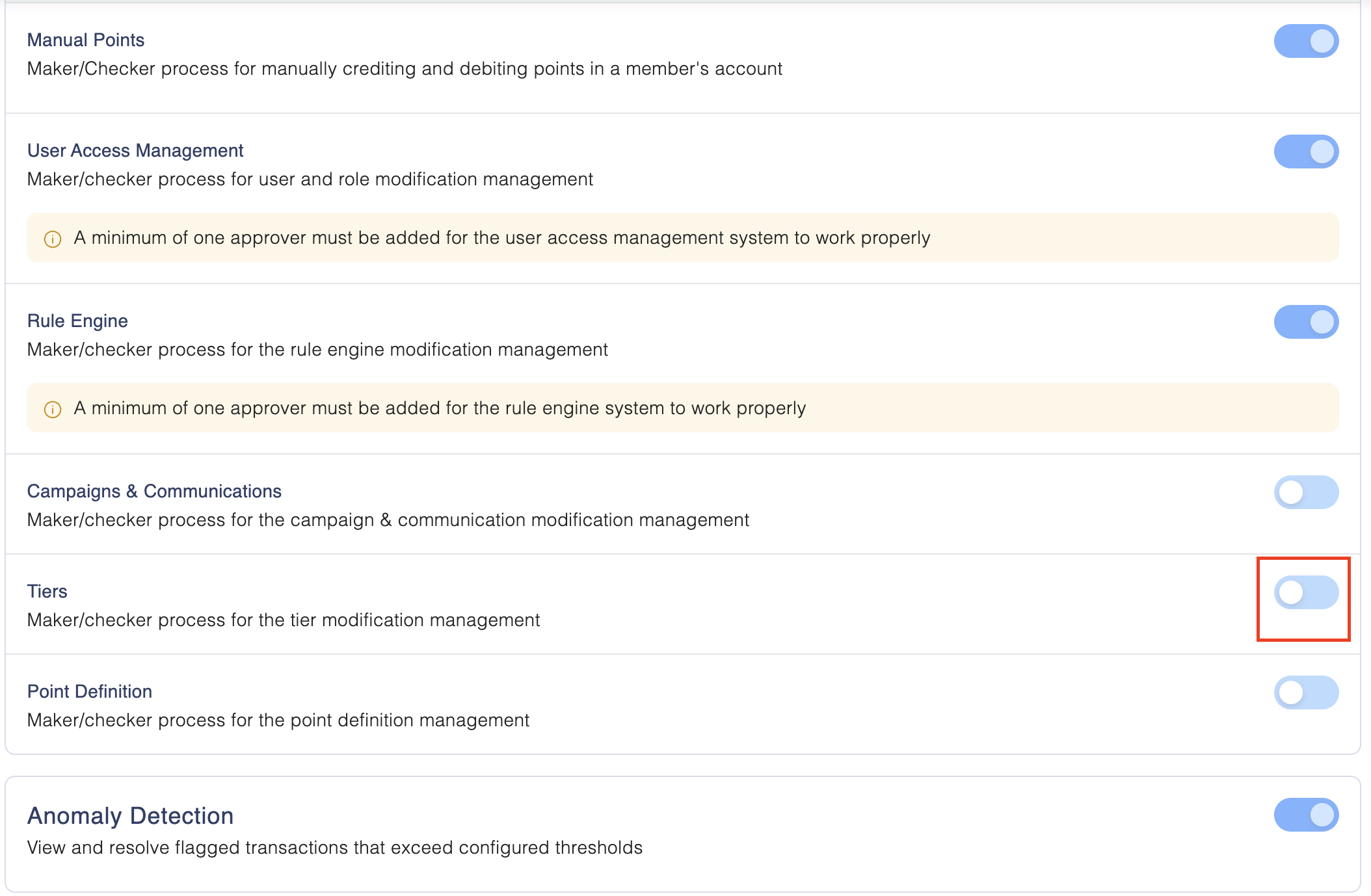
Enables the Maker/Checker process for tier modifications.
This setting influences the 2-step verification process for:
- Creating and editing tiers
- Updating the milestone calculation period
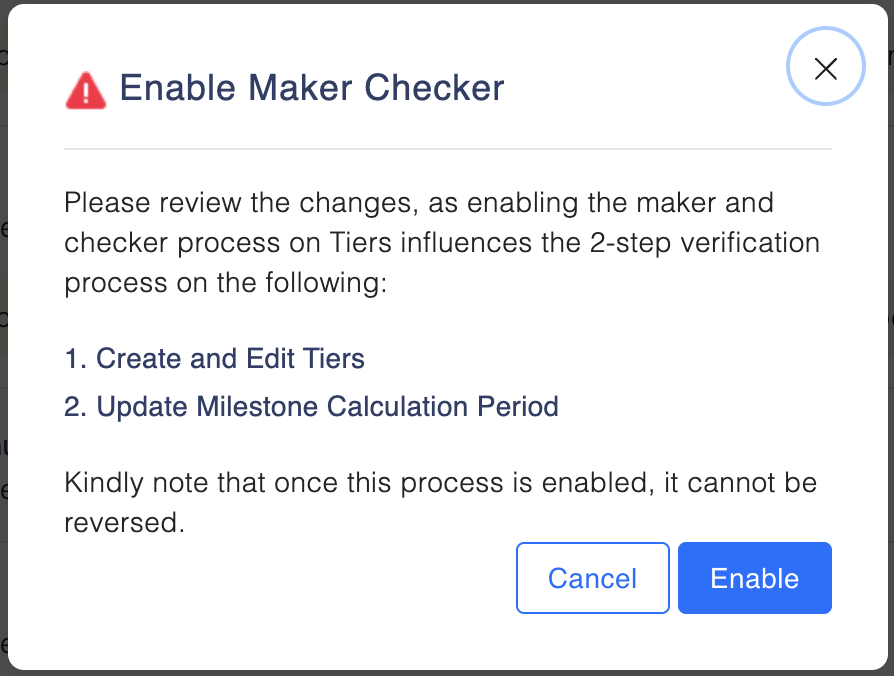
Note: Once enabled, this setting cannot be reversed.
1.6 Point Definition
Enables the Maker/Checker process for point definition modifications.
This setting influences the 2-step verification process for:
- Point terminology
- Point Expiration Schedule
- Point Expiration Period
- Cash back Rate
- Customer Purchase Rate
- Redemption Rate
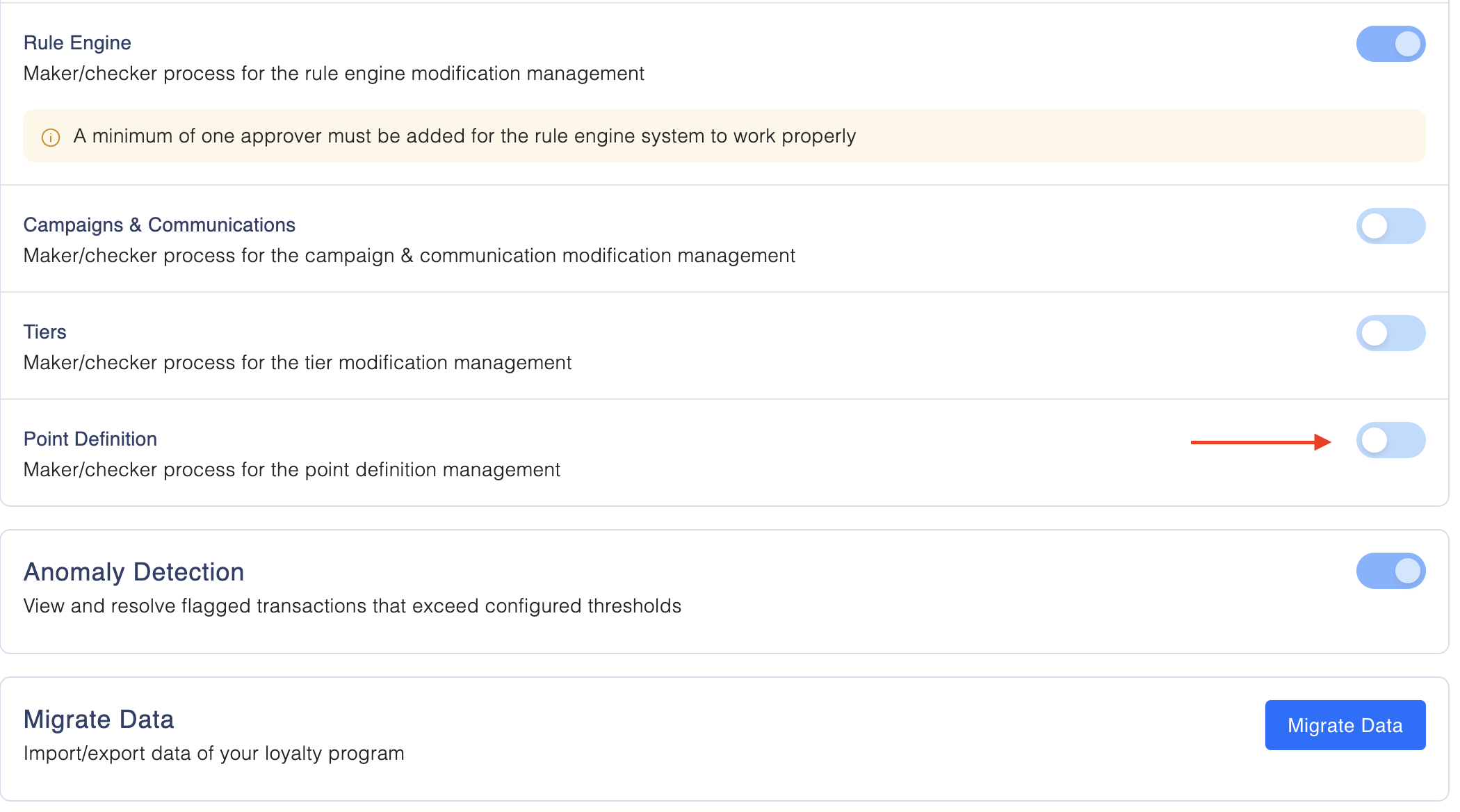
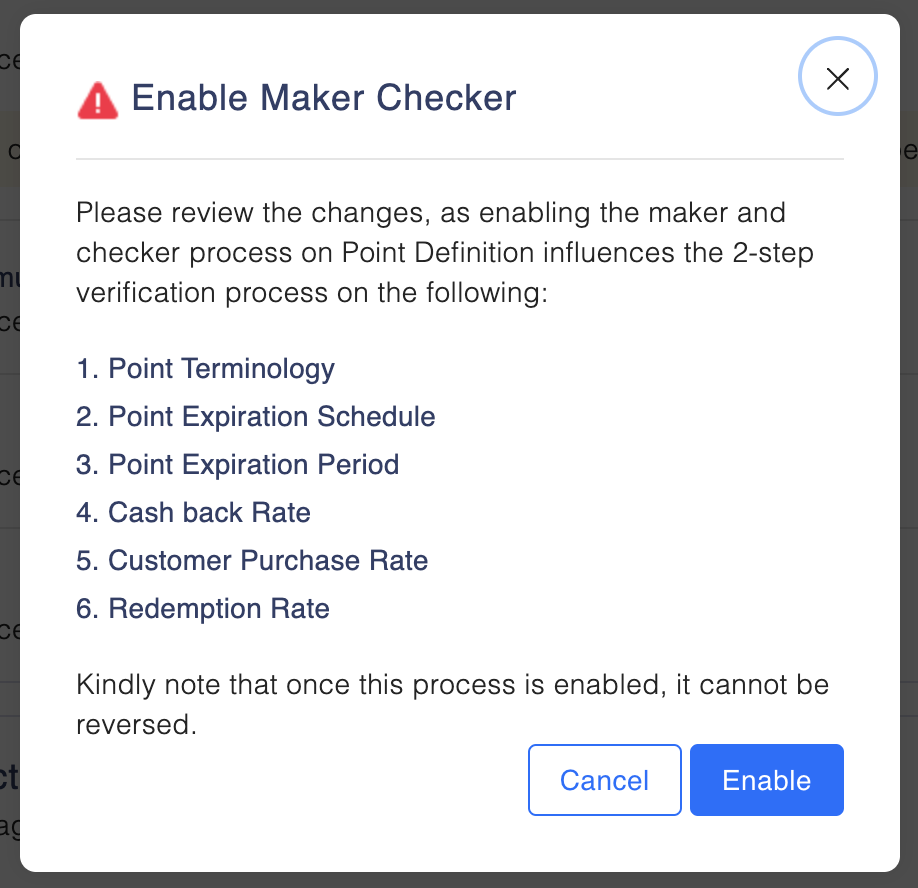
1.7 Suspension Actions
Enable Approval Workflow for Suspension Actions.
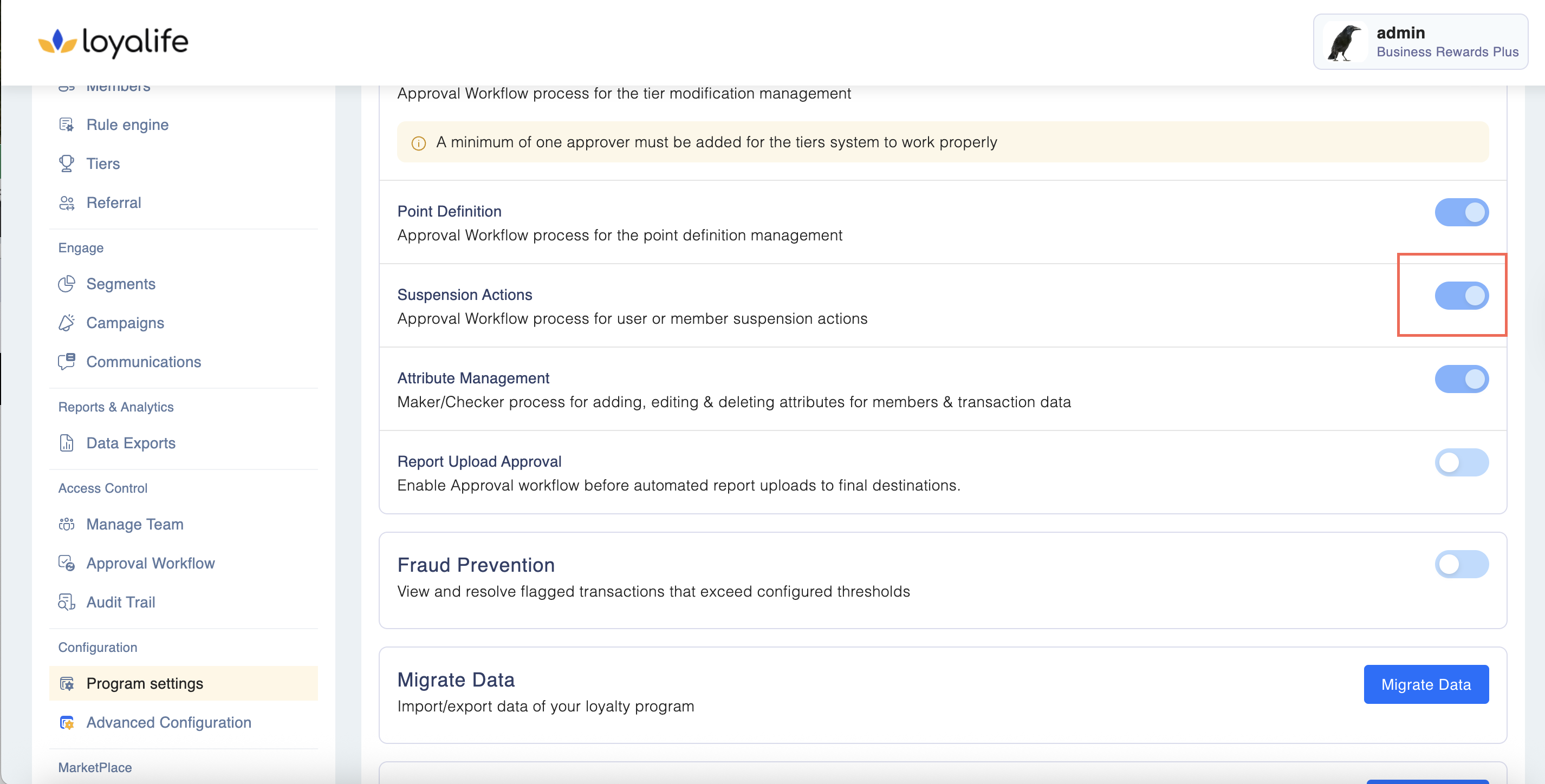
This setting influences the 2-step verification process for:
- Block, suspend and reactivation of a member.
- **Lock, unlock, archive and unarchive a user. **


Enabling Settings **
To enable any of the above settings, simply toggle the switch next to the corresponding feature.
- Important: Once a setting is enabled, it cannot be disabled.
- Only users with appropriate access permissions in User Access Management can enable or modify these settings.
1.8 Attribute Management
Here you can enables the Maker/Checker process for attribute management by toggling off and on the button next to Attribute Management.
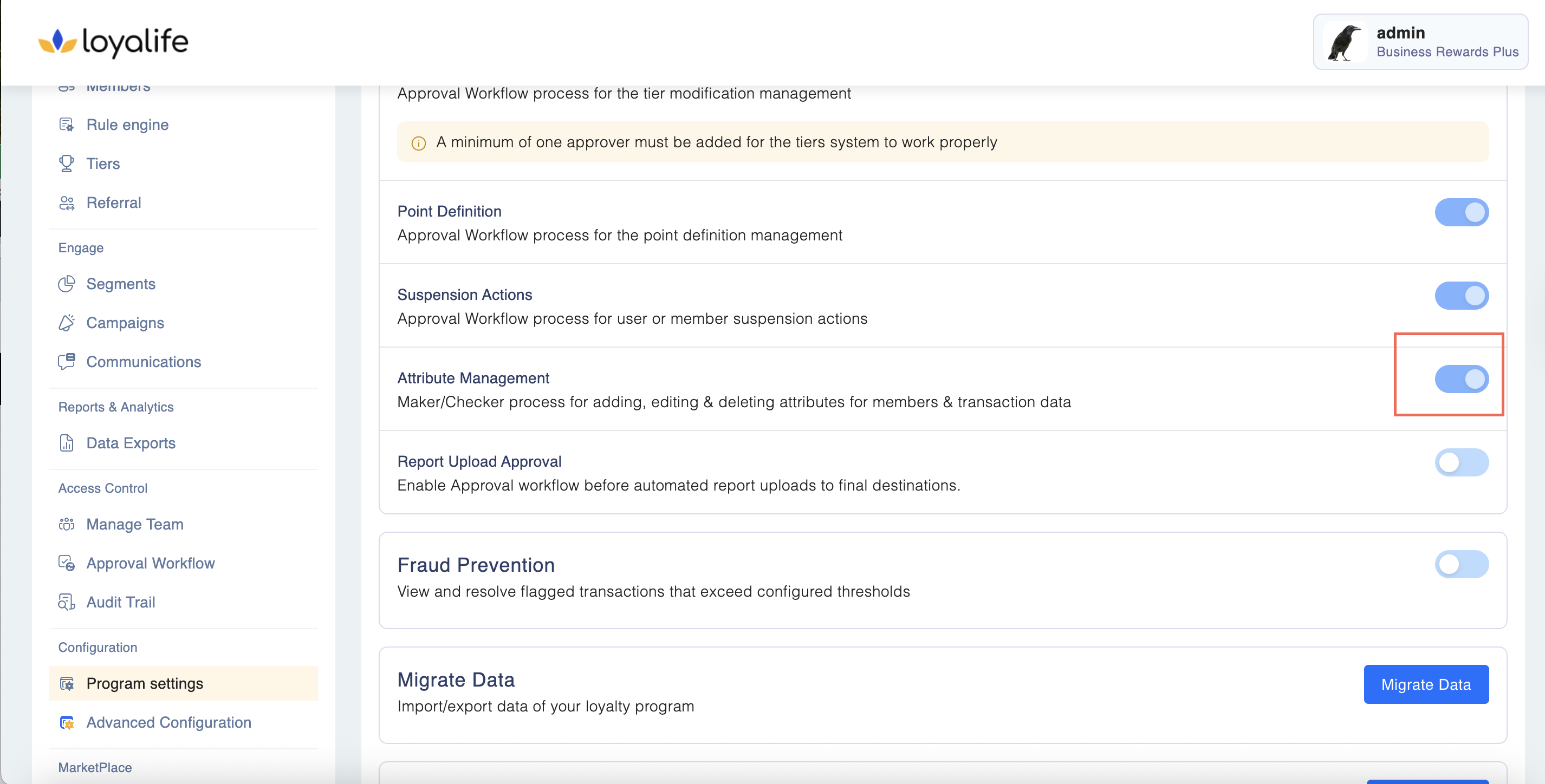
By enabling this setting you allow Maker/Checker process for adding, editing & deleting attributes for members & transaction data
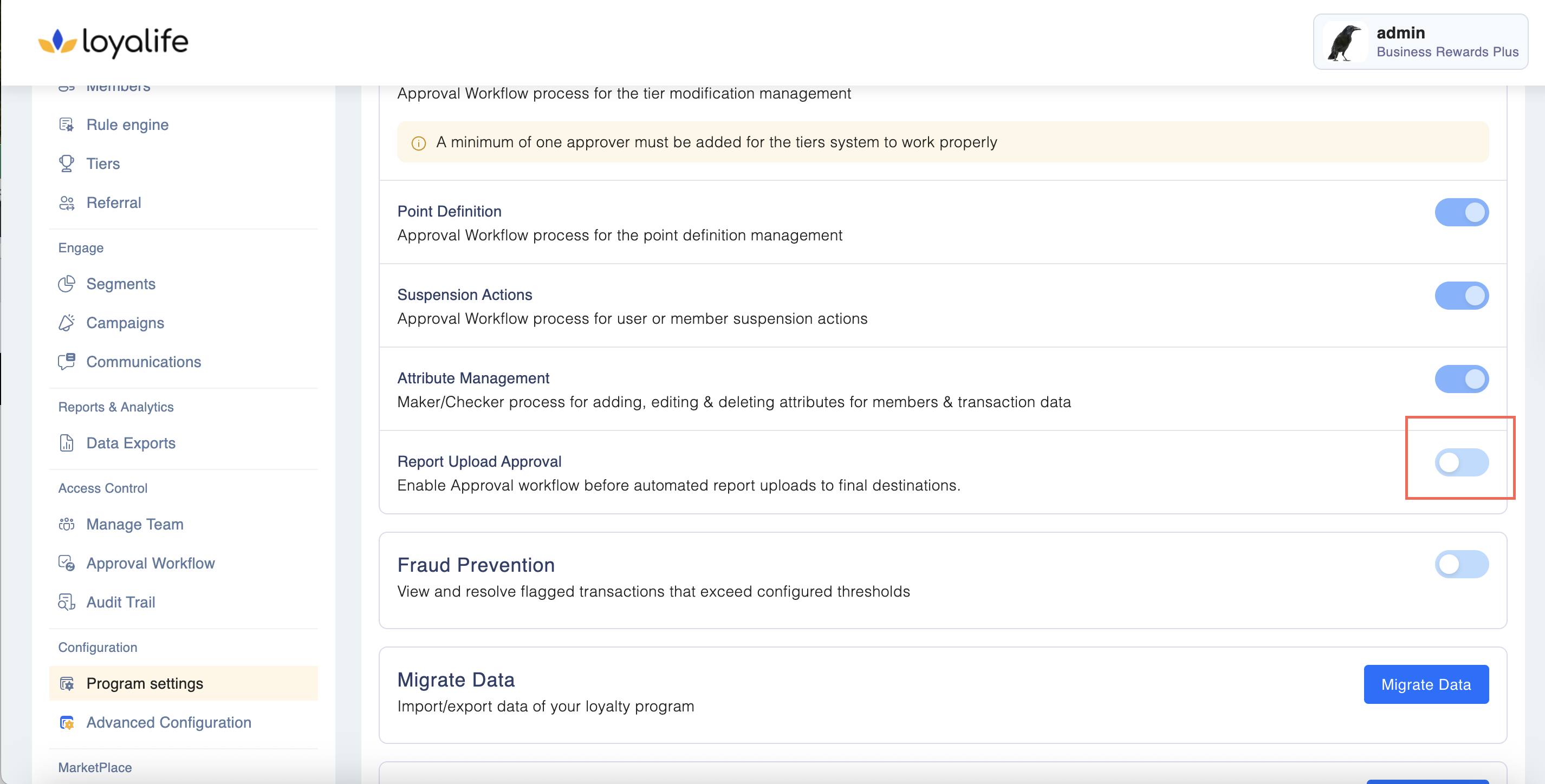
1.9 Report Upload Approval
Here you can enables the Maker/Checker process for attribute management by toggling off and on the button next to Report Upload Approval.
Enable the toggle: Report Upload Approval.
- Enabled: Activates Maker-Checker workflow for report uploads.
- Disabled: Hides the Report Upload Automation Configuration section and disables backend triggers.
2. Fraud Prevention
Allows admins to view and resolve flagged transactions that exceed predefined thresholds.
- Once enabled, Fraud Prevention cannot be turned off.

3. Migrate Data
Exporting or Importing Data:
- To export or import data, follow these steps:
- Navigate to Configurations > Program.
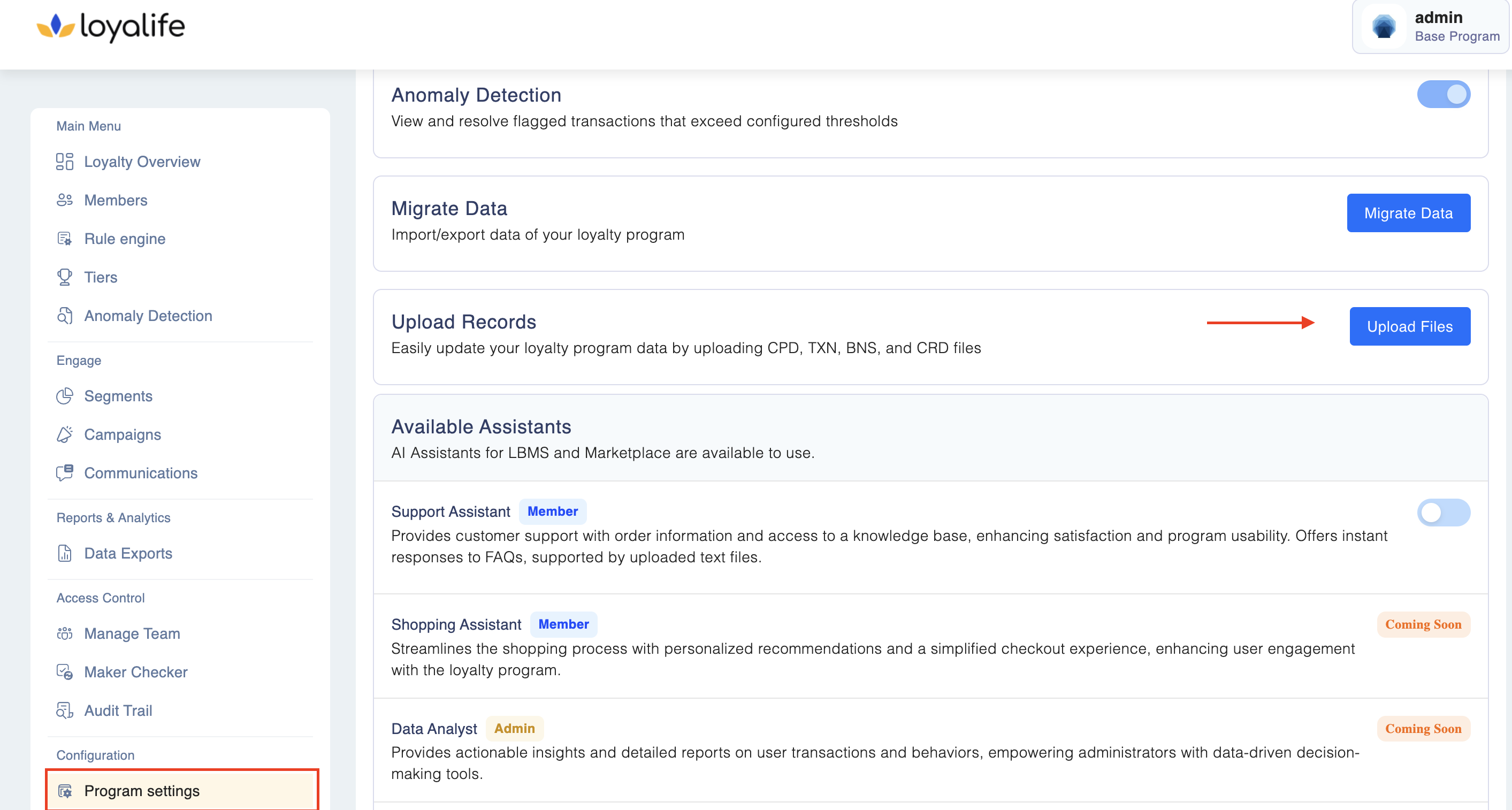
- Go to the Module tab and scroll down to Migrate Data.
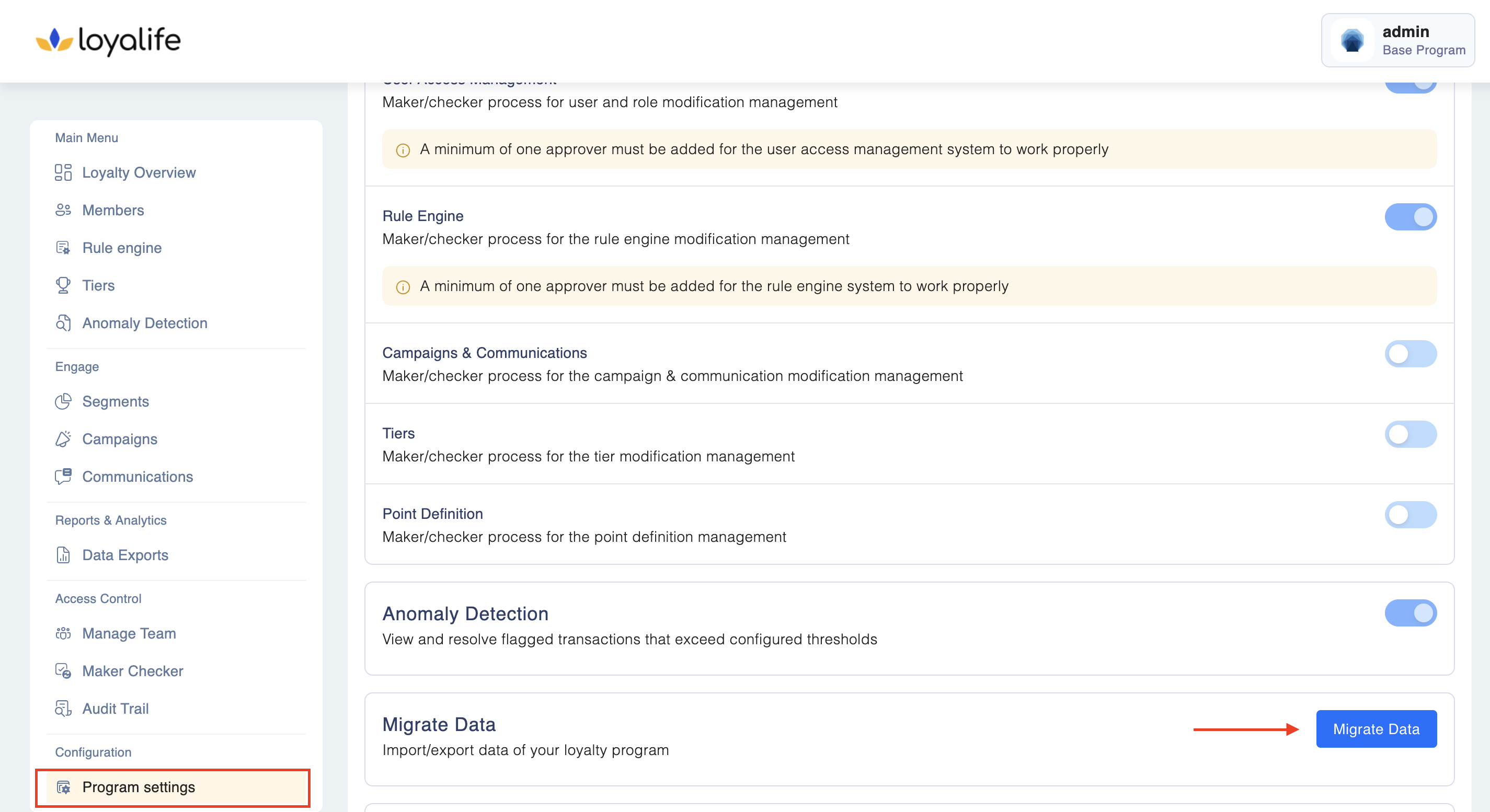
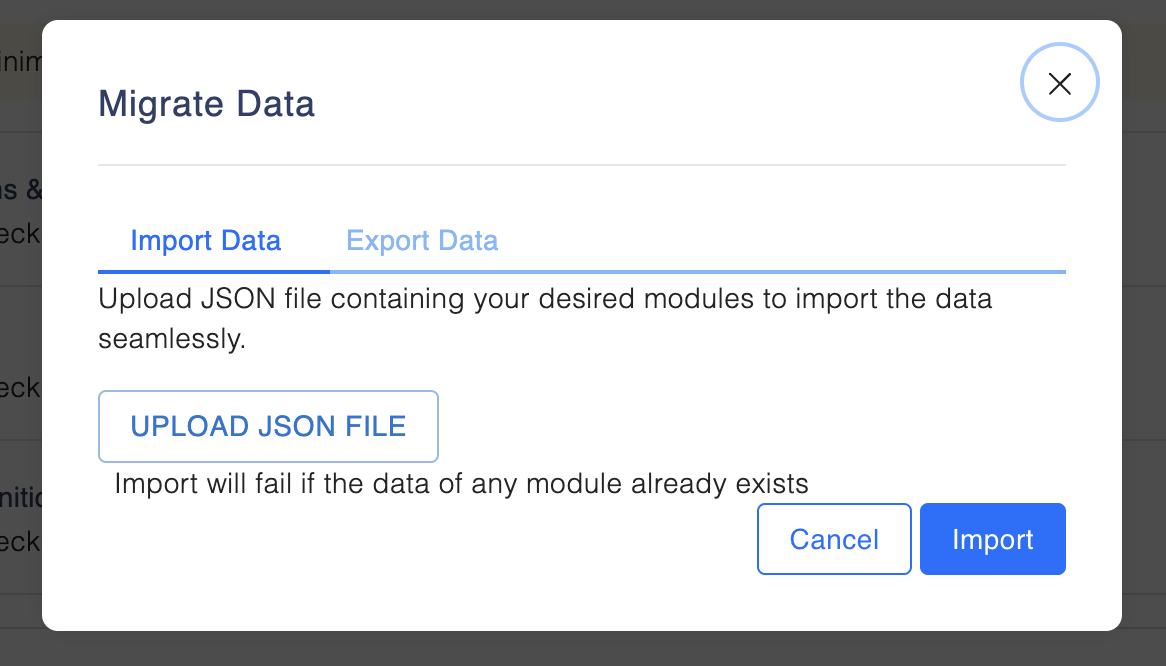
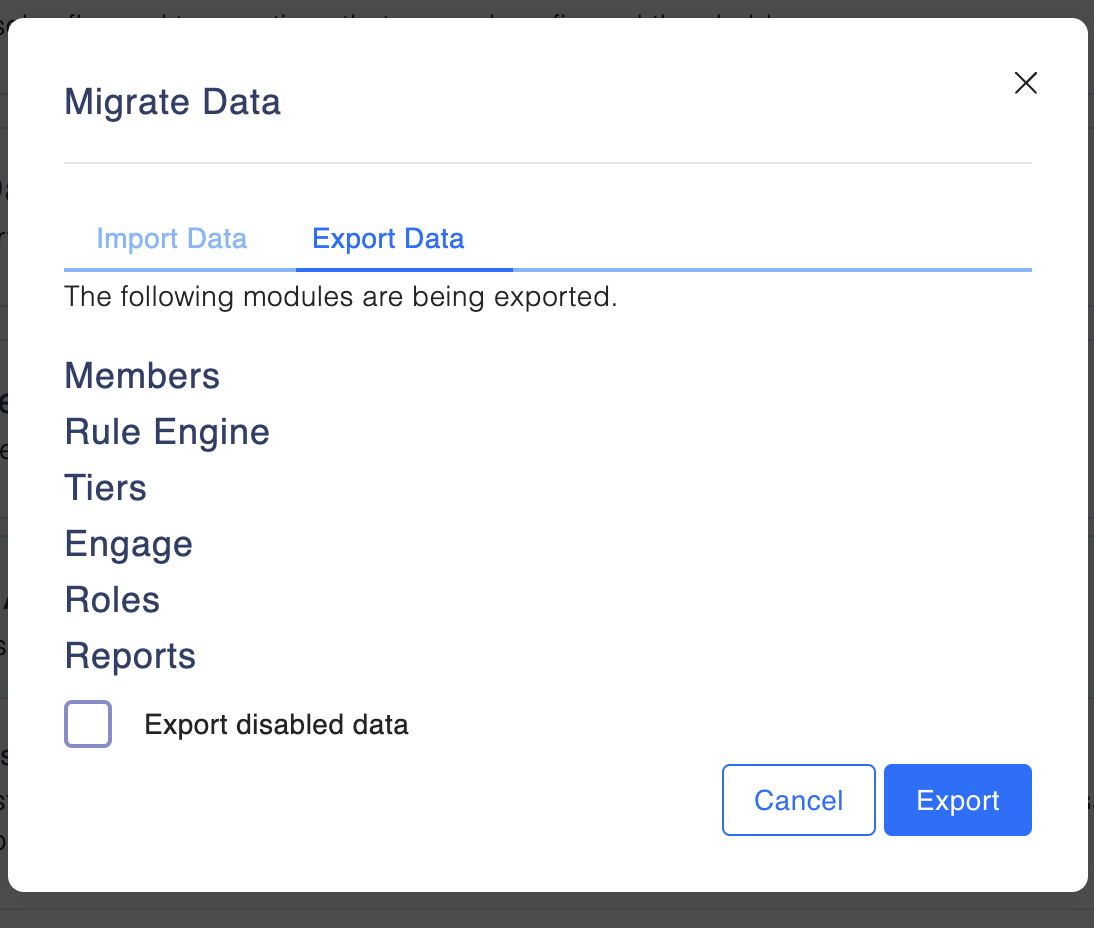
- Click on Migrate Data and select either Import or Export:
- Import: Upload your custom configuration in JSON format.
- Export: Export data for the following modules: Members, Rule Engines, Tiers, Engage, Roles, and Reports.
4. Upload Records
You can easily update your loyalty program data by uploading the following files:
- CPD – Customer Profile Data
- TXN – Transaction Data
- BNS – Bonus Data
- CRD – Credit Data
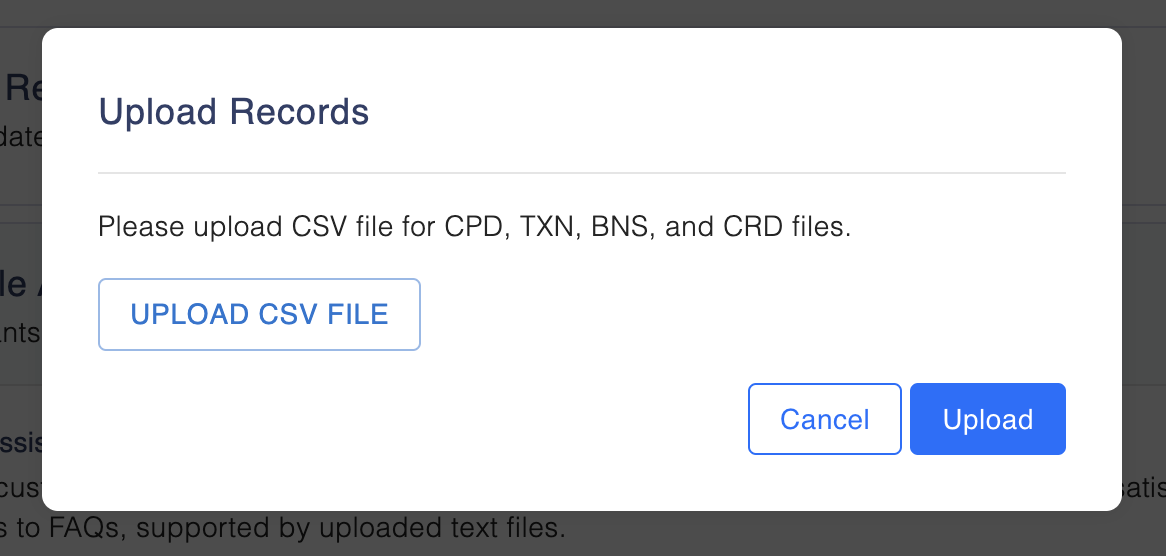
Go to the Upload Files section and click on Upload. Add the CSV version of the file and upload.
- Toggle the button next to Support assistant. Upload the FAQ Text file.