
Configurable Variables in Custom Reports
Overview
The Custom Reports module now supports configurable variables, allowing admins to inject dynamic parameters into SQL queries at runtime. This enables report reuse across time periods and simplifies updates to business logic without editing SQL queries.
Benefits:
- Reuse reports across campaigns or timeframes.
- Update calculation logic by changing variable values.
- Maintain an audit trail of changes.
- Avoid SQL redeployment for minor updates.
Key Concepts
- Variable Types
- Variable Name (Display Name): Free-form text for business understanding. Example: GL Multiplier for Festive Campaign
- Variable Backend Name (System Name / SQL Reference): Technical identifier used in SQL queries. Must follow rules:
- Case-insensitive (GL, gl, Gl → same variable)
- Cannot be SQL reserved words (select, from, join)
- No spaces or special characters (letters, numbers, underscores only)
- Cannot start with a number or underscore
- Underscores allowed: gl_multiplier ✅
- Data Type: Integer | String | Date
- Value: User-defined value for runtime injection (editable).
- SQL Query Syntax
- Reference variables as
- At runtime, the system replaces placeholders with defined variable values.
- Audit Trail
- Track creation and updates of variables.
- Logged fields include:
- Date & Time
- Username
- Action (Created / Edited)
- Page URL
- IP Address & Browser
- Activity Details (e.g., value changed from “XYZ” to “ABC”)
- Cron Job Execution
- Variables are injected into SQL queries before execution, ensuring updated values are always used.
How to Use Configurable Variables
Step 1: Add Variables
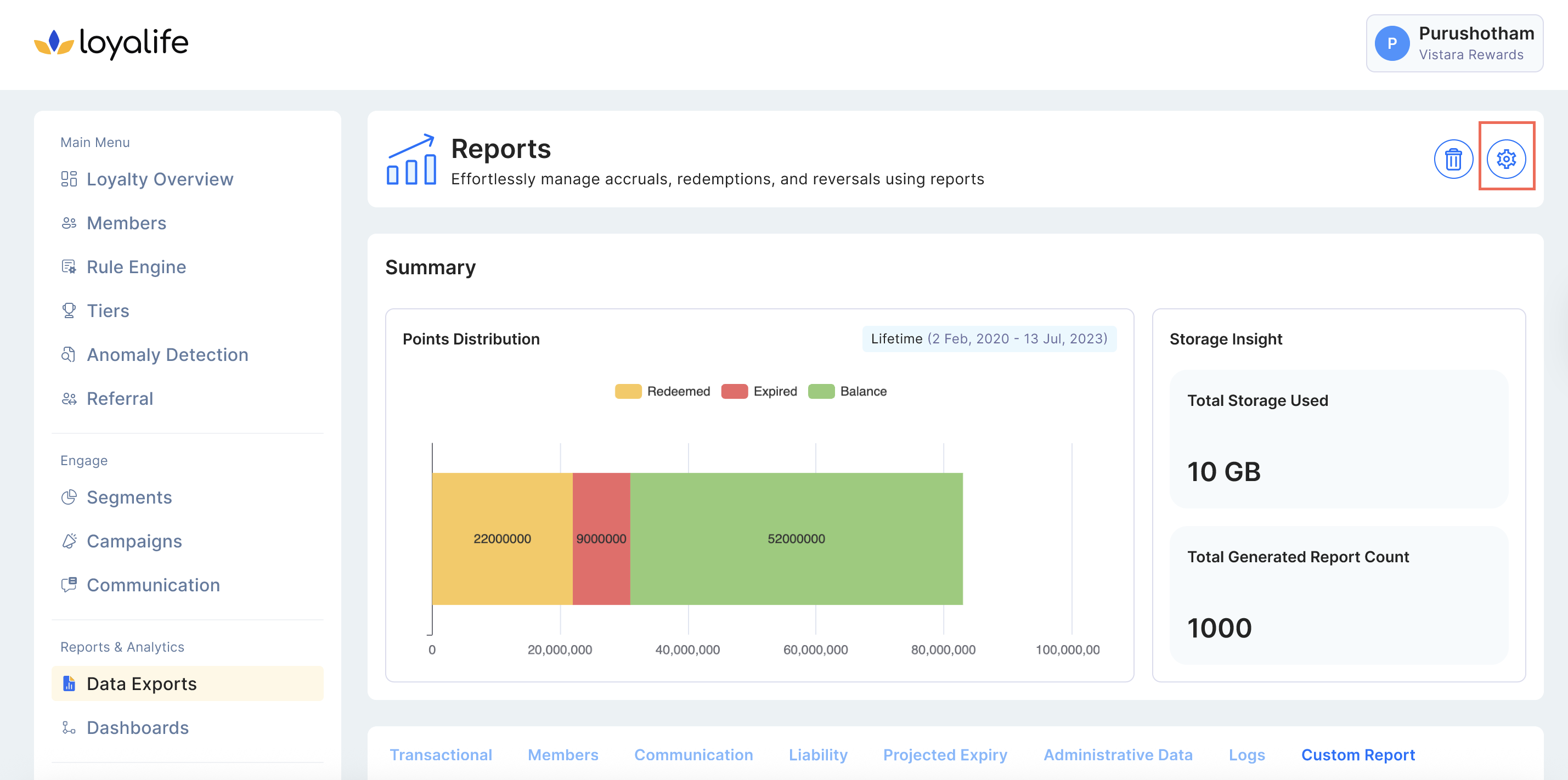
- Navigate to Data & Analytics > Data Exports > Report Settings at the top.
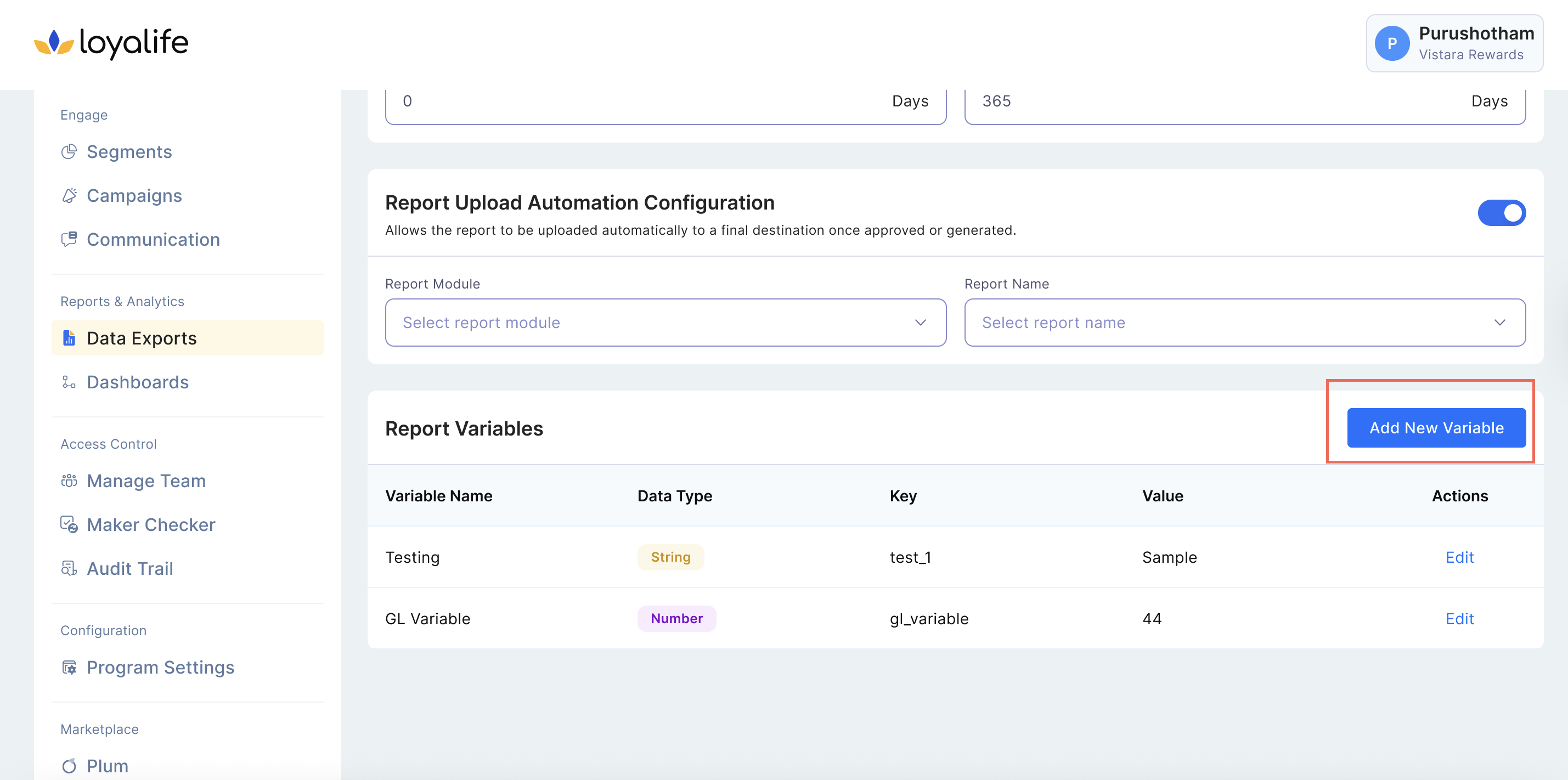
- Go to the **Report Variable Card **and click on Add New Variable.
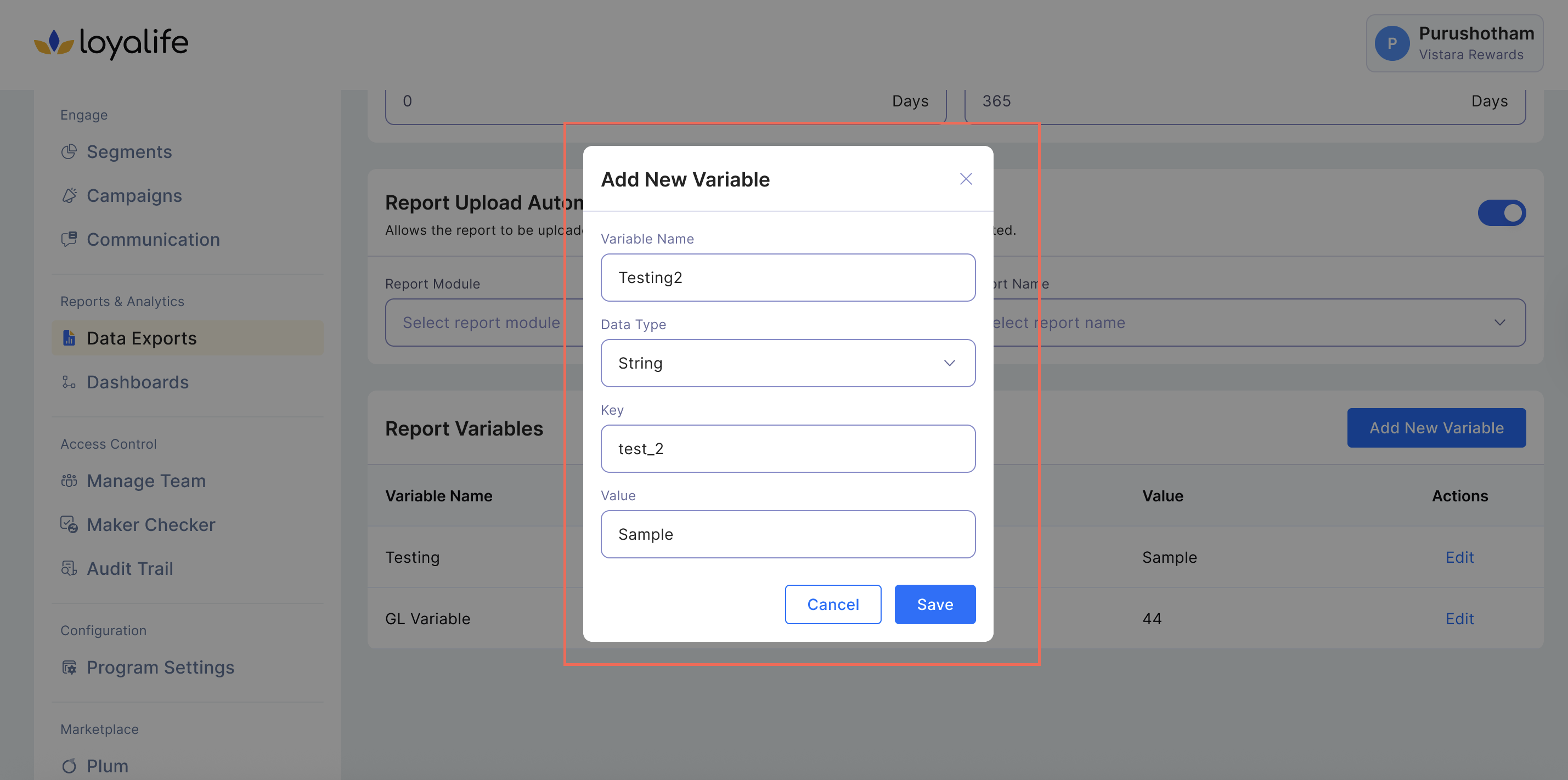
- Add the variables:
- Variable Name
- Backend Name (non-editable after creation)
- Data Type
- Value
Variables can be deleted if not used in any SQL queries.
Prerequisite: Manage Permissions**
- Users with Manage Report Variables permission can update variable values.
- Updated values are reflected in next scheduled report execution.
- All changes are logged in the audit trail.
Step : Audit Trail
- View history of variable changes under Access Control > Audit Trail:
| Date & Time | Username | Action | Page URL | Activity Details | IP Address | Browser |
|---|---|---|---|---|---|---|
| 2025-08-08 10:45 | admin | Created | URL | Variable "BonusEligibilityThreshold" created with value 1000 | 10.233.32.91 | Chrome 138 |
| 2025-08-10 14:12 | admin | Edited | URL | Value updated from 1000 → 1200 | 10.233.32.91 | Chrome 138 |
Step 4: Variable Validation
- If SQL references a variable not defined, the report fails with a clear error message.
- Always ensure variables exist and follow backend naming rules.
Roles & Permissions
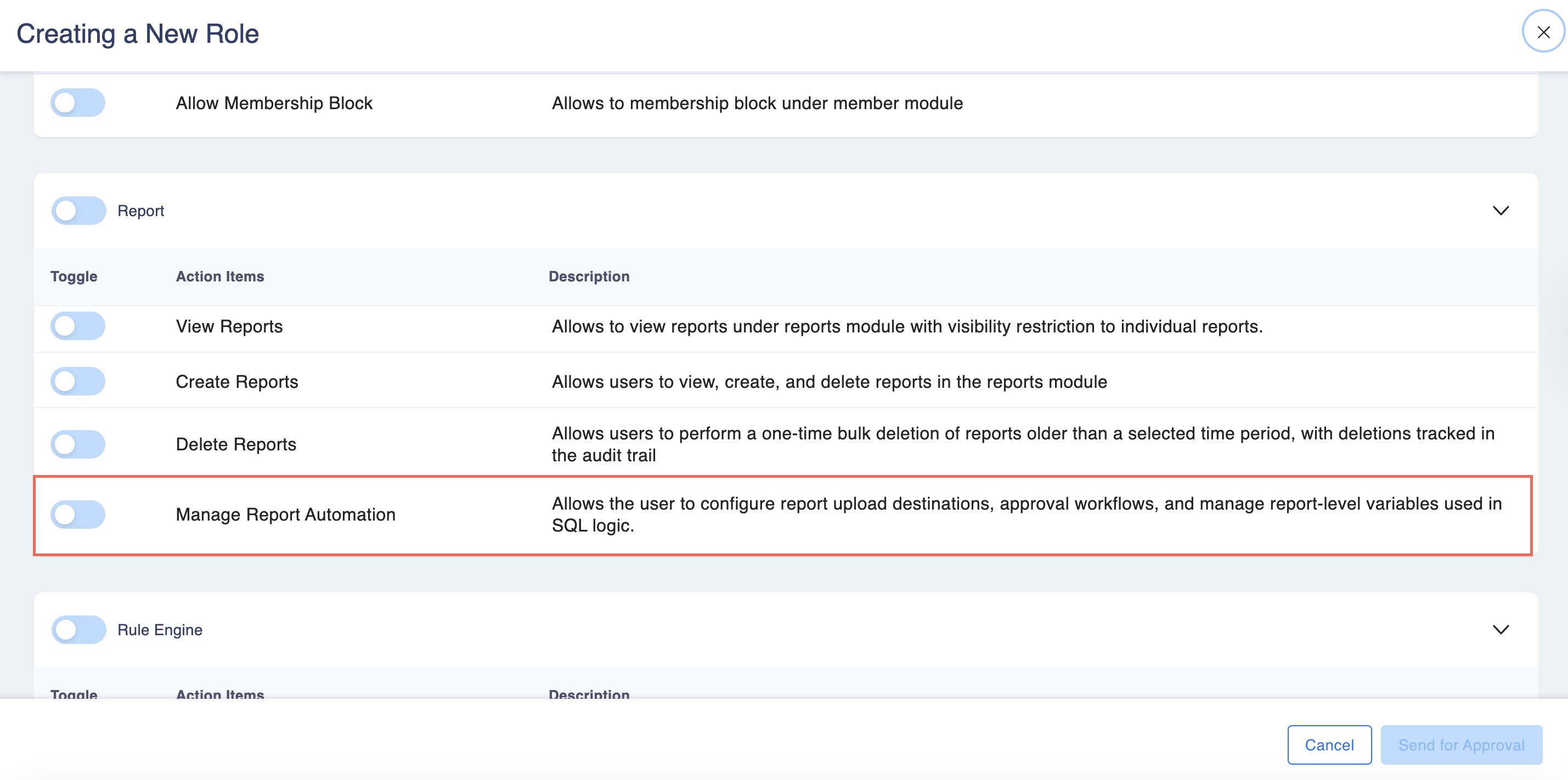
You can enable the roles and permissions from Access Control > Manage Team and enabling the permissions.
| Permission Name | Description |
|---|---|
| Manage_Report_Variables | Allows editing variable values and creating new variables. |
| Manage_Report_Automation | Allows configuring report upload destinations, approval workflows, and managing report-level variables. |
Default Behavior:
- Enabled for Super Admins by default.
- Can be manually assigned for other roles.
- Users without this permission: can view reports but cannot edit or create variables.
Note: If a user has report view access but not Manage_Report_Automation, the variable setup section will not be visible.