
Editing & Deleting Tiers
Learn all about adding, editing and deleting tiers
Adding a New Tier
Step 1: To add a new tier a user should go to Tiers ➝ Add a new tier, and add the information as per the tier requirement.
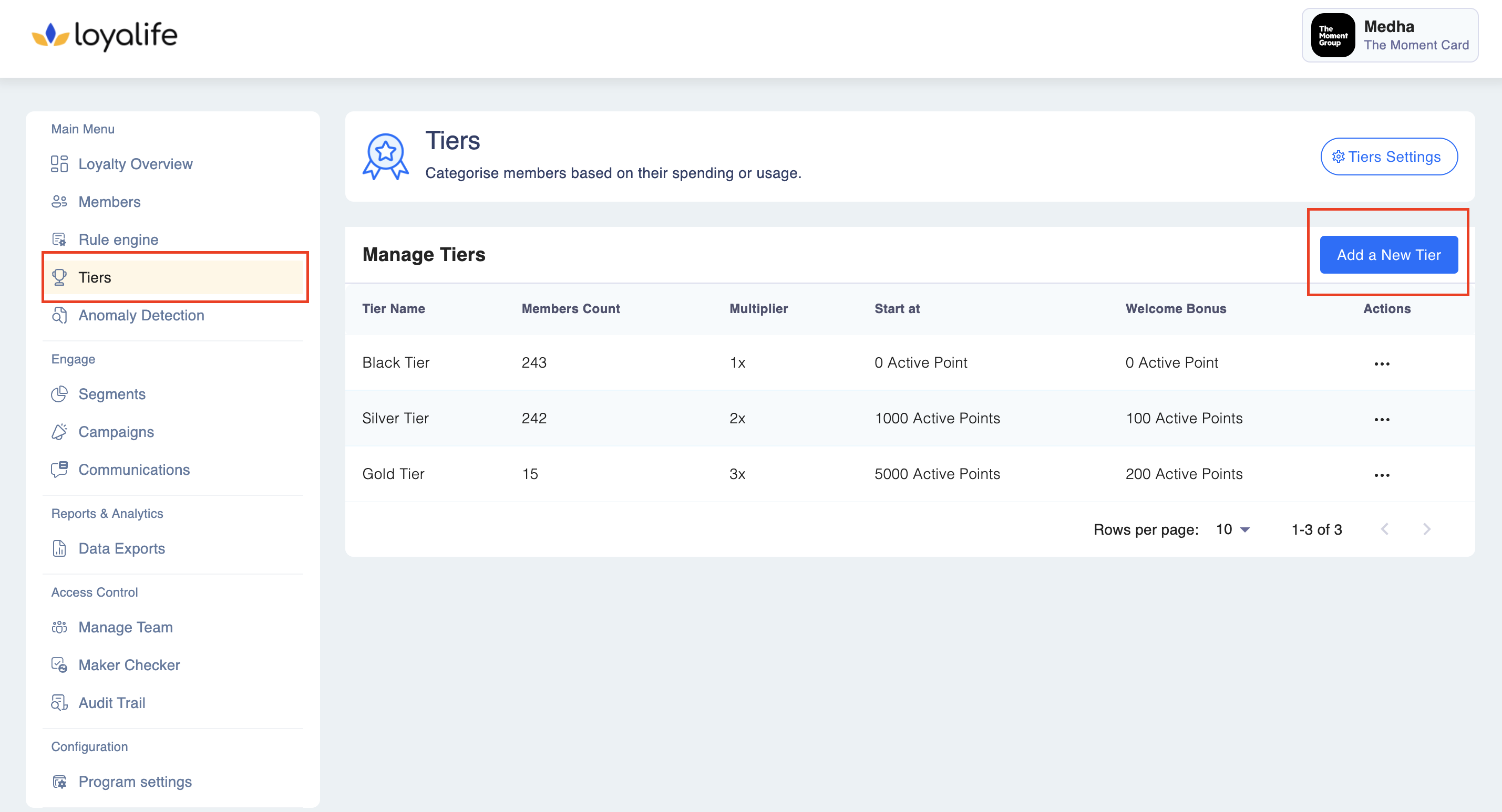
Step 2: Fill up all the necessary information as per the tier requirement.
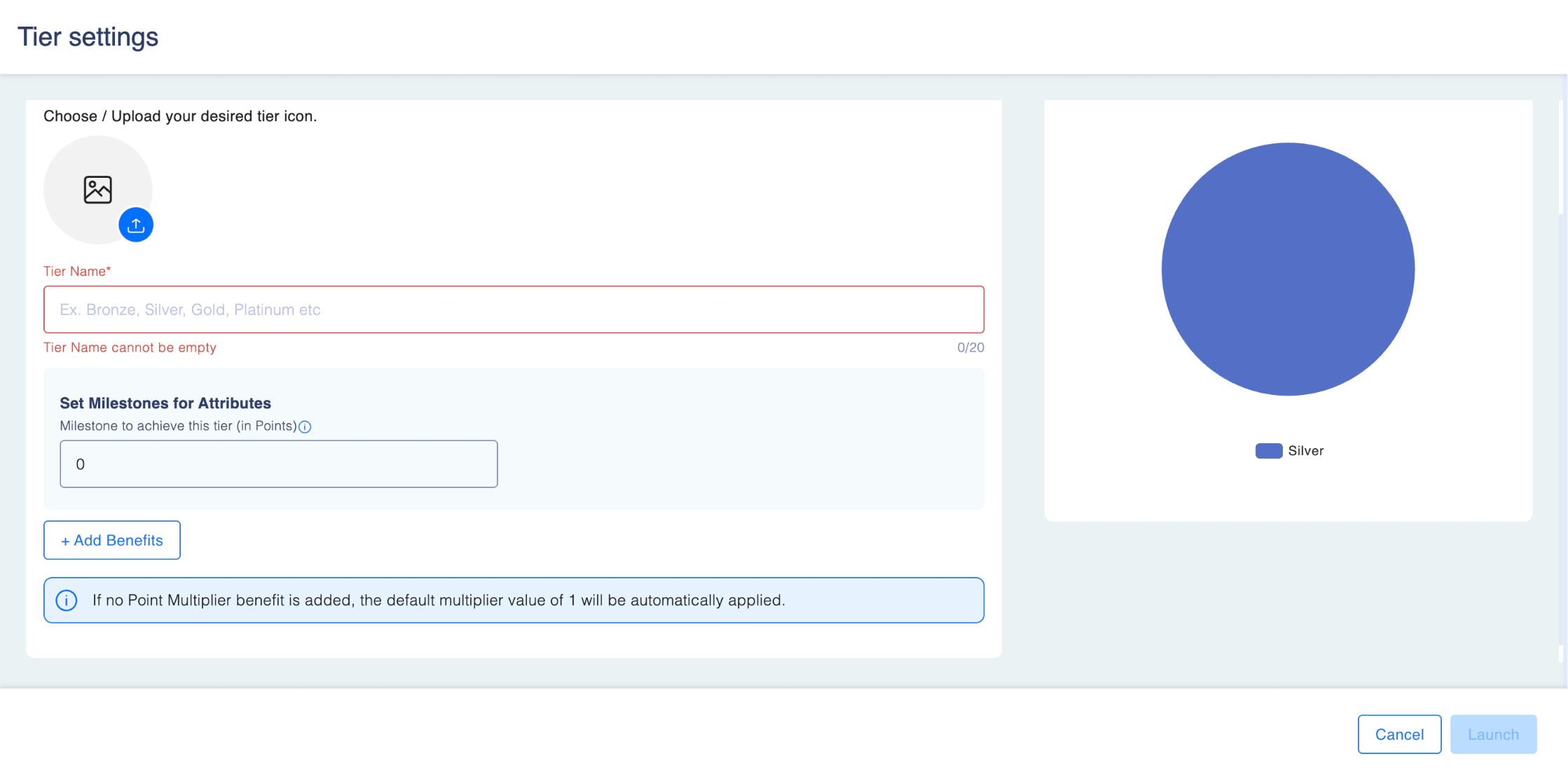
Similar to the base tier, each tier has the following fields:
- Tier Icon: This is the visual representation or symbol associated with the tier within Giift LBMS.
- Tier Name: Each tier will have a unique name that distinguishes it from other tiers. For example, Silver , Gold, Bronze, etc.
- Milestone: A milestone is a target in points that needs to be reached to progress to the next tier. It serves as a goal for users to strive towards.
- Benefits When users reach a milestone by achieving the points, they are rewarded with a bonus specified here. Please note that only new milestone-achieving members are eligible for bonus points.
- Milestone attribute: This is the attribute for the custom login on your rule engine. For example, you can apply it to the total amount in a month.
For more details read here.
Keep in mindA member tier is updated & calculated at regular intervals every day. The sync period can be customized from the backend settings.
Editing a Tier
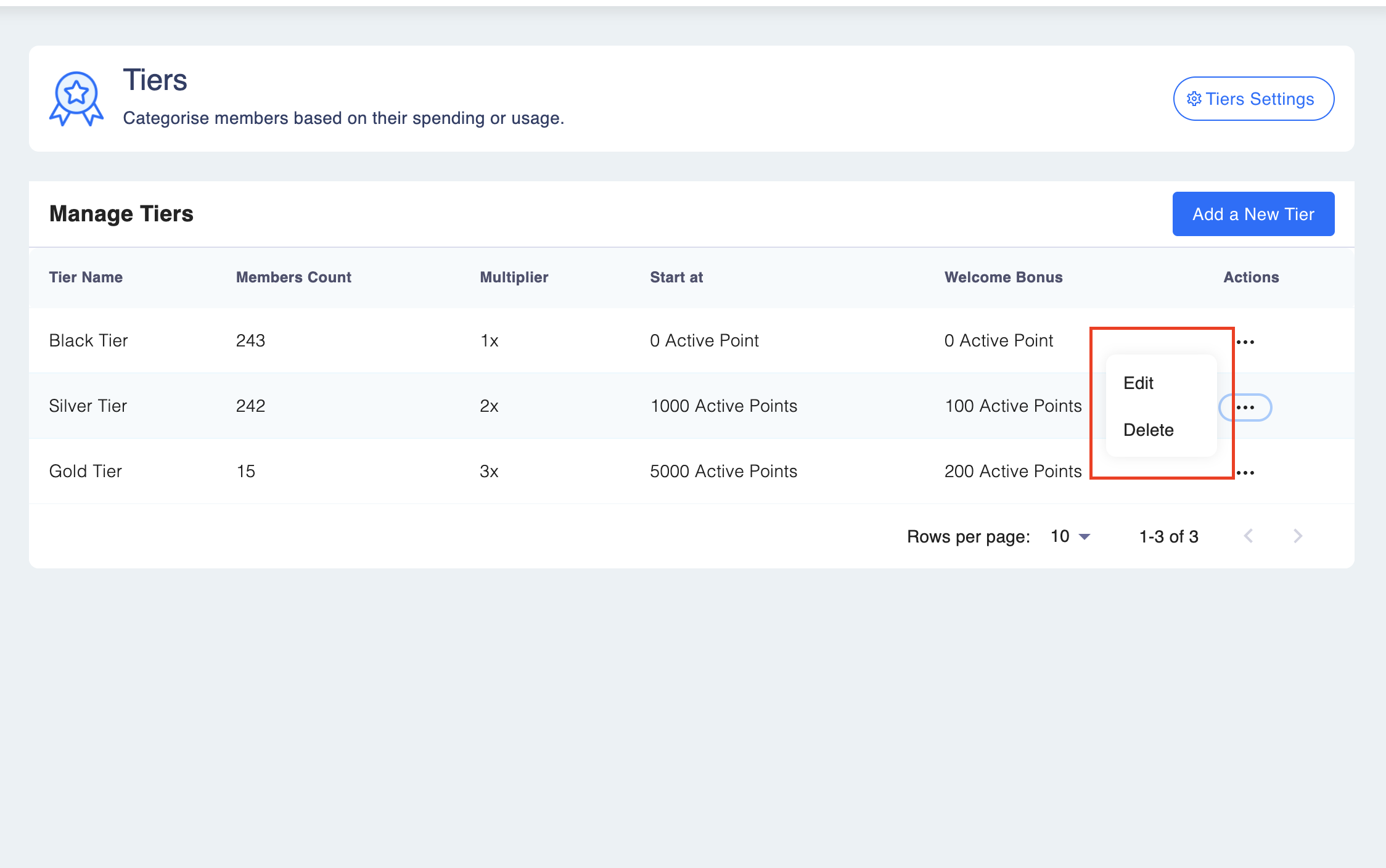
To edit an existing tier, go to Tiers ➝ Select a tier to edit ➝ Menu ➝ Edit and add the information as per the tier requirement.
Keep in mindChanges in edit information, such as milestones and milestone points, can take up to 24 hours (as per the scheduler interval) to reflect.
Deleting a Tier
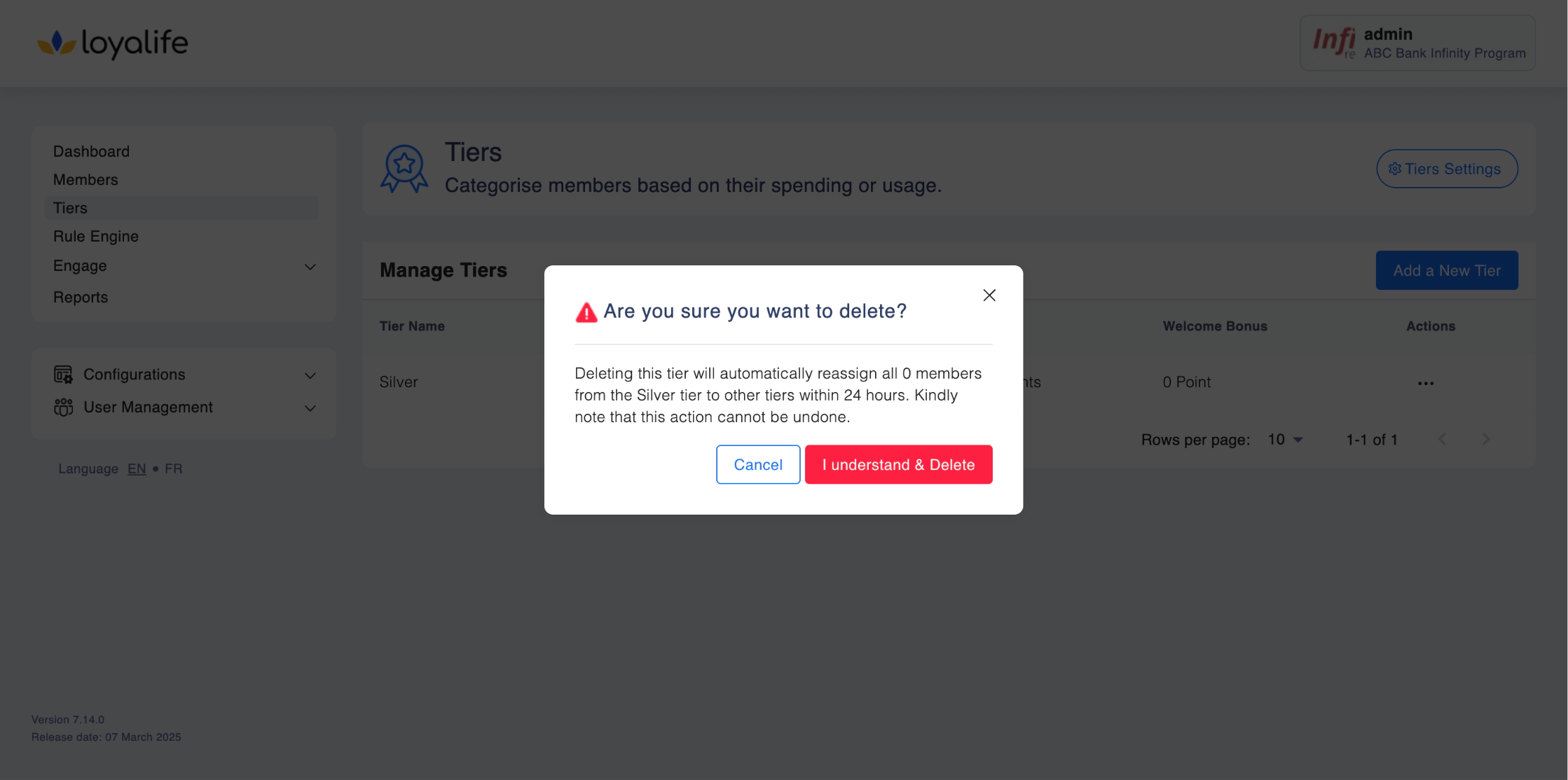
To delete an existing tier, a user should go to Tiers ➝ Select a tier to edit ➝ Menu ➝ Delete.
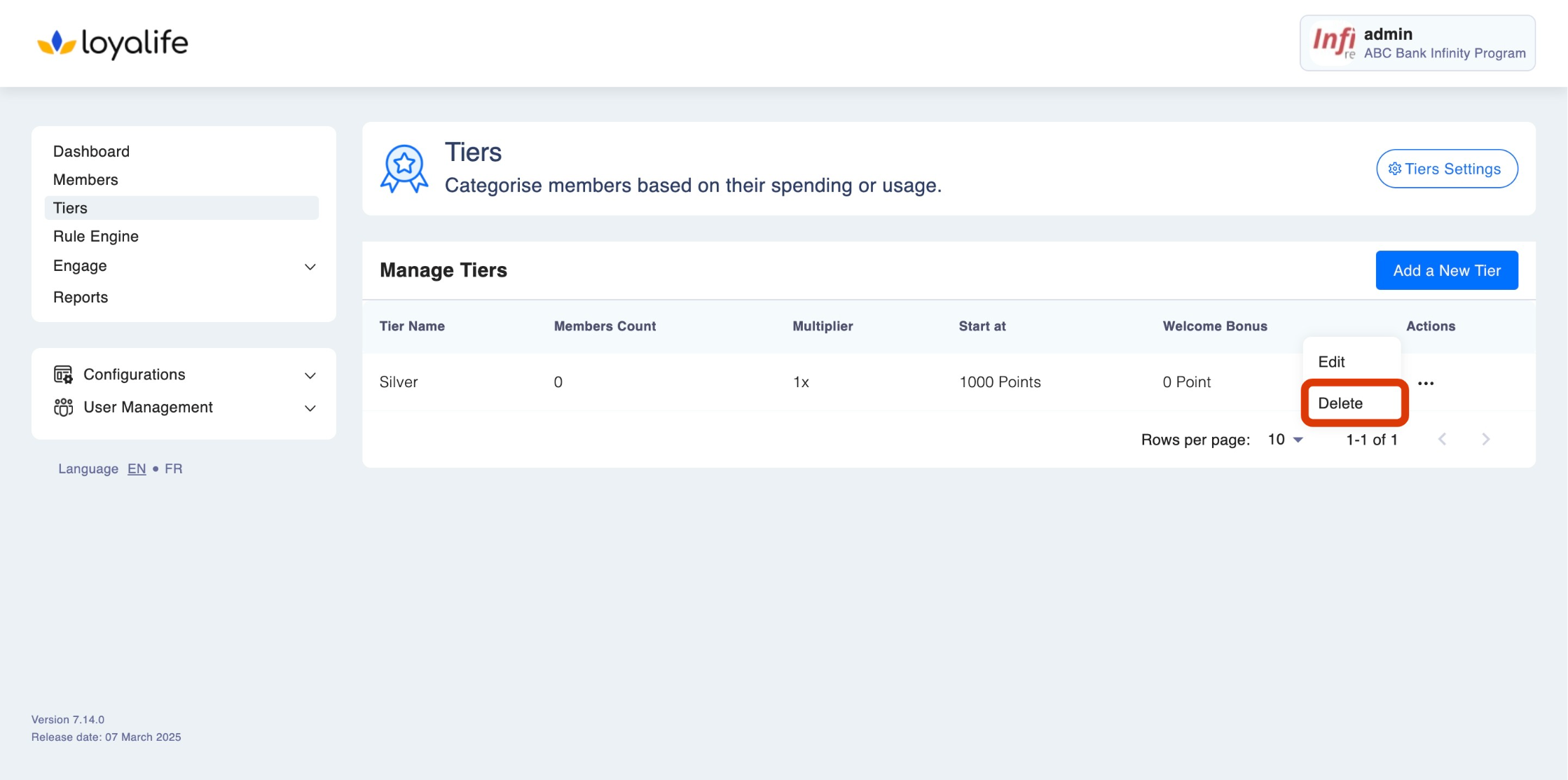
Keep in mindDeleting a tier will result in the automatic transition of all the members to the lower tier within 24 hours. Kindly note that this action is permanent and cannot be undone.
Please note: If maker checker is enabled for this workflow, you can only make changes when your request is approved.
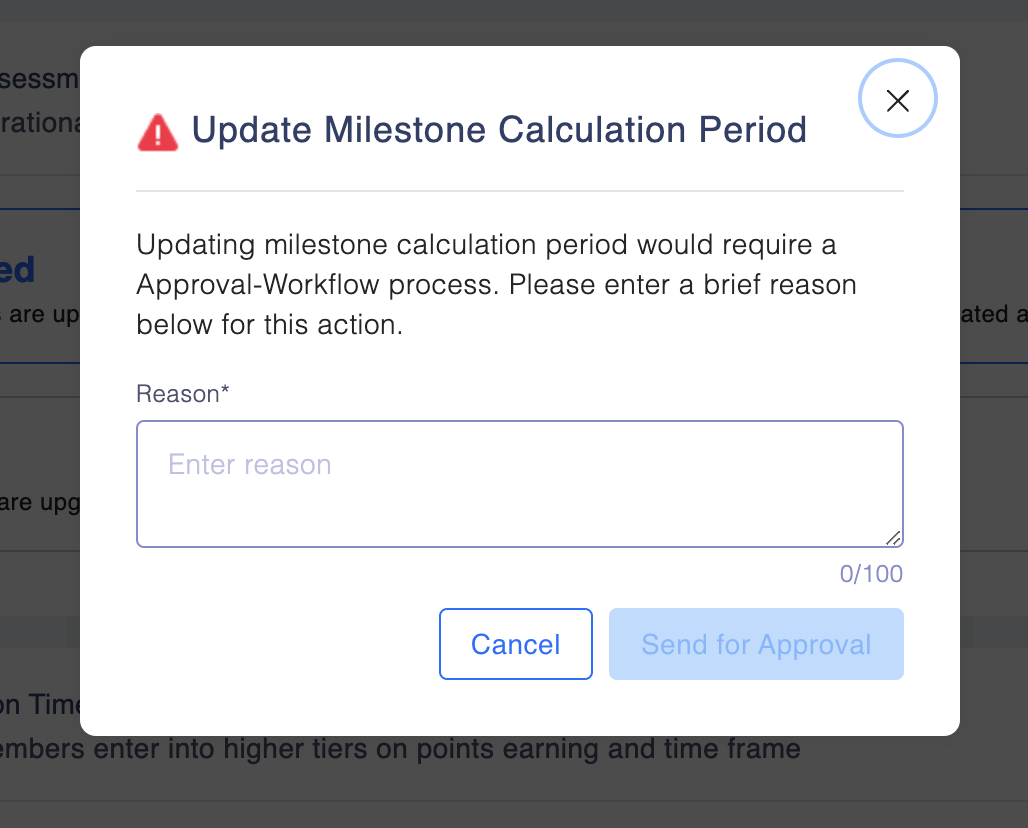
What Happens When You Change the Tier Qualification Method
Depending on your selection, the system may ask for confirmation or additional data entry to avoid misconfiguration. Here's what to expect when changing methods:
| From → To | Action Required | Warning Message | Save Behavior |
|---|---|---|---|
| Points Only → Aggregated Attribute Only | Discard all point values from tiers | “Switching to ‘Aggregated Attribute Only’ will remove all point thresholds across tiers. This action cannot be undone.” | Show confirmation modal → Proceed only on confirm |
| Points Only → Both | Attribute values must be added to all active tiers | “Please add aggregated attribute thresholds for all active tiers to continue.” | Save disabled until attribute values are filled |
| Aggregated Attribute Only → Points Only | Discard all attribute values from tiers | “Switching to ‘Points Only’ will remove all aggregated attribute thresholds across tiers. This action cannot be undone.” | Show confirmation modal → Proceed only on confirm |
| Aggregated Attribute Only → Both | Point values must be added to all active tiers | “Please add point thresholds for all active tiers to continue.” | Save disabled until point values are filled |
| Both → Points Only | Discard all attribute values | “Switching to ‘Points Only’ will remove all aggregated attribute thresholds across tiers. This action cannot be undone.” | Show confirmation modal → Proceed only on confirm |
| Both → Aggregated Attribute Only | Discard all point values | “Switching to ‘Aggregated Attribute Only’ will remove all point thresholds across tiers. This action cannot be undone.” | Show confirmation modal → Proceed only on confirm |