Editing User Roles
Learn about Editing User Roles on Loyalie
Step 1: Navigate to Access Control > Manage Team and click on the Manage roles tab. Locate the user you want to edit.
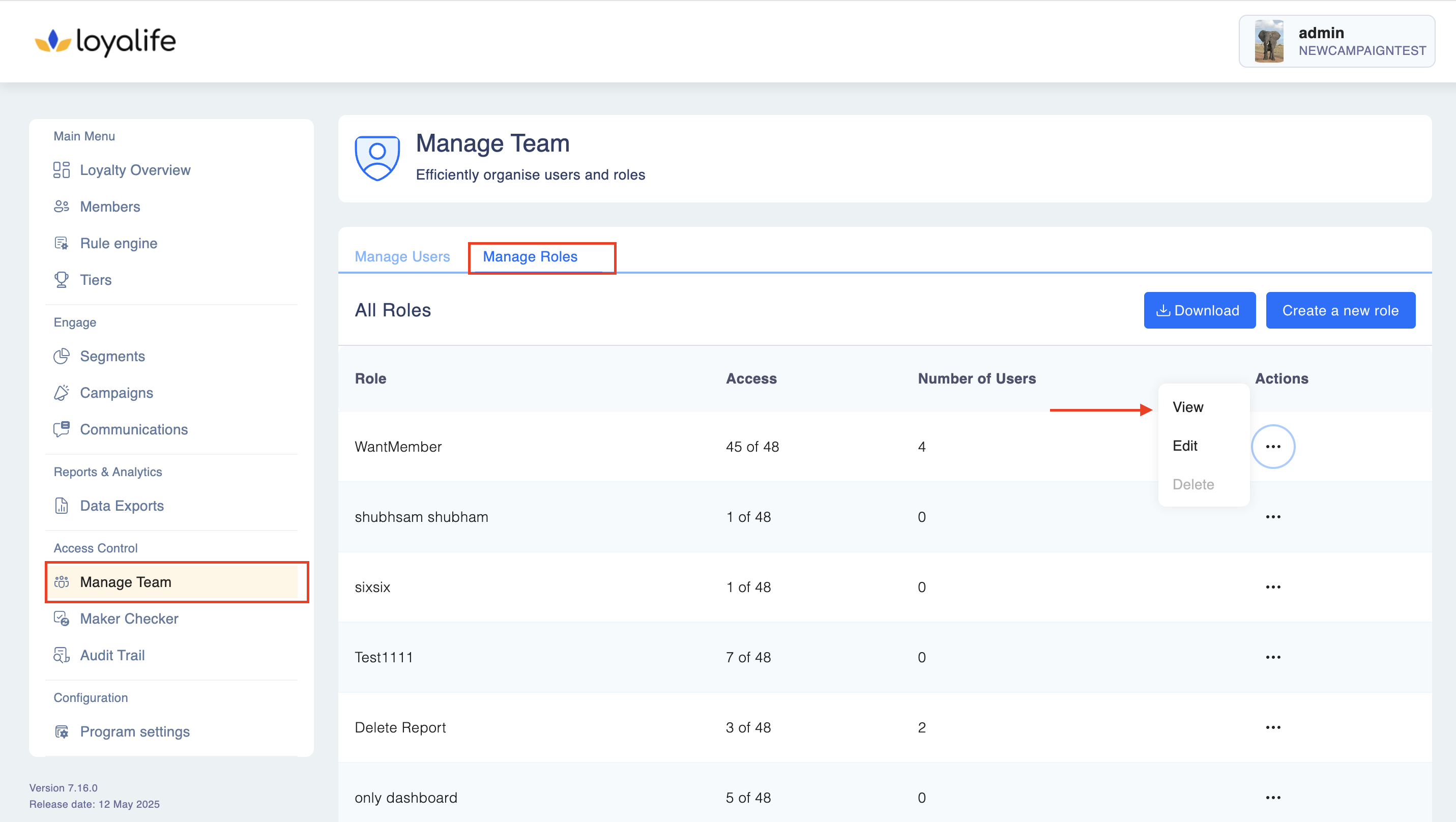
Step 2: Click on the three dots next to their name. Select the Edit button.
Note:
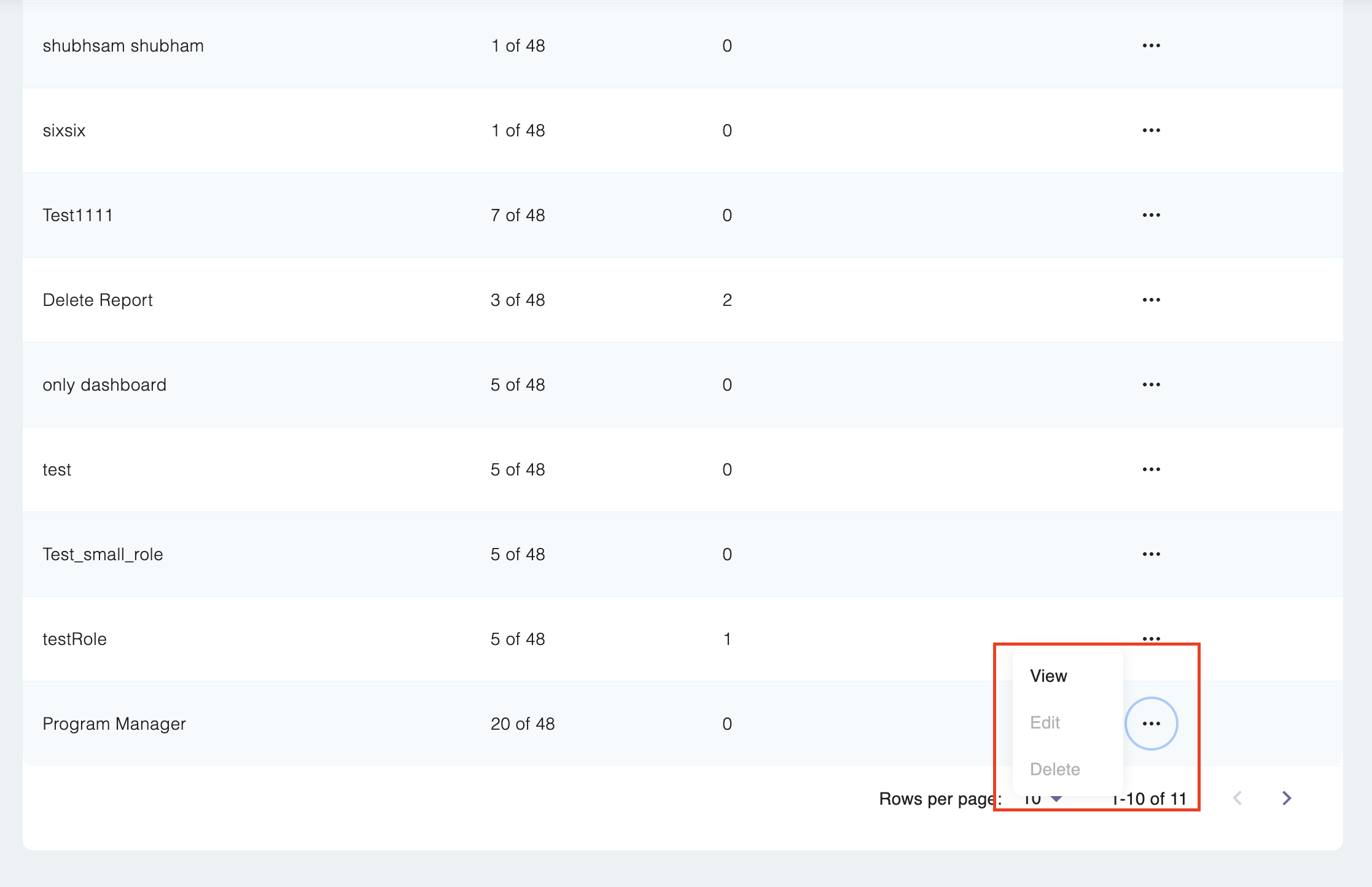
- For Default Roles: Select the View button. This allows you to see the list of assigned permissions without entering edit mode.
- For Custom Roles: Select the Edit button.
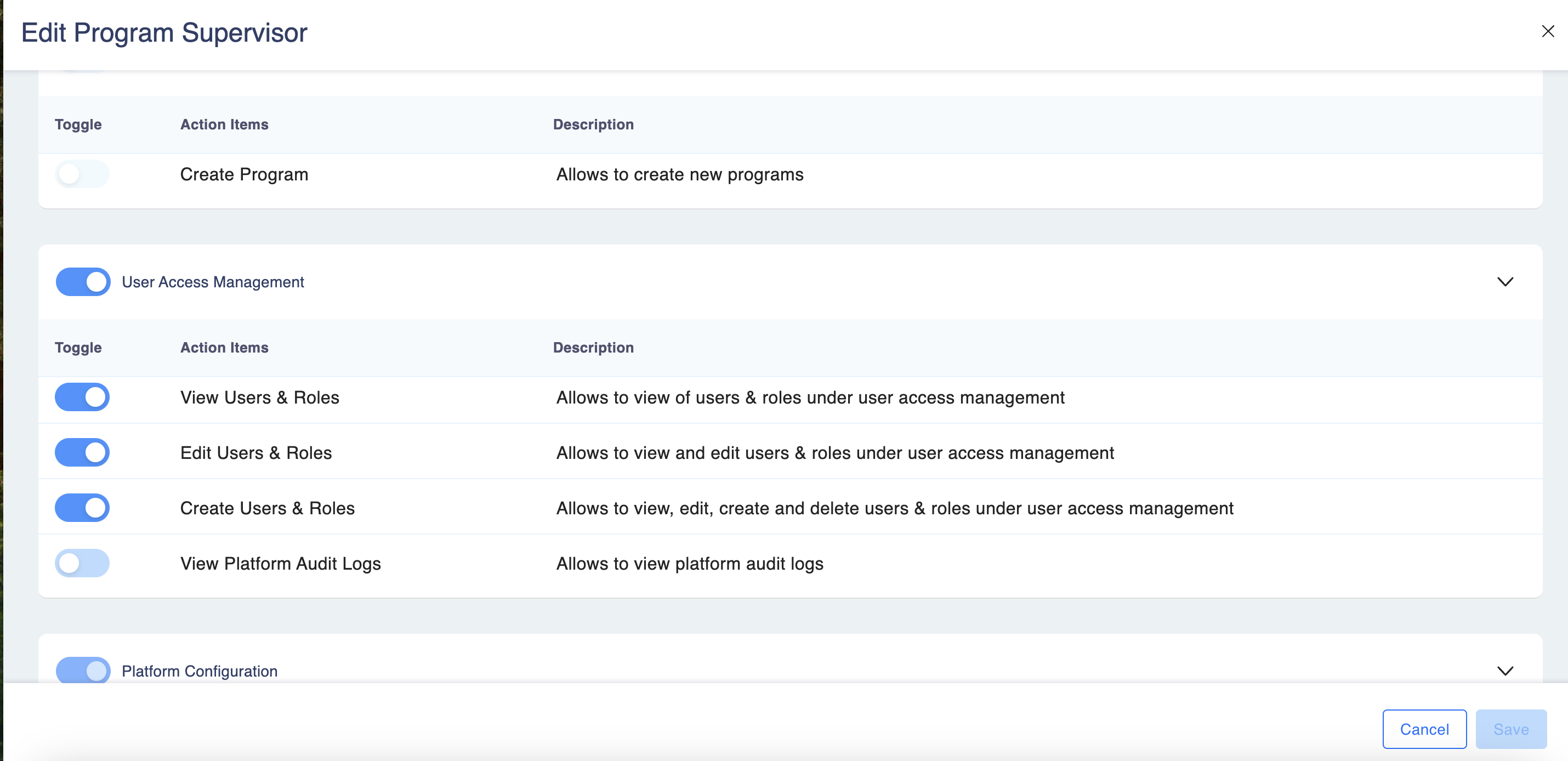
Step 3: Make the necessary changes. Click Save to apply the updates.
Please Note: The edit option is available only for Custom Roles created and not for the default roles on your Loyalife Platform.
Note on Advance Configuration: If you are creating or editing a Custom Role, the "Advance Configuration" permission will be visible. However, this permission is systematically disabled and cannot be toggled for the three default roles (Program Admin, Program Manager, and Customer Executive).