
Access Loyalife
Here's how you can access Loyalife.
User Manual for Accessing Loyalife
LOYALIFE is a secure and comprehensive platform for managing loyalty programs. It offers a wide range of features, including member management, transaction tracking, rule engine configuration, and more.
Accessing LOYALIFE requires valid login credentials and may involve additional authentication steps, such as LDAP integration, based on your organization's environment configuration.
This manual provides a step-by-step guide to accessing LOYALIFE, managing user accounts, and understanding key aspects like blocked accounts and LDAP authentication.
1. Accessing Loyalife: Login Process
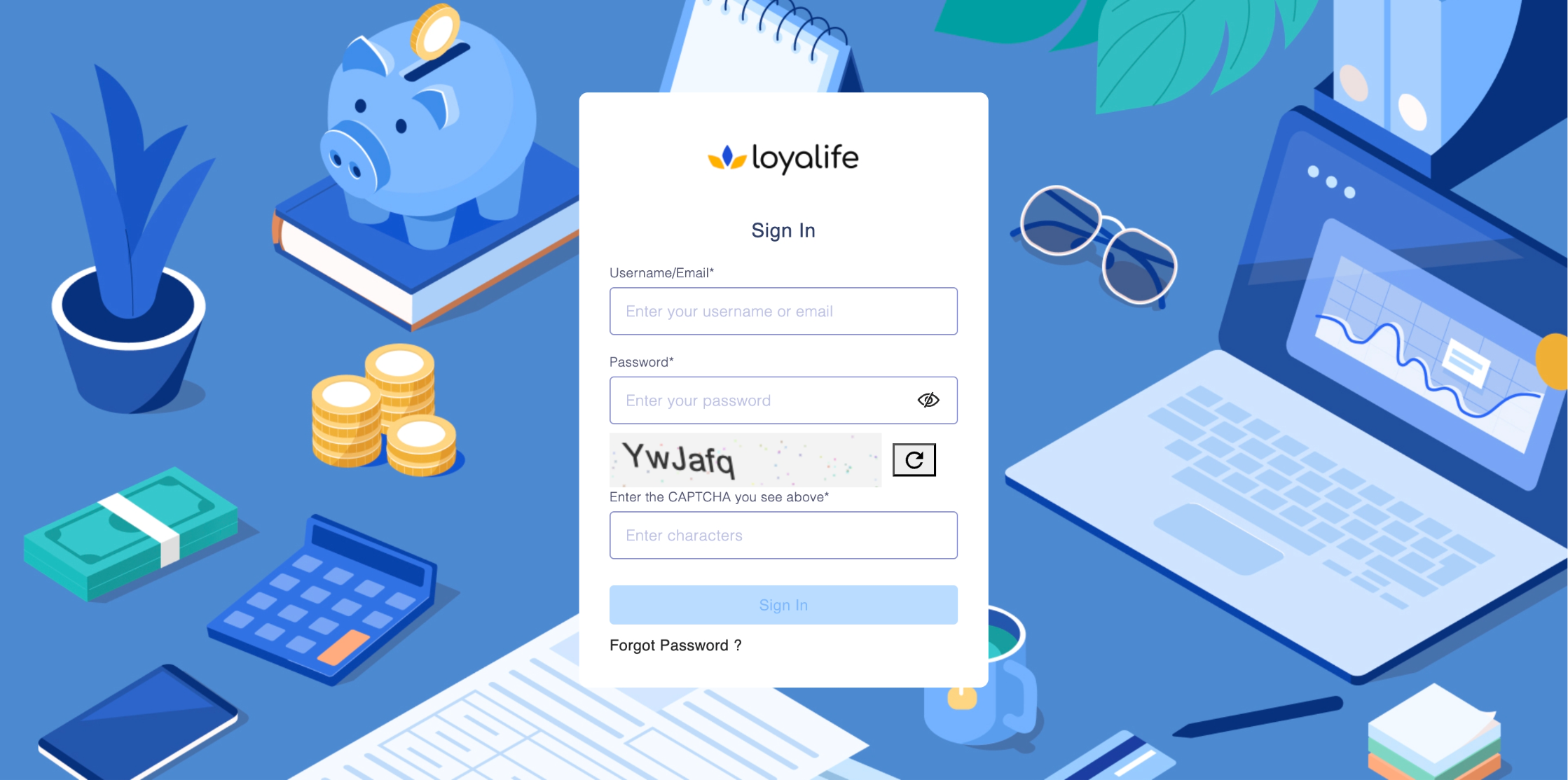
Step 1: Open the Login Page:
- Navigate to the Loyalife URL provided by your organization.
- The login screen will prompt you for a username and password.
Step 2: Enter Your Credentials:
- Username: Enter your registered username. This may be your email address or a custom username assigned by your organization.
- Password: Enter your password. You can toggle the eye icon to view the password before submitting to ensure accuracy.
Step 3: Using CAPTCHA for Secure Login (If Configured):
Depending on your organization's security configuration, the CAPTCHA requirement may be enabled or disabled.
- If CAPTCHA is enabled: You will see a 6-digit challenge on the screen. You must complete this challenge after entering your credentials. Ensure you enter the CAPTCHA within the given time frame before it expires.
- If CAPTCHA is disabled: The challenge field will be hidden, and you can proceed directly to the next step without entering a code.
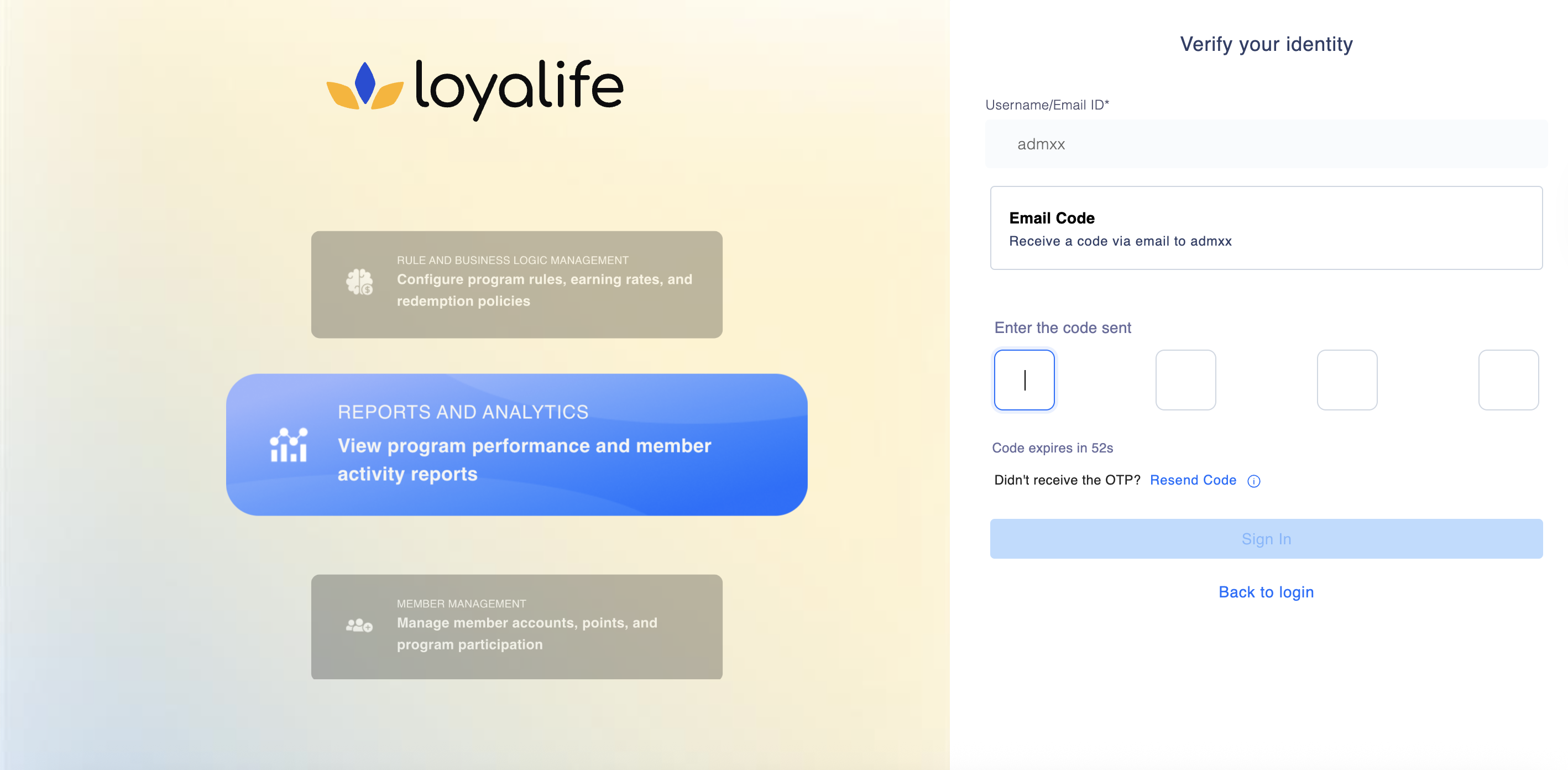
Step 4: **Enter the OTP (If 2FA is Enabled) **
If your program has Two-Factor Authentication (2FA) enabled, you will be required to verify your identity via email:
- Receive OTP: The system automatically sends a 6-digit One-Time Password (OTP) to your registered email address with the subject line "Login OTP - Valid for 60 Seconds".
- Enter OTP: Enter the code into the verification screen.
Important Rules:
- The OTP is valid for 60 seconds. If it expires, click "Resend OTP".
- You have a maximum of 5 resend attempts allowed.
- Entering an incorrect OTP 5 times will lock your session.
Step 5: **Password Reset on Inactivity (Conditional) **
- If you have not logged in for a specific duration (e.g., 30 days) as configured by your organization, the system will flag your account as inactive.
- Upon logging in, you will be redirected to the Force Password Change screen.
- You must create a new password to regain access to the dashboard.
- This ensures that dormant accounts are not left vulnerable with old credentials.
Step 6: Click Sign In:
- After entering the required information, click the Sign In button.
- If your credentials and OTP are correct, you will be redirected to Loyalife.
Step 7:Forgot Password?:
- If you’ve forgotten your password, click on the Forgot Password? link.
- Follow the prompts to reset your password by entering your email or username. A reset link will be sent to your registered email address.
2. User Access Management and Account Blockage
Xoxoday LOYALIFE includes a robust User Access Management system to ensure the proper handling of user permissions and security.
-
User Roles and Permissions:
- Different users have different roles (e.g., Admin, User Manager) in the Loyalife system, which determines what functionalities they can access.
- Permissions to view, edit, or manage certain modules are configured at the organizational level and can be assigned based on user roles.
-
Account Blockage and Suspension:
- Blocked Accounts: After several unsuccessful login attempts (as configured by your system administrator), your account may be temporarily blocked. You will need to contact your Loyalife program admin to have your account unblocked.
- Administrators can block accounts manually for security reasons. If your account is blocked, you will not be able to log in until an administrator reactivates your account.
- In case of multiple failed attempts, you might also be required to reset your password before attempting to log in again.
-
Audit Trails and Logs:
- Loyalife tracks user activity in audit logs, including login attempts, password changes, and account status changes (such as block or unblock actions). This is to ensure system security and proper auditing.
- Administrators with proper permissions can access audit logs in the User Management section to review any unauthorized access attempts or security risks.
3. LDAP Authentication in Loyalife
If your organization uses LDAP (Lightweight Directory Access Protocol) authentication for Loyalife, the login process slightly differs as it integrates with your organization’s existing directory service. This ensures centralized authentication and simplifies user management across multiple applications.
-
LDAP Login Process:
- If LDAP is enabled, the login process is the same, but your credentials will be authenticated against the LDAP server, not directly against Loyalife.
- You will use the same username and password that you use for your organization's other services (such as email, VPN, etc.).
-
Password Reset:
- If LDAP is enabled, password reset functionality is not available within Loyalife. Instead, you will need to reset your password through your organization’s IT service or through their designated password management tool.
-
LDAP Configuration and Impact on User Management:
- When LDAP is enabled, certain functionalities related to user management within Loyalife may be disabled (e.g., setting or resetting passwords within Loyalife).