
Create a Communication Template
Learn how to create a communication template on Loyalife.
Follow these step-by-step instructions to create a template:
Step 1: To add a communication template in the communication module, go to Engage ➝ Communication ➝ Create Template.
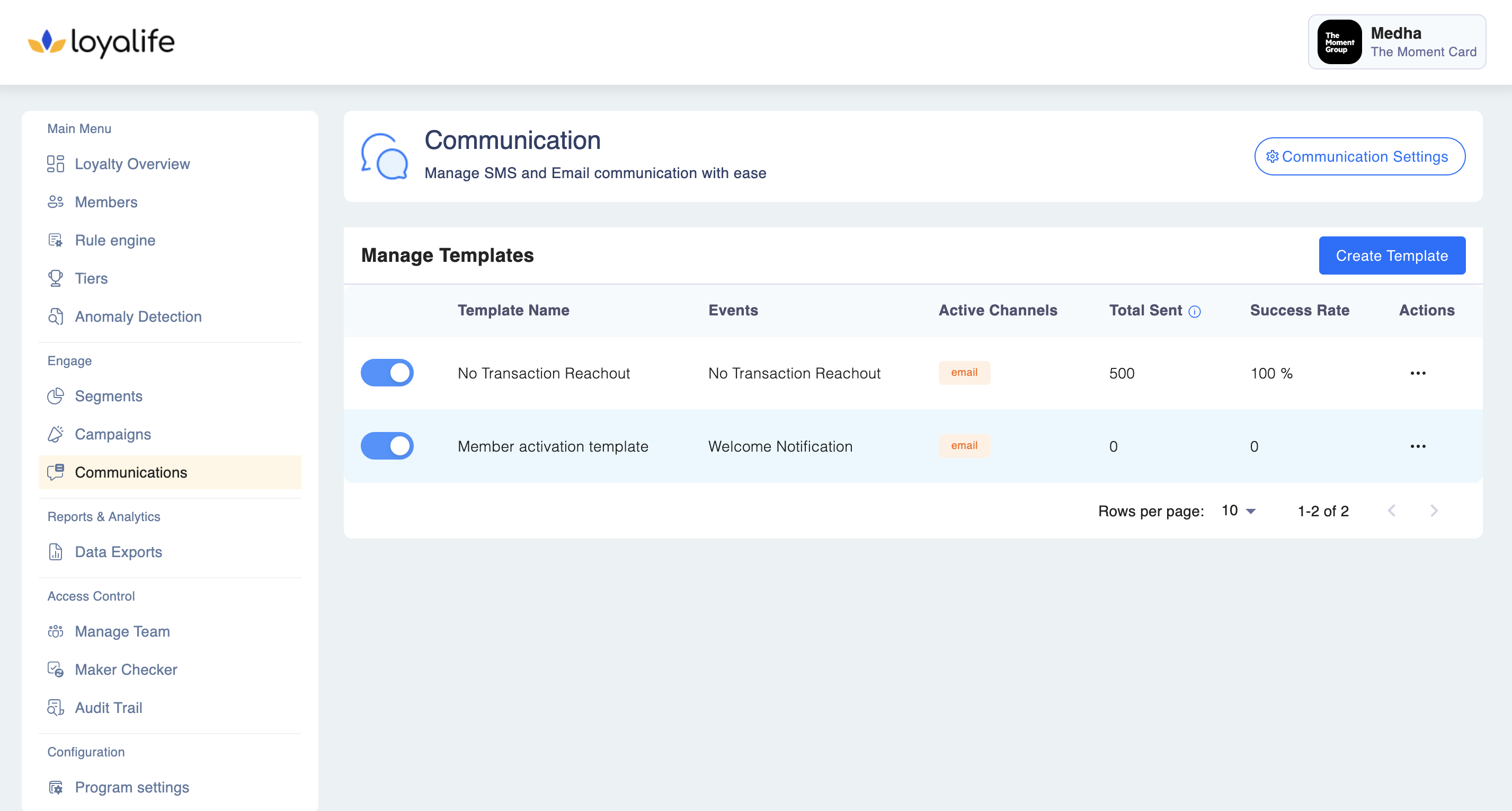
Step 2: Add a unique Template Name.
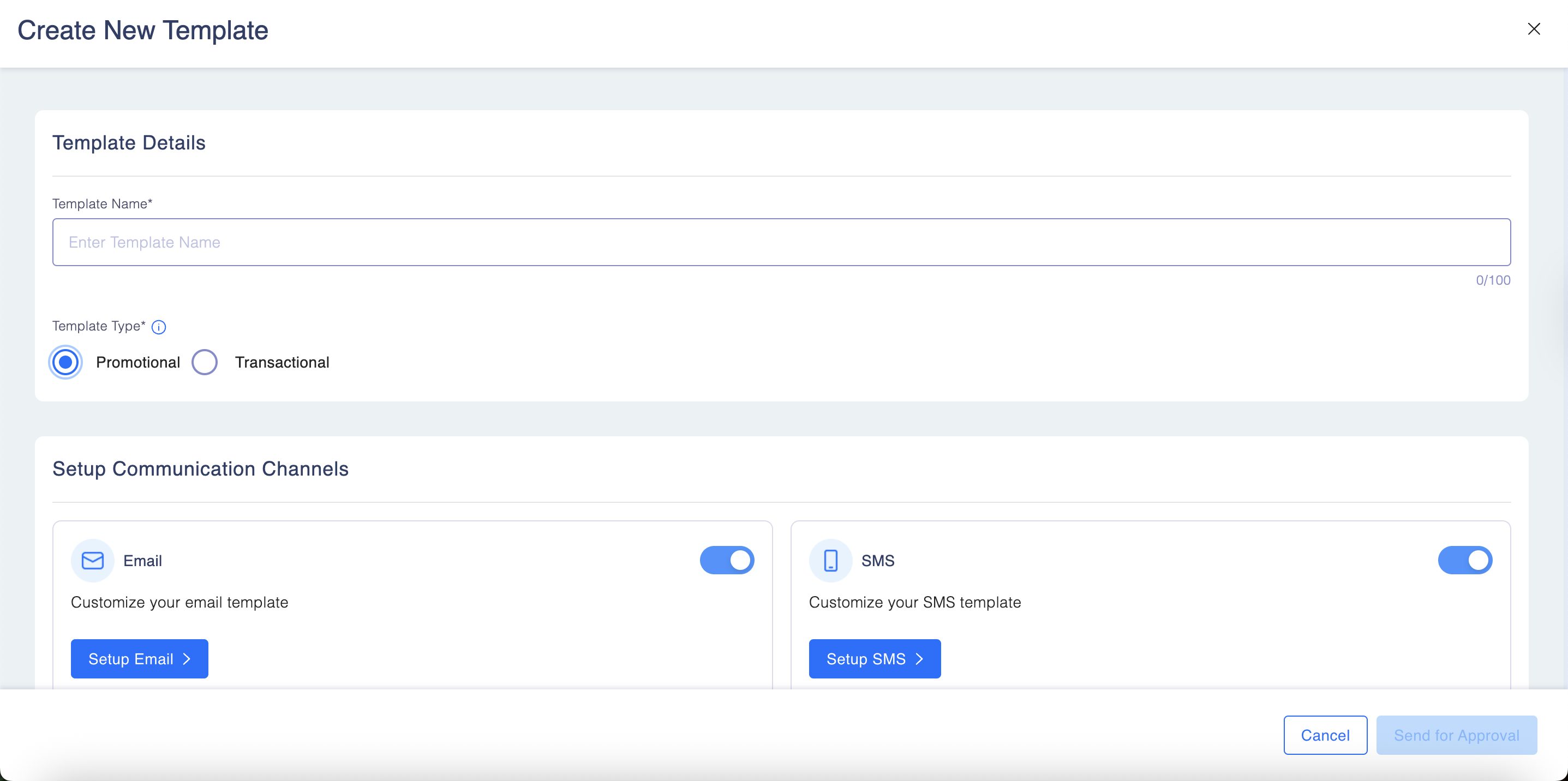
Step 3: Select the appropriate Template Type, either Promotional orTransactional.
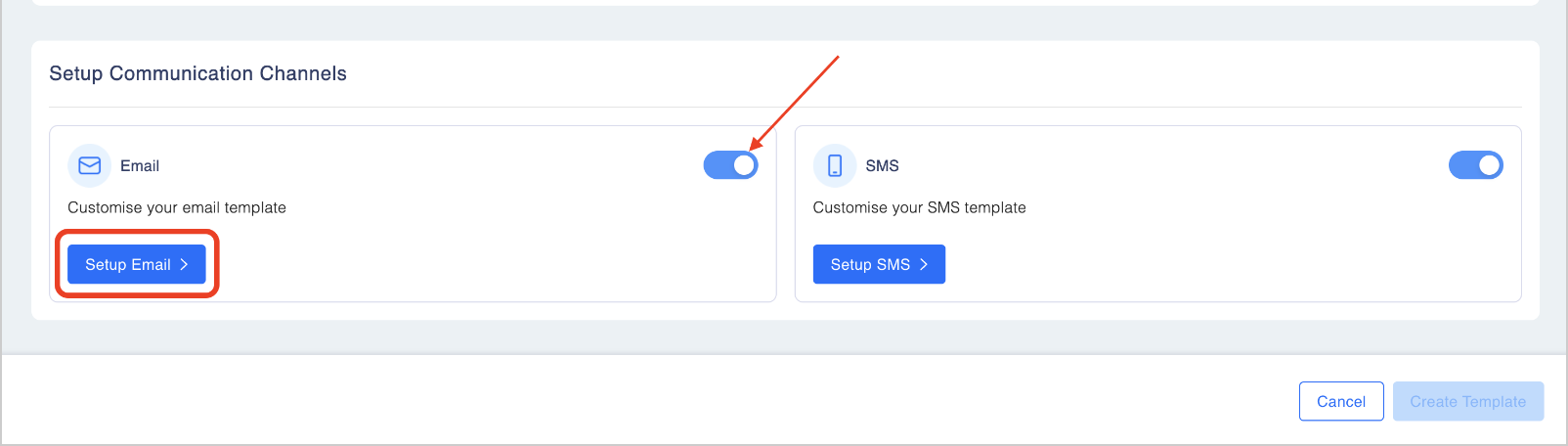
Step 4: Enable or disable the email channel for the template and customize the email template.
Step 5: Email Template
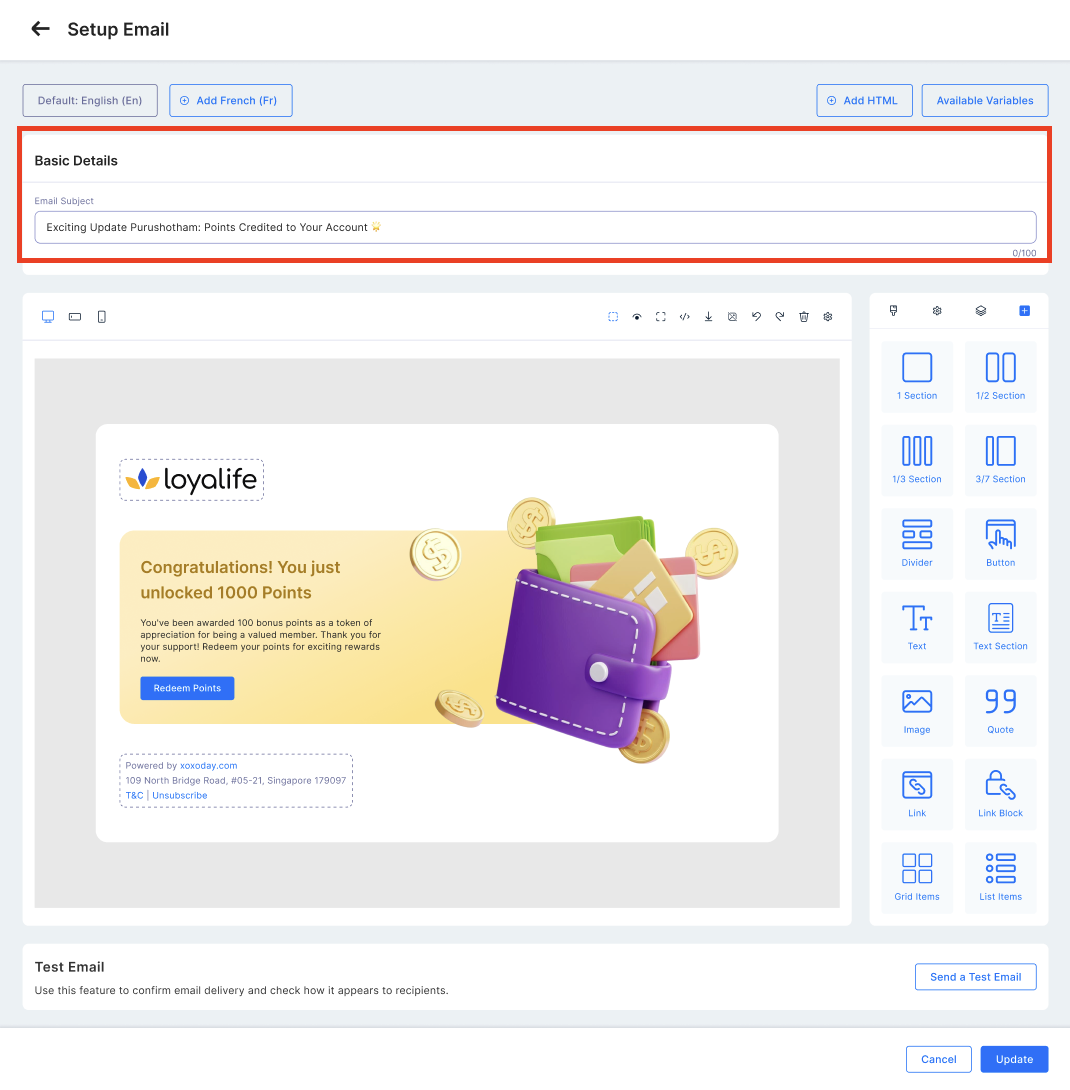
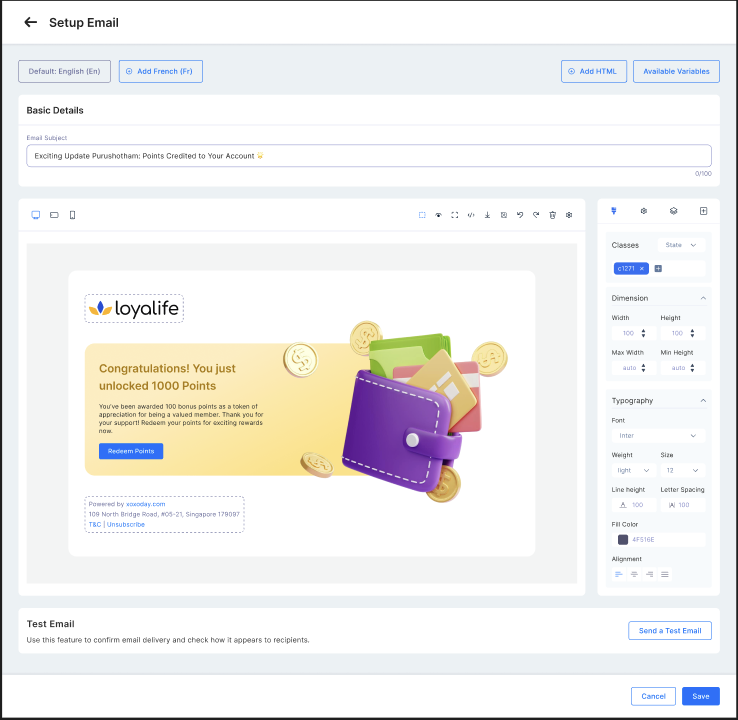
The new visual editor allows you to design professional, branded emails without writing code. The interface is divided into the Canvas (Live Preview) and the Manager (Right Panel).
- Designing the Layout (Blocks):
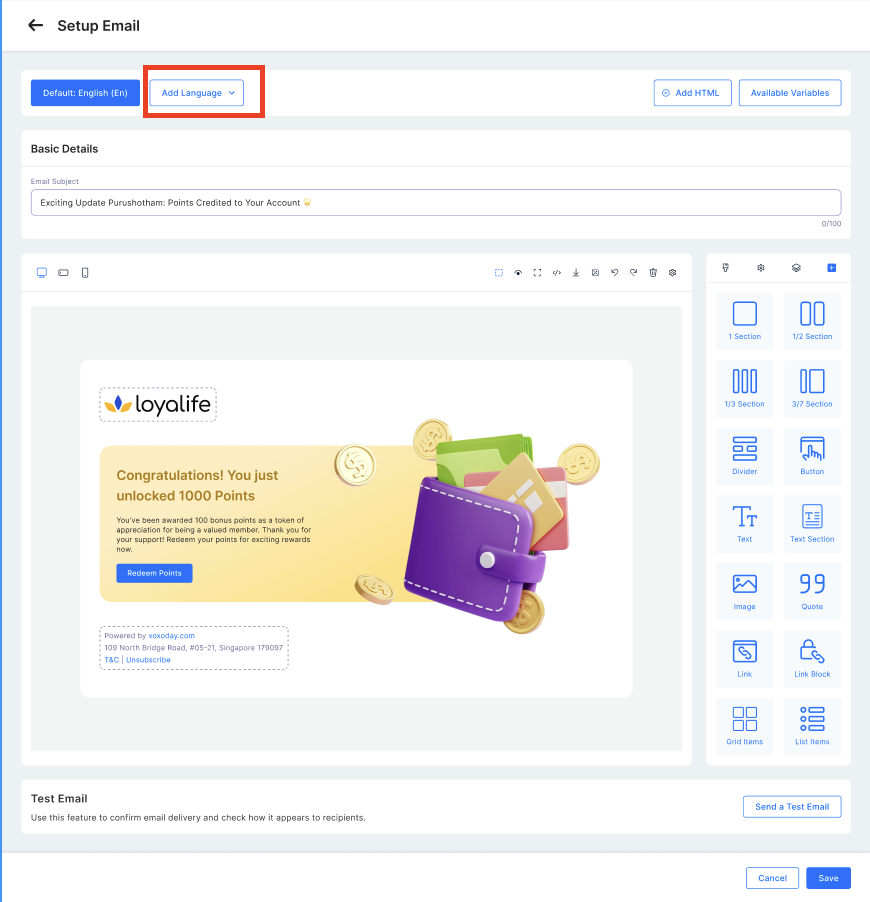
- Open the 'Blocks' tab on the right panel.
- Drag elements (e.g., Text, Image, Button, Divider, Social Links) from the panel and drop them onto the canvas.
- Styling Elements:
- Click on any element in the canvas (e.g., a button) to select it.
- Click the 'Style Manager' (Paintbrush icon) on the right to adjust fonts, colors, dimensions, and borders.
- Multilingual Support:
- Design your template in the primary language first.
- Switch to a secondary language using the language dropdown.
- There are 10 configured languages and the user can add content for each configured language.
-
The system automatically copies the layout and content from the primary language. You simply need to translate the text.
-
Preview & Test:
- Use the Desktop, Tablet, and Mobile icons at the top to preview how the email looks on different devices.
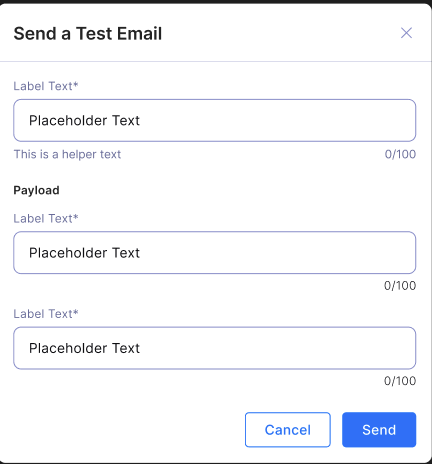
- Click 'Send Test' to send a proof email to your inbox.
SMS Template
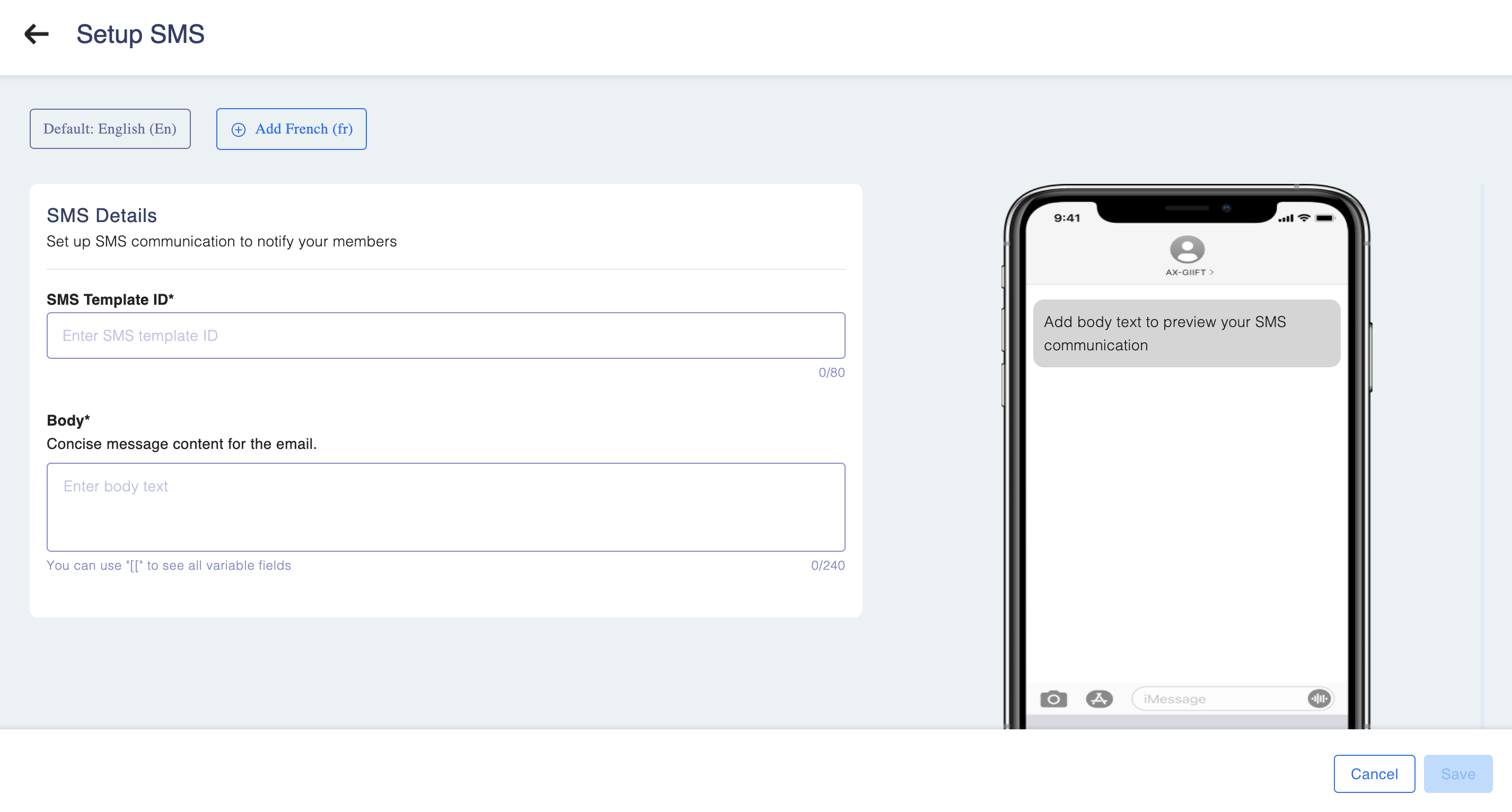
Similarly, customize the SMS Template Content by enabling or disabling SMS for the template.
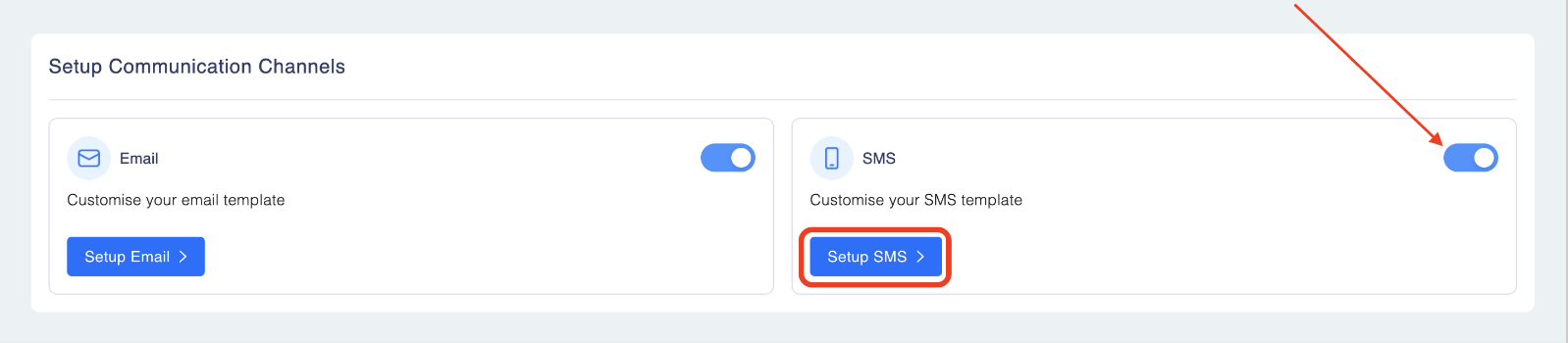
- Provide a template ID registered with your vendor add the message in the "Body" section of the template.
WhatsApp Template
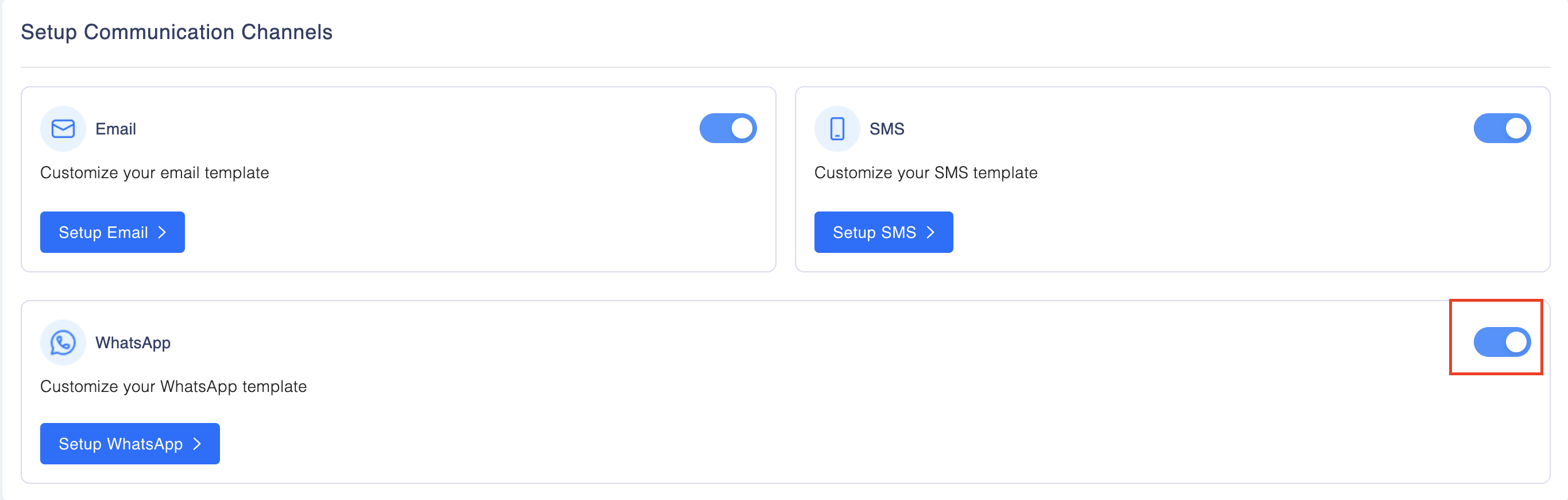
Similarly, you can enable the WhatsApp channel to create messages for users on WhatsApp.
- Enable Channel: Toggle the WhatsApp option to ON.
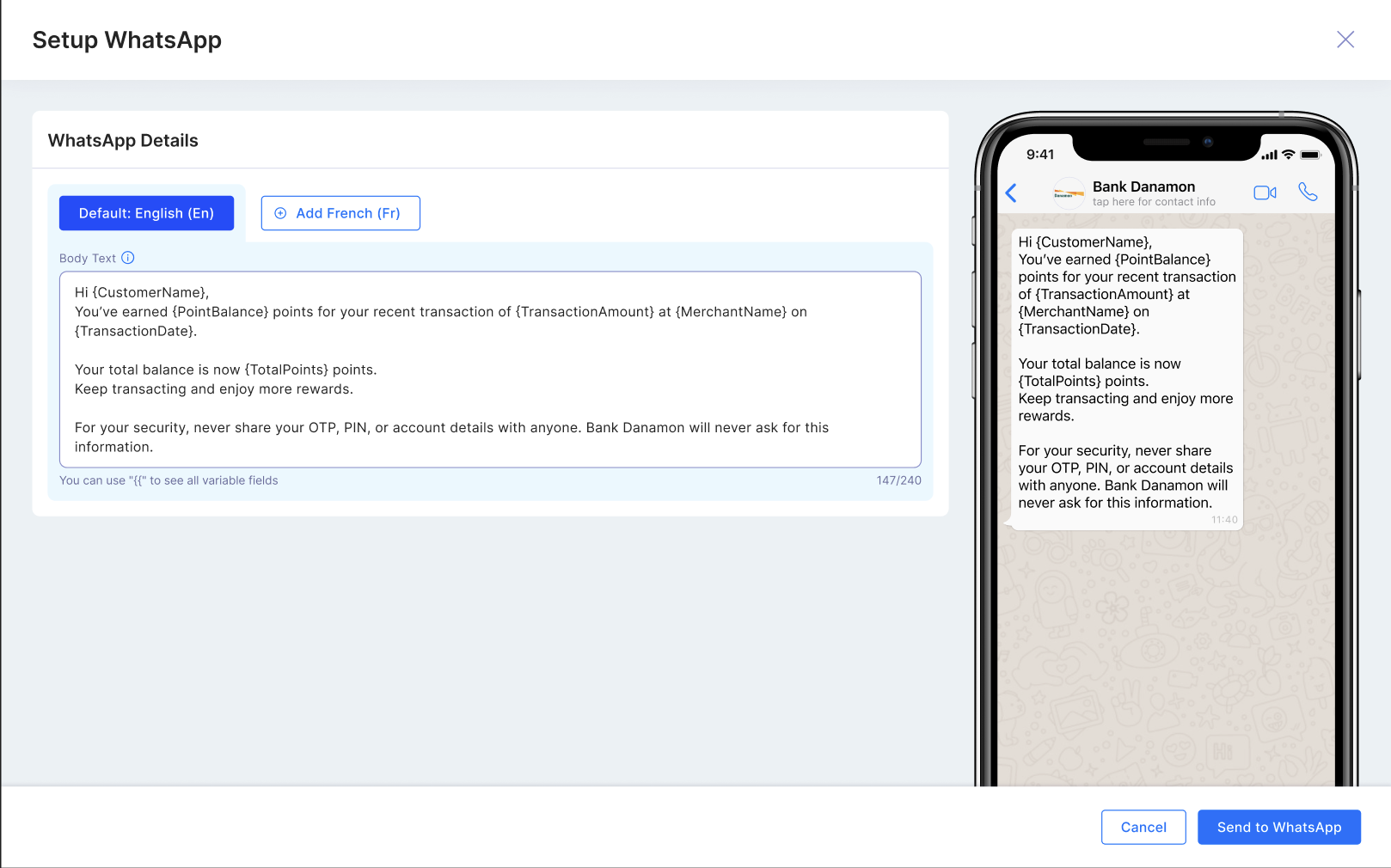
- Select Language: Choose the specific language for your message from the dropdown. This must match the language set in your program settings.
- Body Content: Enter your message text in the box.
- Note:
- Currently, only text-based messages are supported.
- Approval Status: Unlike Email and SMS, WhatsApp templates require approval from Meta.
- On creating the template, the status moves to "Pending for Approval".
- The template cannot be used in a campaign until the status changes to "Approved".
- If a template includes Email, SMS, and WhatsApp, the entire template is blocked from use until the WhatsApp version is approved.
How to add a custom field using "#" for Email, SMS and Whats app?
To include custom variables in the template content of Email, SMS and WhatsApp, follow these steps:
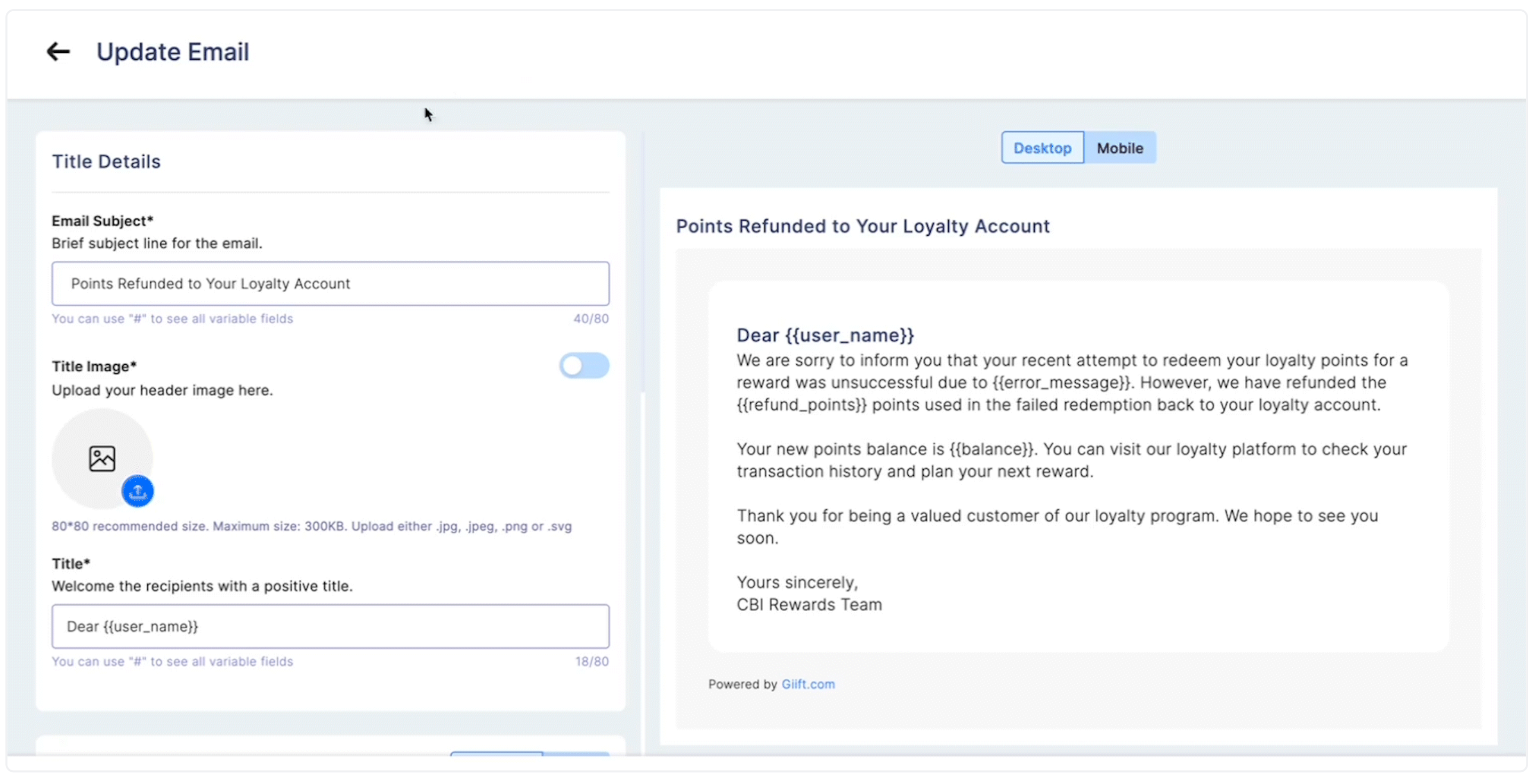
- While editing the email, SMS and WhatsApp template, type "#" in the edit box.
- The system will display a list of available fields that can be used in the template.
- Choose the desired field and incorporate it into the template content.
Keep in mindIf a field has no value, it will be sent as empty in the email or SMS content.
How to add a custom field (Variables)?
For Email (New Editor):
- Click the "Variables" dropdown at the top of the editor.
- Locate the desired field (e.g., First Name, Point Balance).
- Click the Copy icon next to the variable.
- Click inside your text block on the canvas and Paste (Ctrl+V) the variable.
What is a list of available custom fields in the Email & SMS content?
| Field Name | Field Scope |
|---|---|
| First Name | Member |
| Last Name | Member |
| Member Id | Member |
| Member Status | Member |
| Member Tier Name | Member |
| Available Point Balance | Member |
| Organisation Name | Program |
| Organisation Address | Program |
| Organisation Website | Program |
| Program Name | Program |
| Marketplace URL | Program |
| Transaction Id | Transaction |
| Transaction Id | Transaction |
| Transaction Amount | Transaction |
| Product Code | Transaction |
| Sub Product Code | Transaction |
| Processing date | Transaction |
| Point Issued | Transaction |
| Narration | Transaction |
| Campaign Name | Transaction |
| Campaign Bonus Point Value | Campaign |