
Adding Aggregate Attributes
Navigation Path
Go to:
Rule Engine > Click on the Settings icon (⚙️) > Locate the Aggregate Attributes card
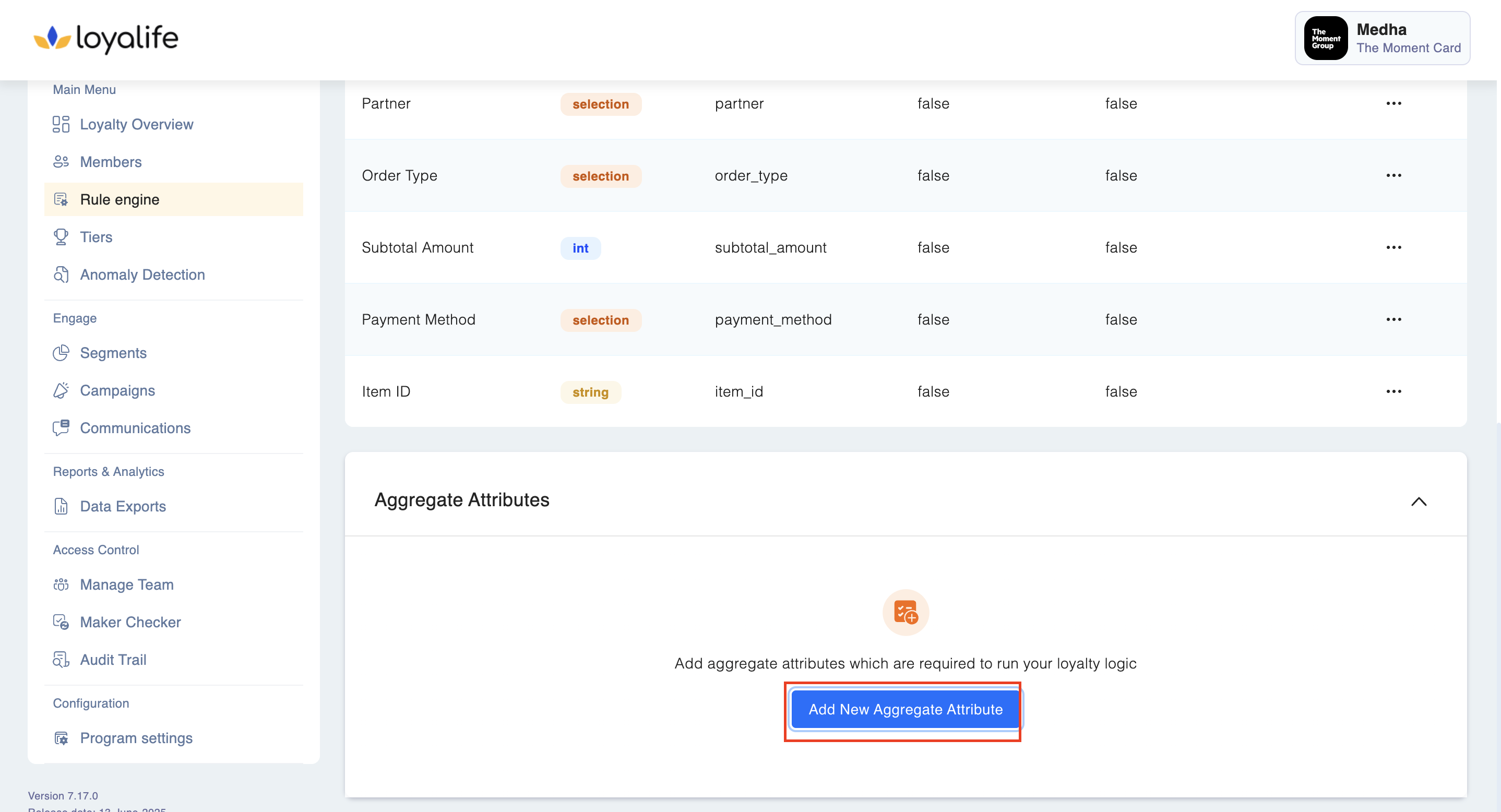
Step 1: Click on 'Add Aggregate Attribute'
Click on the "Add Aggregate Attribute" button to begin creating a new attribute.
Step 2: Fill in Attribute Details
You will see a form where you need to provide the following:
2.1 Attribute Name
Give a name for your aggregate attribute (this is a mandatory field).
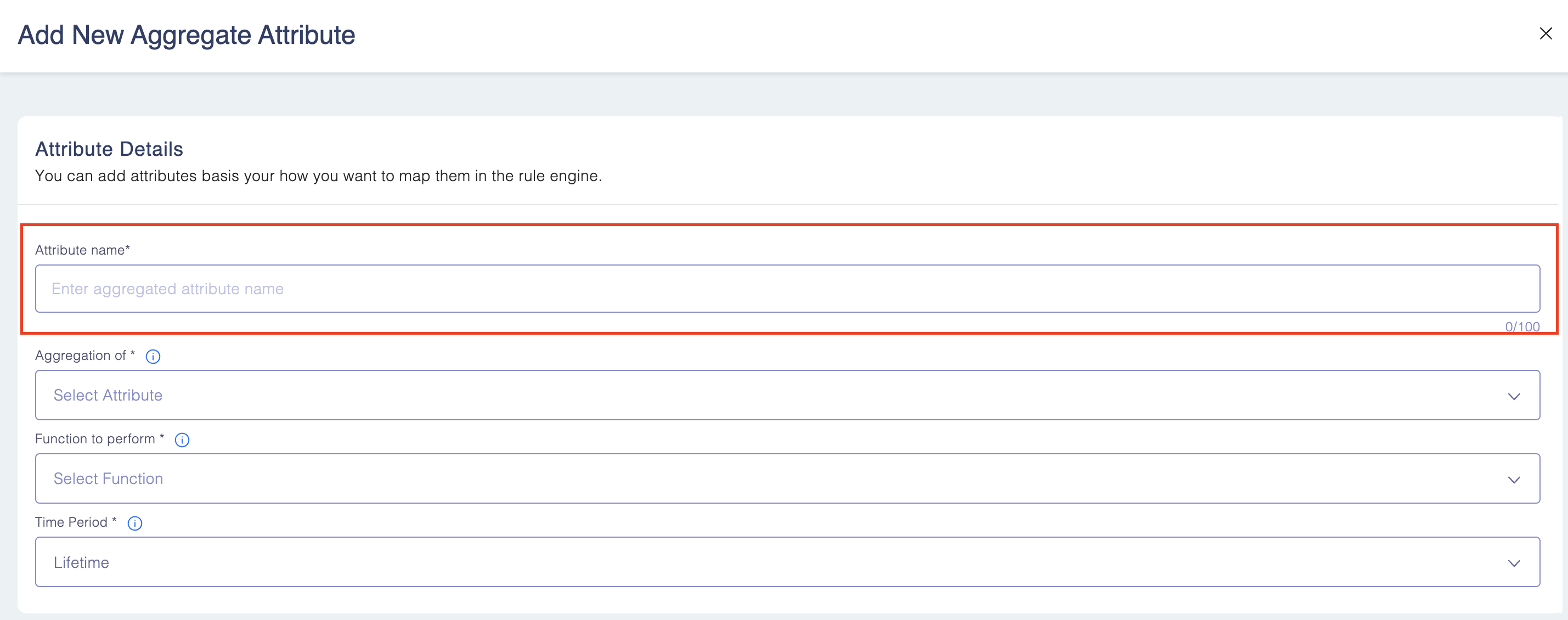
****2.2 Define Aggregation **of **
Choose an integer (int) or float type field that will be aggregated over a sepcific time period.
This field will be the basis for calculations. There are two options to select here
2.2.1
- Transaction Amount
- Subtotal Amount
For example:
Total Spend (Sum) → Aggregates "Transaction Amount" over a selected period.
Number of Flights (Count) → Aggregates "Flight Bookings" over a selected period.
Average Hotel Nights (Avg) → Aggregates "Hotel Nights Stayed" over a selected period.

2.3 Function to Perform
The "Function to Perform" determines how the selected attribute will be aggregated over the defined time period. This function defines the type of calculation applied to the attribute values.
Available Functions & Their Meanings:
For example:
- Sum → Adds up all values of the selected attribute.
Example: Total transaction amount spent in the last 30 days. - Count → Counts the number of occurrences of the selected attribute.
Example: Number of transactions made in the past month. - Maximum → Captures the highest value of the selected attribute.
Example: Highest single transaction amount in a quarter. - Minimum → Captures the lowest value of the selected attribute.
Example: Smallest deposit made in a savings account over the last year. - Average → Calculates the mean (sum of all values divided by the count).
Example: Average flight miles traveled per month.

2.4 Time Period
The "Time Period" determines the range over which the selected attribute will be aggregated. This defines how far back the system will look to calculate the aggregation.
- Lifetime → Aggregates values from the beginning of the member's enrollment until today.
Example: Total amount spent by a member since joining the program. - Month to Date (MTD) → Aggregates values from the 1st day of the current month until today. Resets on the 1st of every new month.
Example: Total hotel nights booked since the start of this month. - Quarter to Date (QTD) → Aggregates values from the 1st day of the current quarter until today. Resets on April 1st, July 1st, October 1st, and January 1st.
Example: Highest deposit made in a savings account this quarter. - Year to Date (YTD) → Aggregates values from January 1st of the current year until today. Resets on January 1st every year.
Example: Number of transactions processed since the start of the year. - Rolling → Aggregates values dynamically over a moving window of the past 365 days from today’s date.
Example: Average spending in the last 365 days (rolling window).

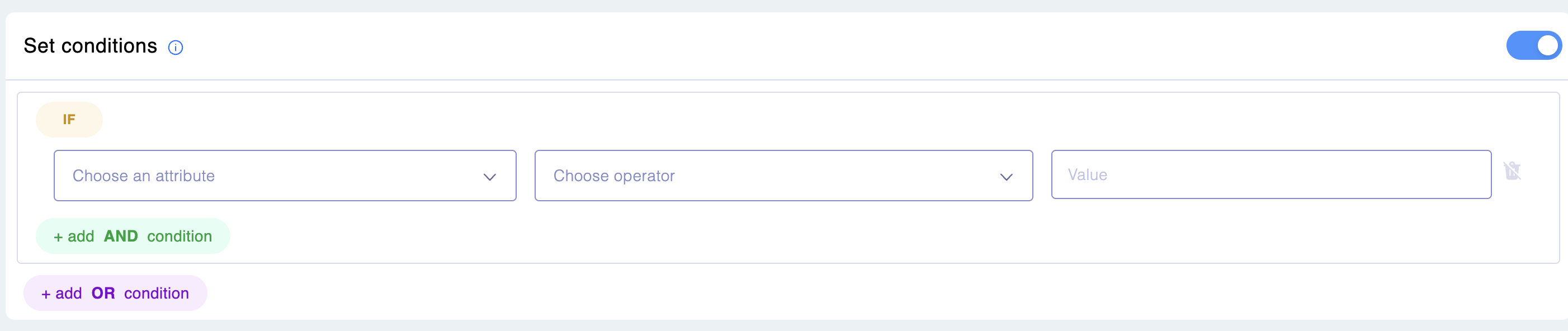
2.5 Set Conditions
Conditions allows you to filter the data included in the aggregation. By setting conditions, you can specify which transactions or activities should be considered when calculating the aggregated attribute.
Simply use the toggle to enable. You can then IF and OR conditions.
Once done, Save the details.