Lock & Unlock Users
Learn about locking and unlocking a user on Loyalife
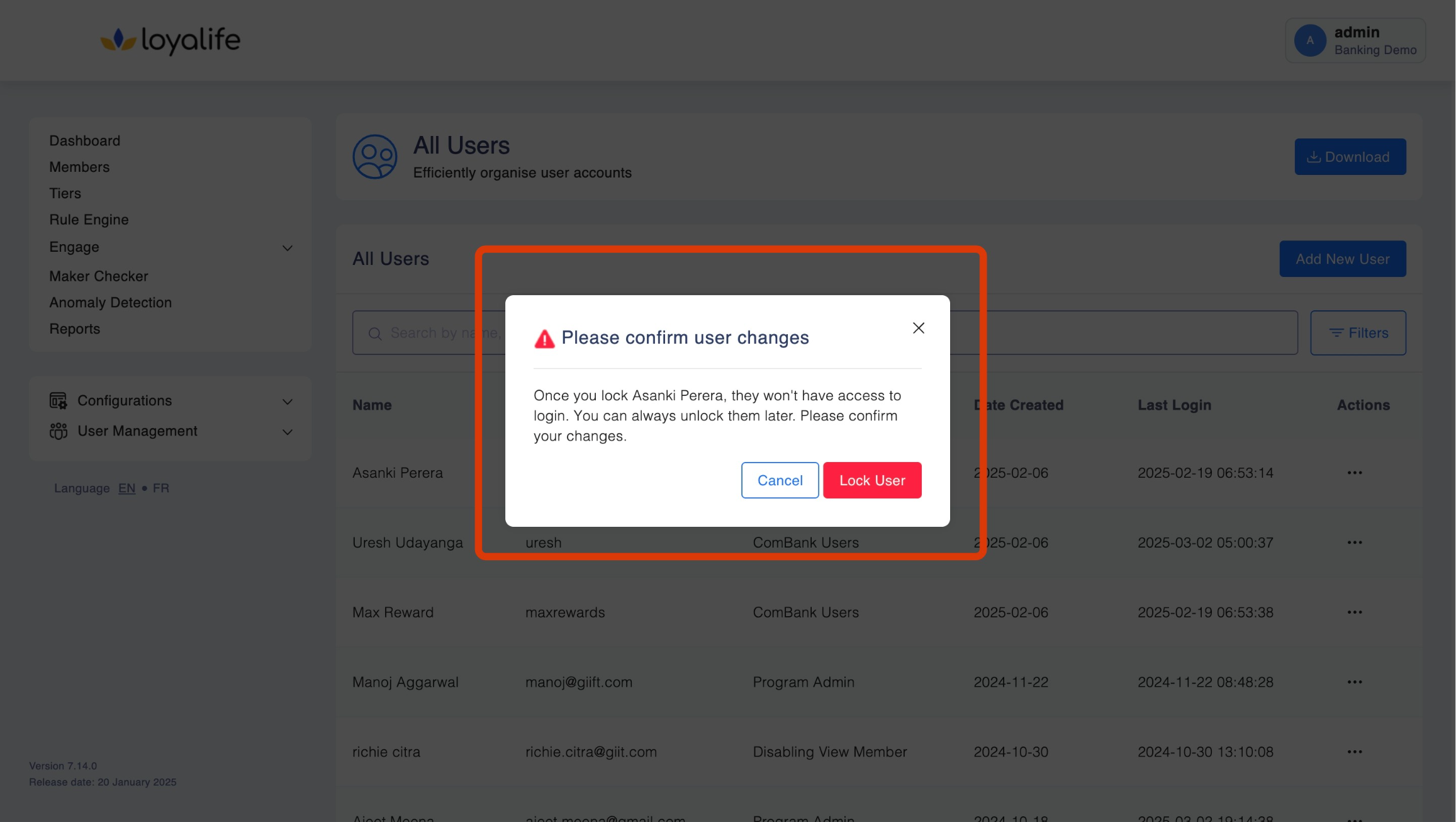
If a user account needs to be locked:
- Navigate to the Access Control ➝ Manage Team ➝ Manage Users ➝ Select a User ➝ Click Menu ➝ Lock User.
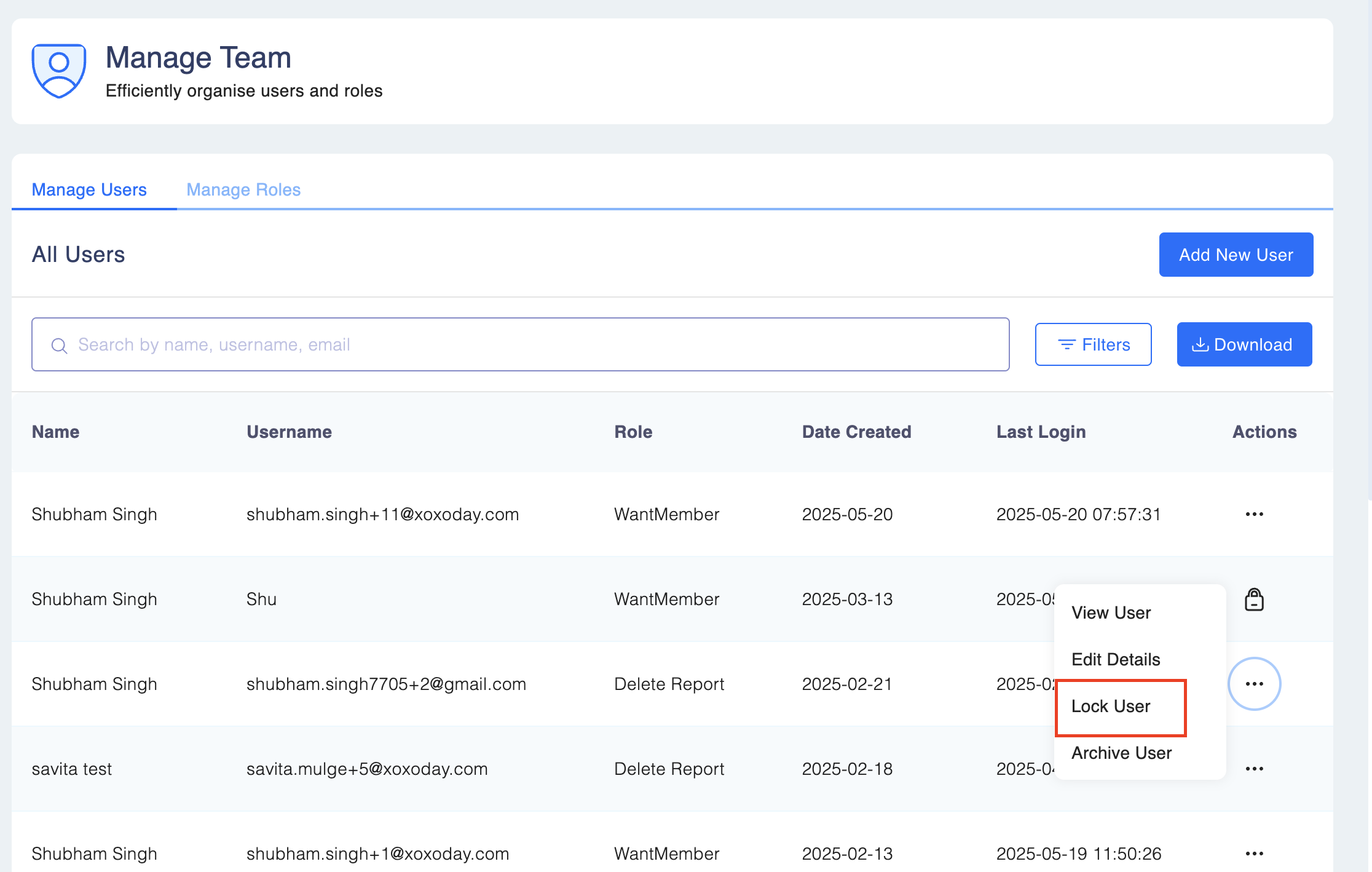
- Once locked, the user will not be able to access the system. A locked user can be unlocked at any point in time.
Unlock a User
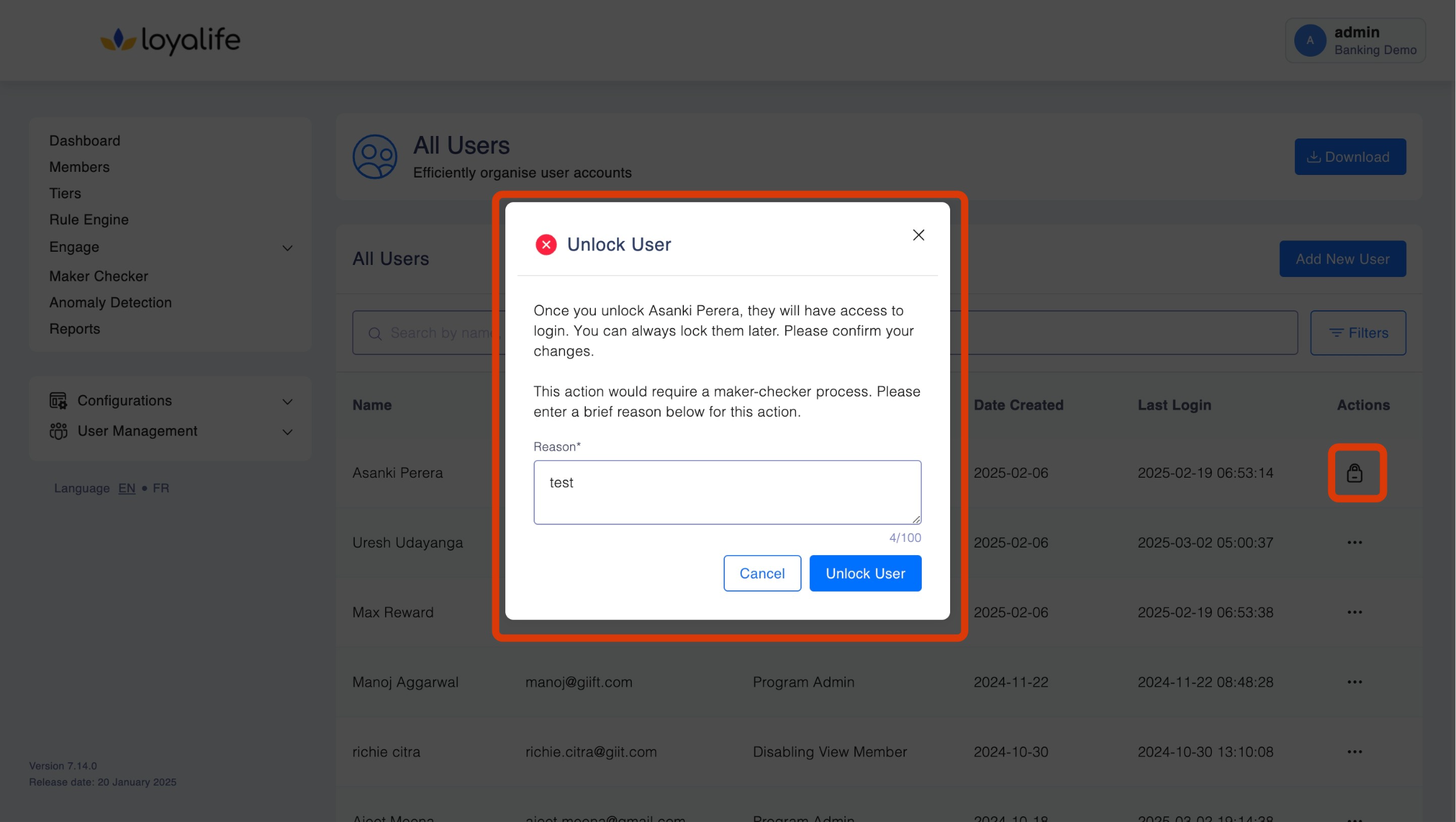
Step 1: Navigate to Access Control → Manage Teams → Manage Users . Search for the locked user by Name, Email, or Role.
Step 2: Click on the (⋮) next to the user. There is a lock symbol next to the username.
Step 3: Select Unlock User. Provide a reason for unlocking the user.
- If Maker Checker is enabled, the request is sent for approval. A user with approval rights must approve or reject the request. If approved, the user is unlocked and restored to their previous access.