Global Attributes
1. Overview of Global Attributes
Global attributes in Loyalife's Rule Engine are predefined data points that can be used across the entire rule engine to trigger actions such as awarding loyalty points or calculating rewards based on banking or transactional data. They provide flexibility and efficiency in the execution of complex loyalty program rules.
2. Accessing Global Attributes
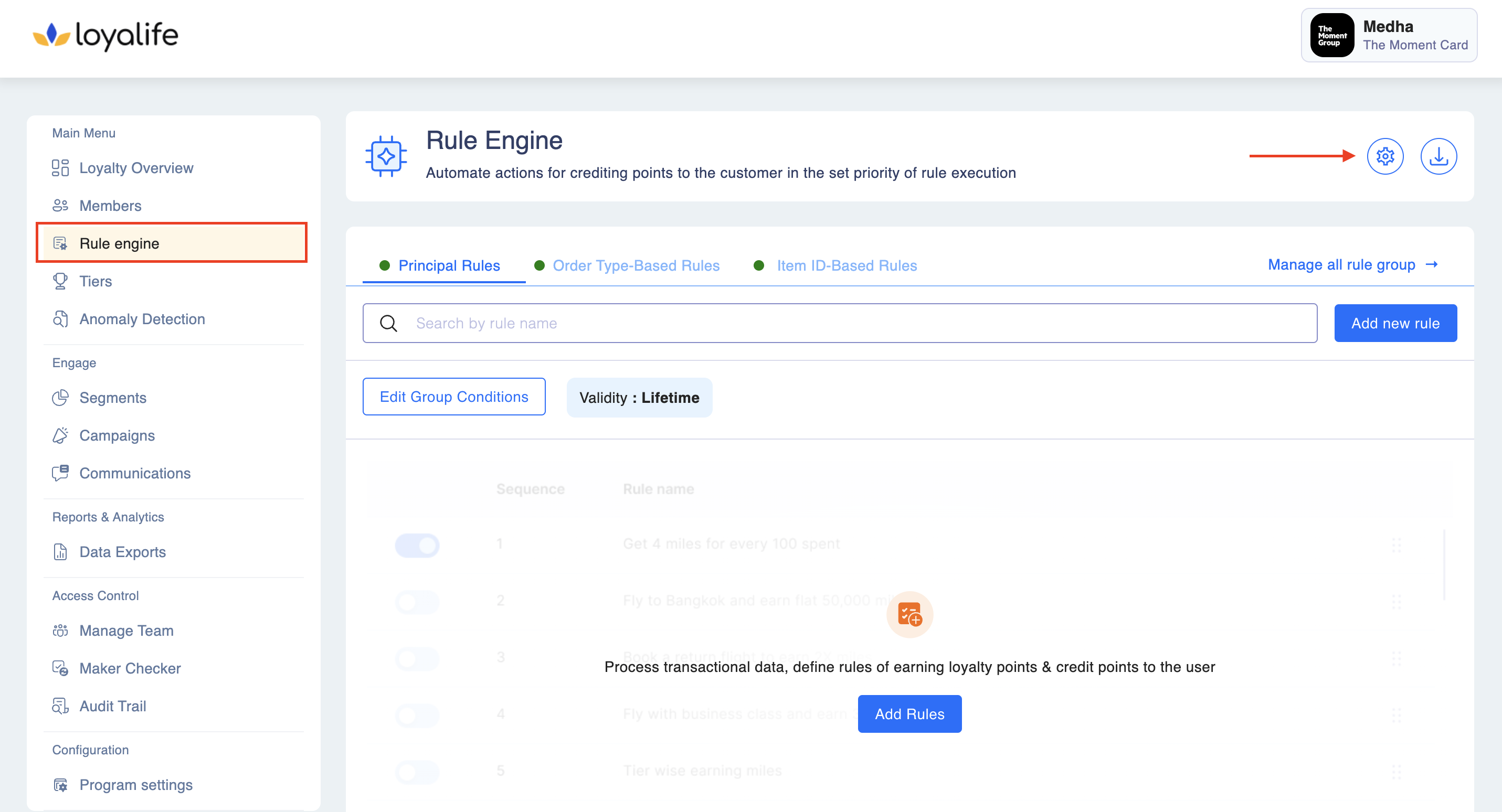
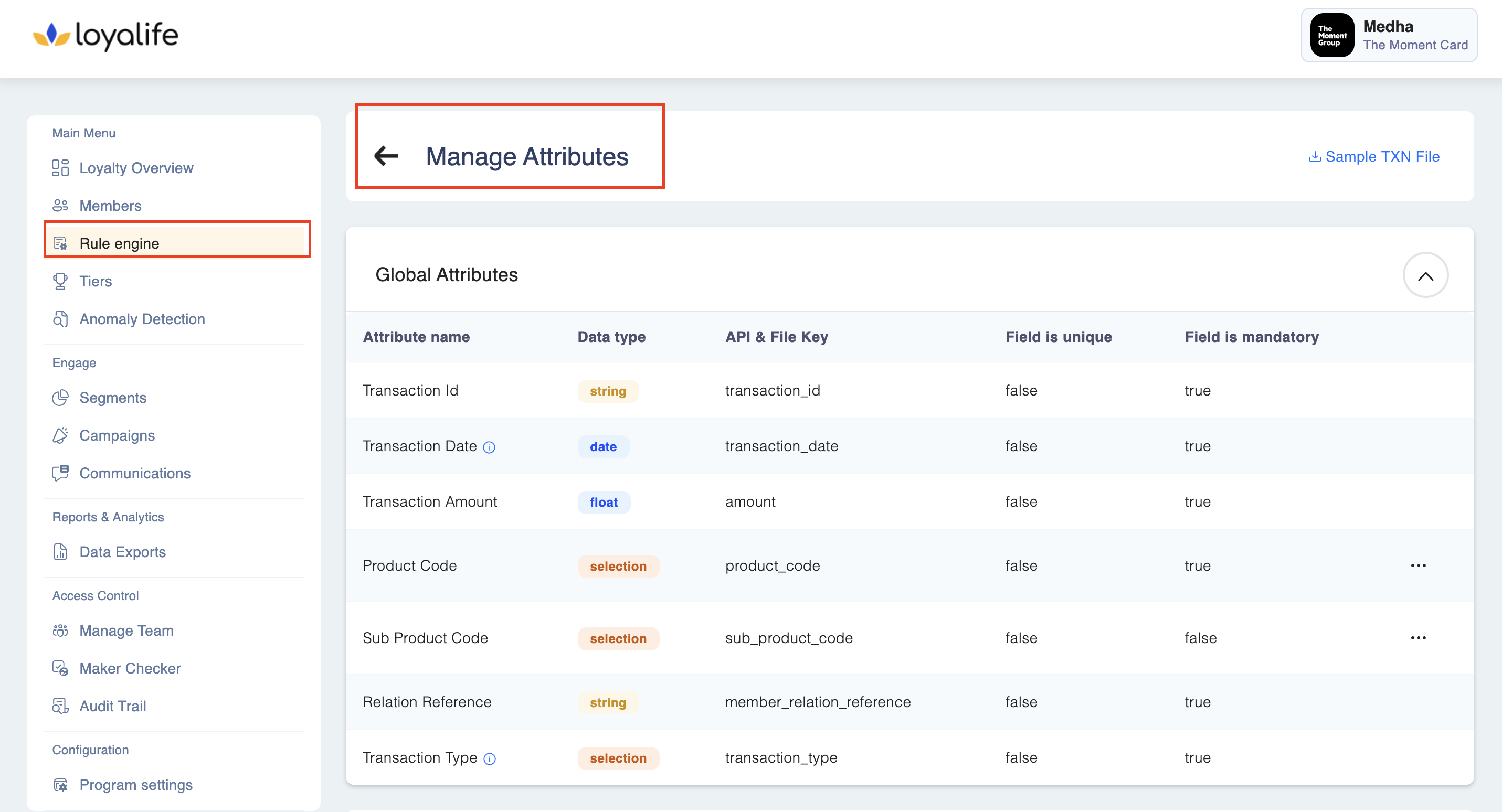
These attributes are accessible from Rule Engine ➝ Manage Attributes. Global attributes are used to define important transactional data that influence the rules created for the loyalty program.
3. List of Available Global Attributes
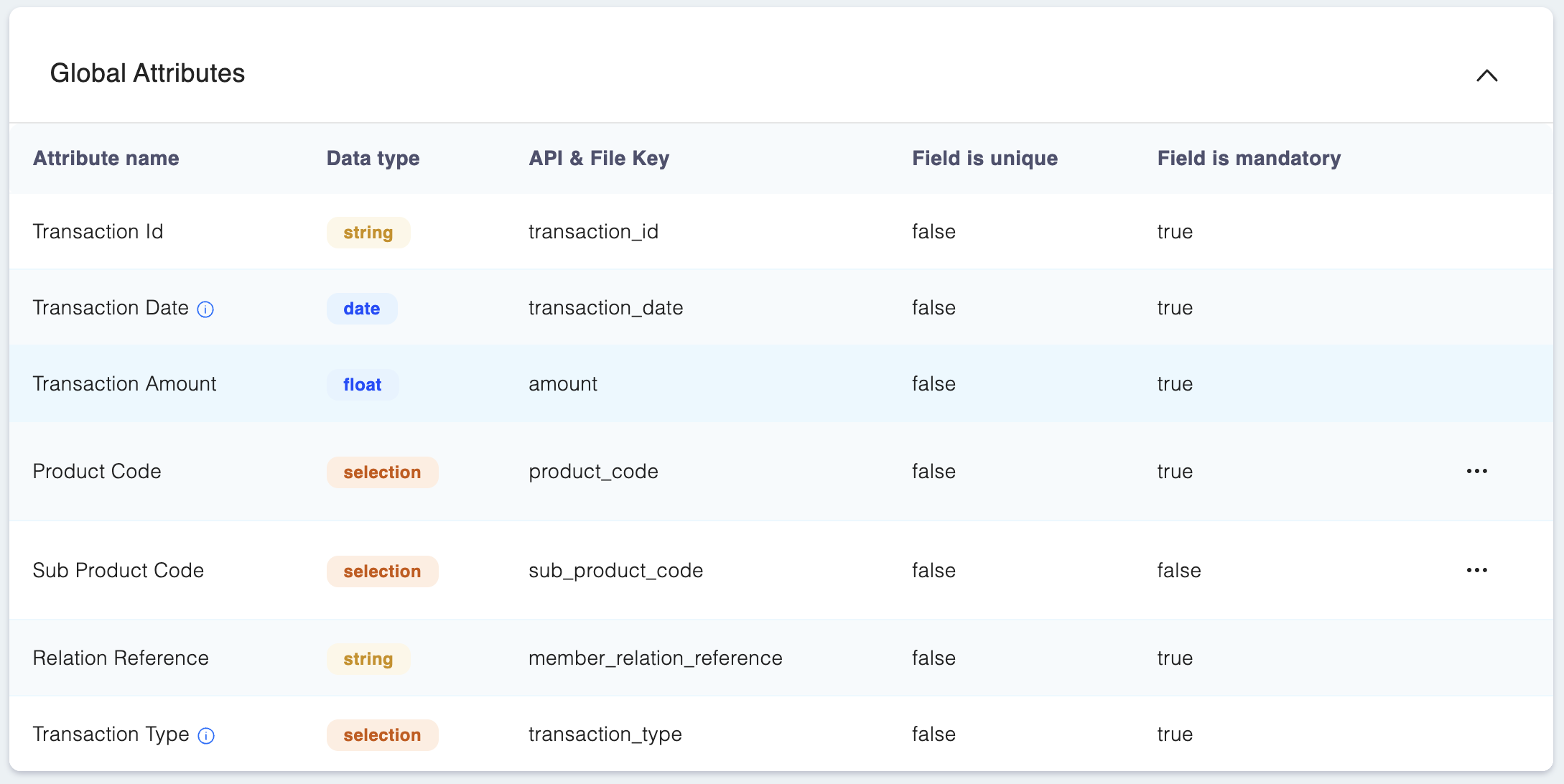
The following are the primary global attributes that are integral to the rule engine and loyalty program functionality:
-
Transaction ID
- Type: String
- API/File Key:
transaction_id - Description: This attribute stores the unique identifier for a transaction, ensuring that each transaction is uniquely identified.
- Field is Mandatory: True
-
Transaction Type
- Type: Selection
- API/File Key:
transaction_type - Description: This attribute indicates whether a transaction is a credit or debit. In loyalty programs, debit transactions will credit points to members, while credit transactions debit points from the member’s balance.
- Field is Mandatory: True
-
Transaction Date
- Type: Date
- API/File Key:
transaction_date - Description: This attribute stores the date of the transaction.
- Field is Mandatory: True
-
Transaction Amount
- Type: Float
- API/File Key:
amount - Description: Stores the monetary value of the transaction. This is crucial for rules based on spending thresholds, such as awarding points based on the transaction amount.
- Field is Mandatory: True
-
Product Code
- Type: Selection
- API/File Key:
product_code - Description: This attribute holds the code for the product involved in the transaction, such as credit card, loan, or savings account.
- Field is Mandatory: True
- How to Manage: Product codes can be managed via Manage Product Codes under the attribute section.
-
Sub Product Code
- Type: Selection
- API/File Key:
sub_product_code - Description: This attribute stores the sub-product code, which further categorizes the transaction’s product (e.g., different types of credit cards or loans) or as per business usecase.
- Field is Mandatory: False
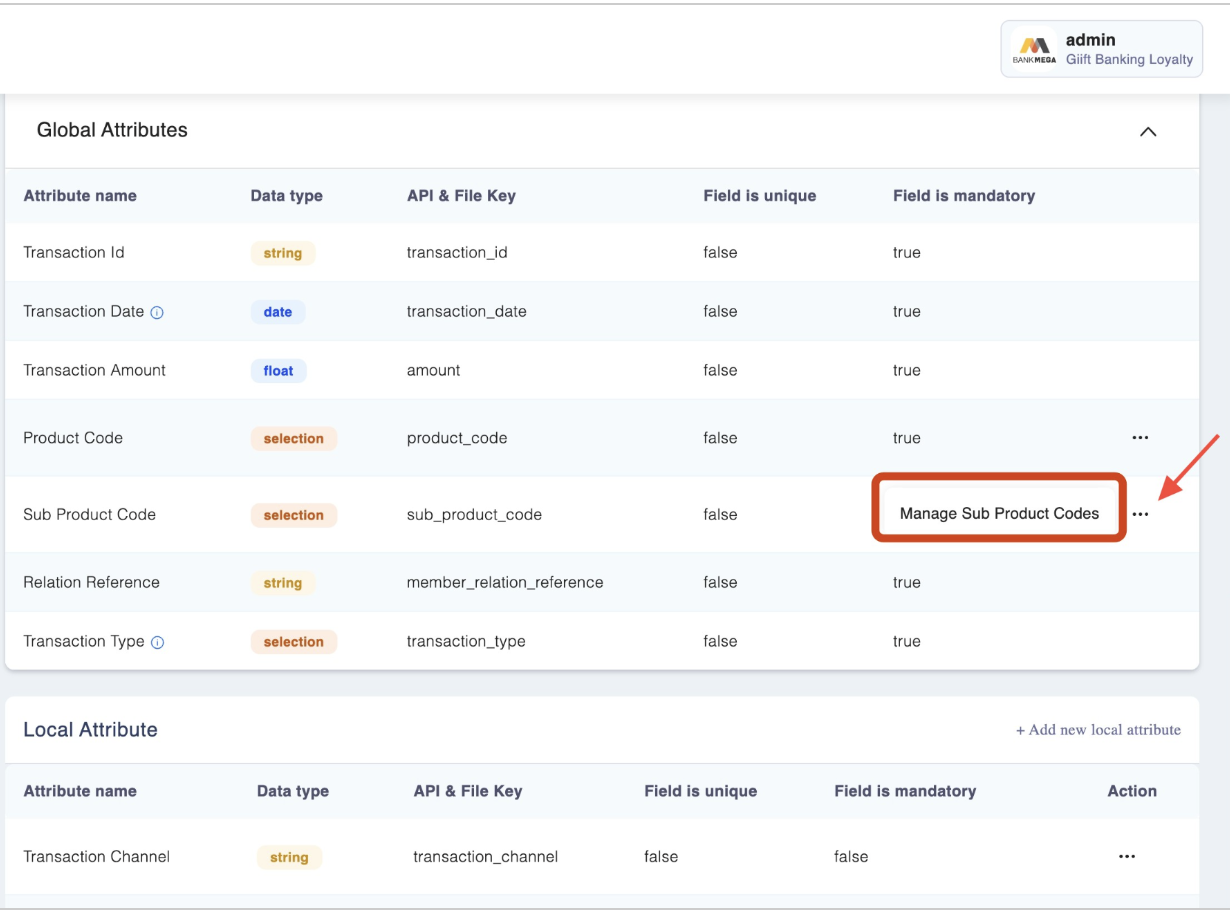
- How to Manage: Sub-product codes can be managed via Manage Sub Product Codes.
-
Relation Reference
- Type: String
- API/File Key:
member_relation_reference - Description: Stores a reference to the member’s relationship with the transaction,i.e Linking it to a specific member ID.
- Field is Mandatory: True
4. Managing Product and Sub-Product Codes
Product and Sub-product codes are integral for correctly categorizing transactions. These codes help in identifying the product involved in a transaction, such as different types of banking products (e.g., credit cards, loans, savings accounts).
4.1 Steps to Manage Product Codes:
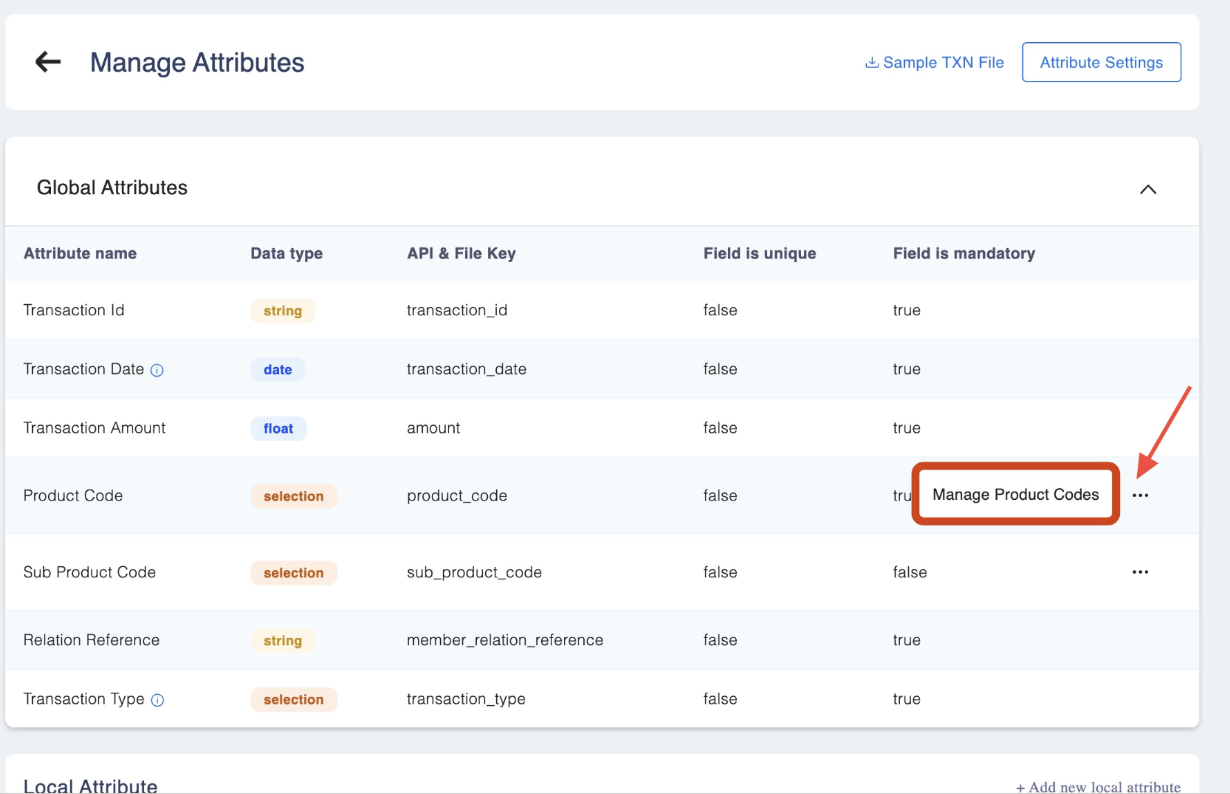
Step 1: Navigate to Rule Engine ➝ Manage Attributes. Click on the three dots next to Product code as shown below and select Manage Product Codes.
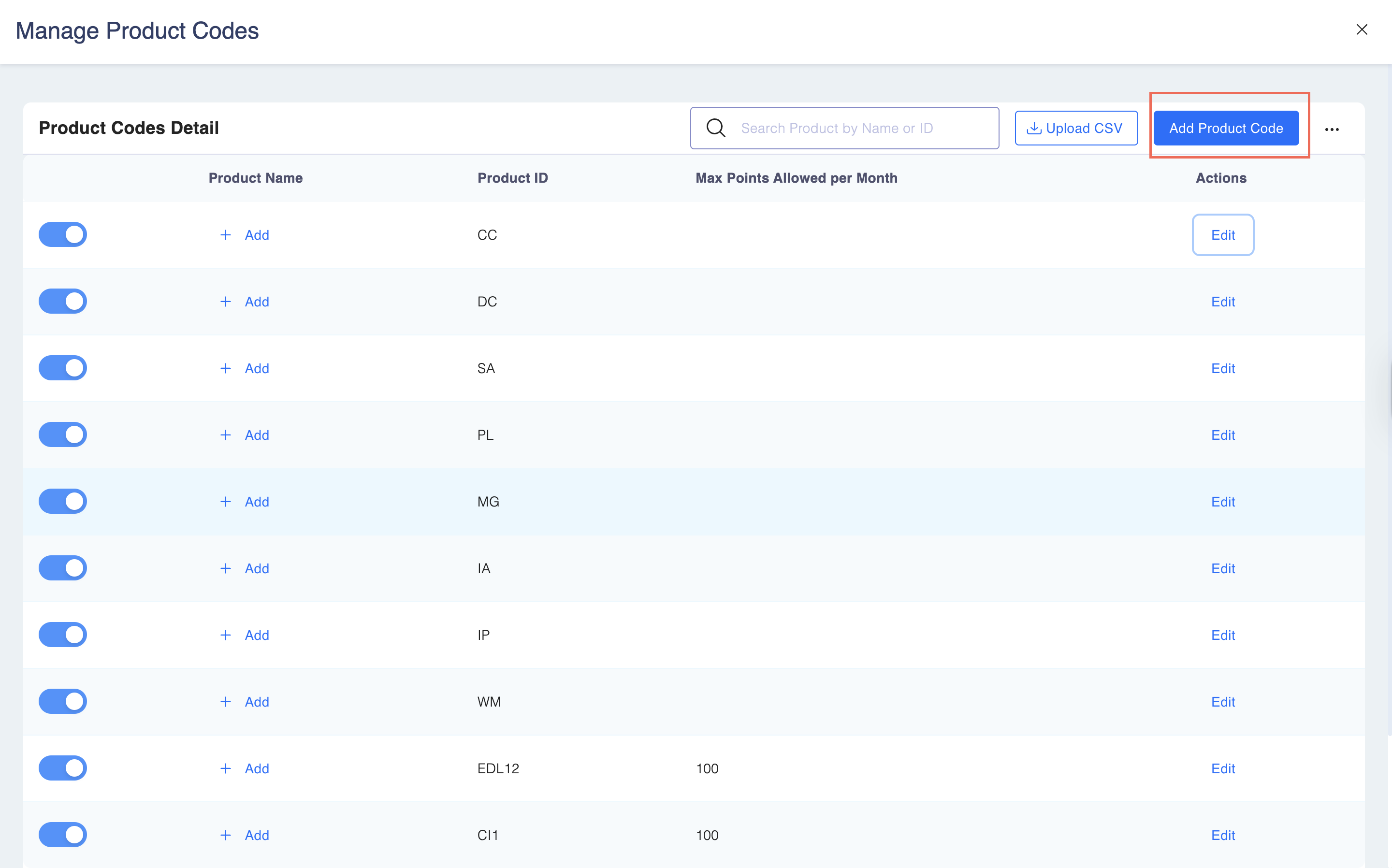
Step 2: Click on Add Product Code to add a new code.
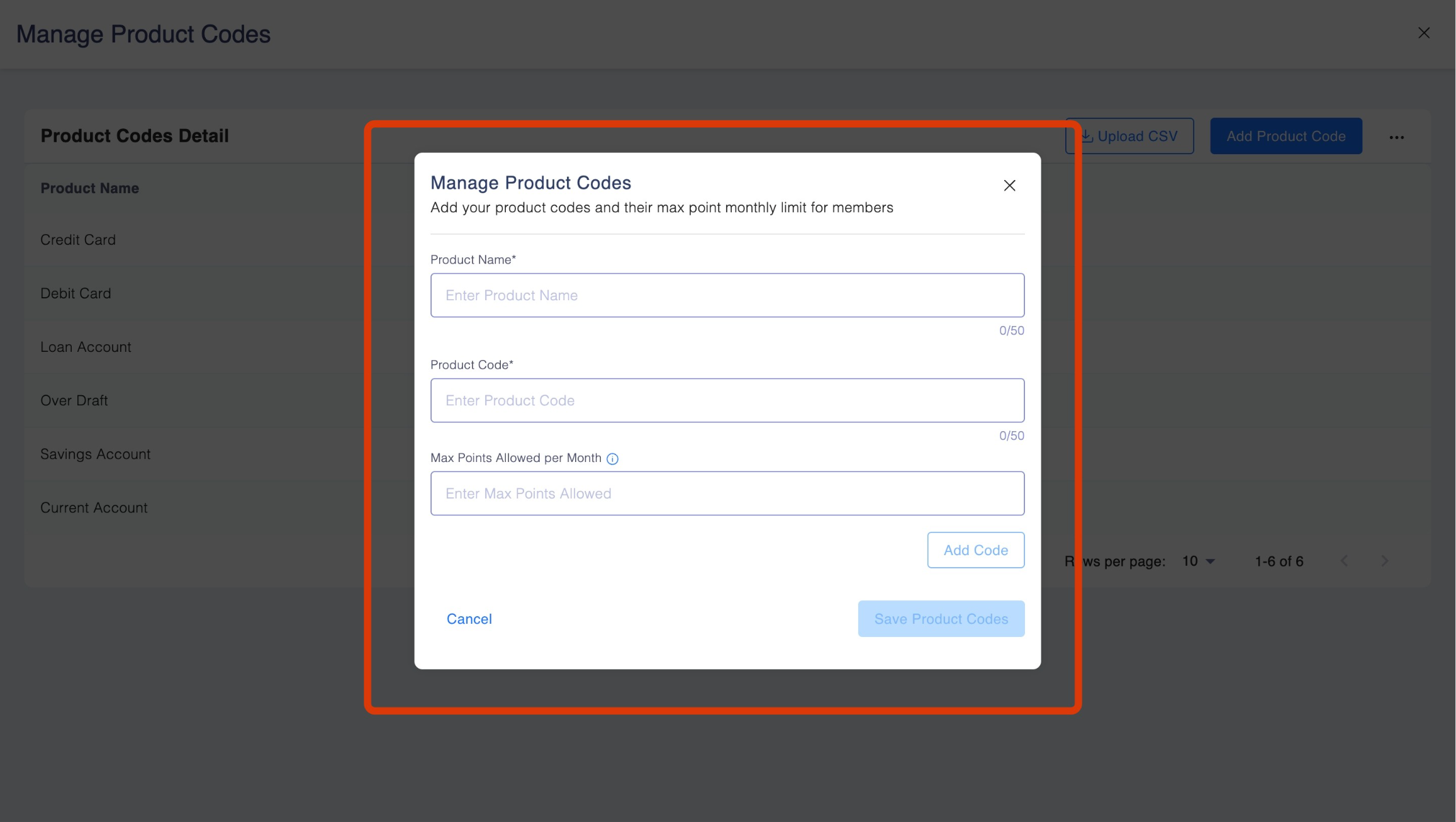
Step 3: Add the details such as Product Name, Product Code and Max Points Allowed per Month and Save Product Code.
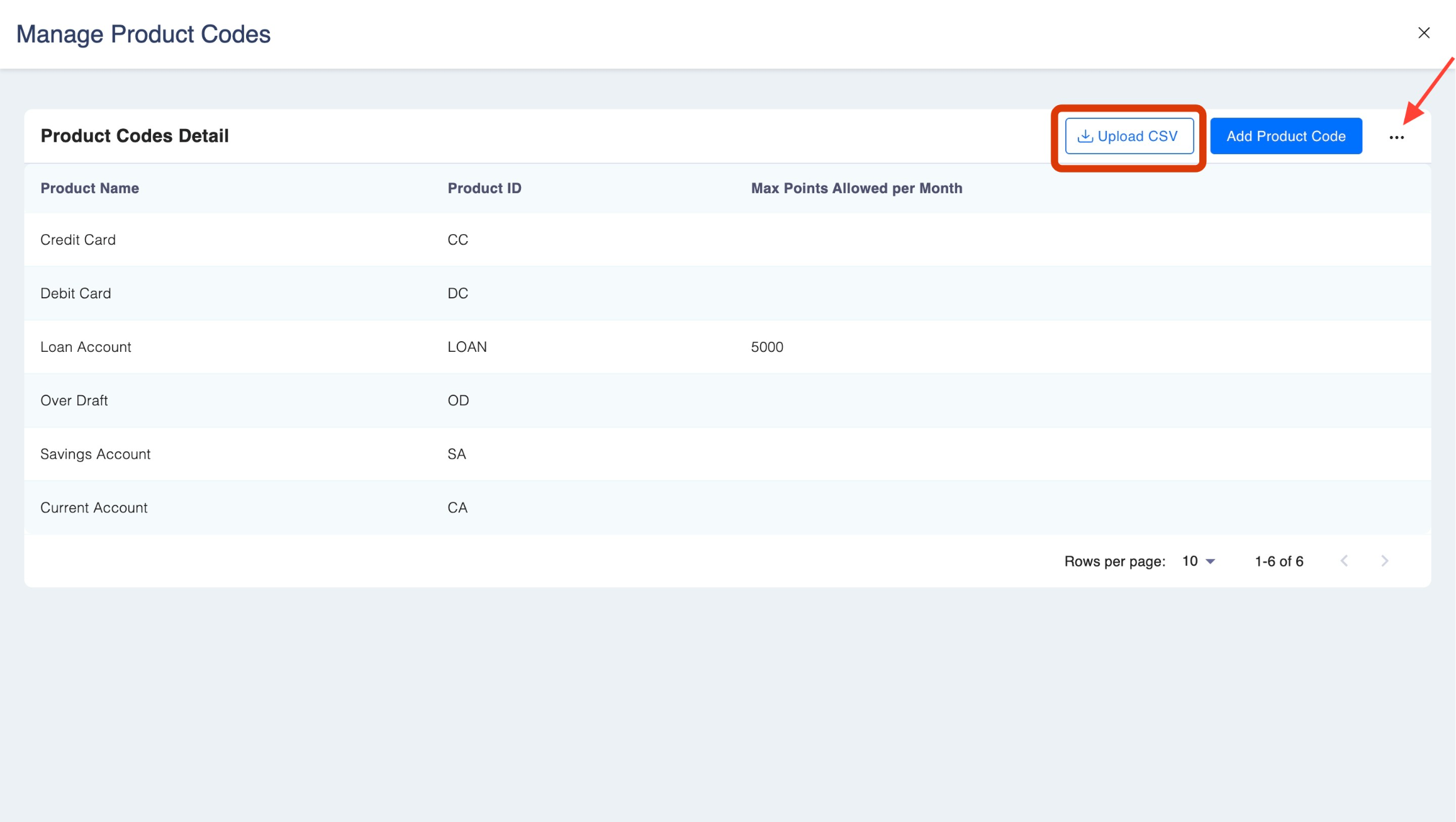
Please Note: You can also upload product codes in bulk. Click on Upload CSV and upload the file with the product code. You can also download a sample CSV file for the same by clicking on the three dots as shown in the screenshots below.
4.2 Other functionality for the product code
This section covers how to search, enable/disable, and edit product codes, as well as key rules around their usage.
-
4.2.1 Search for a Product Code
-
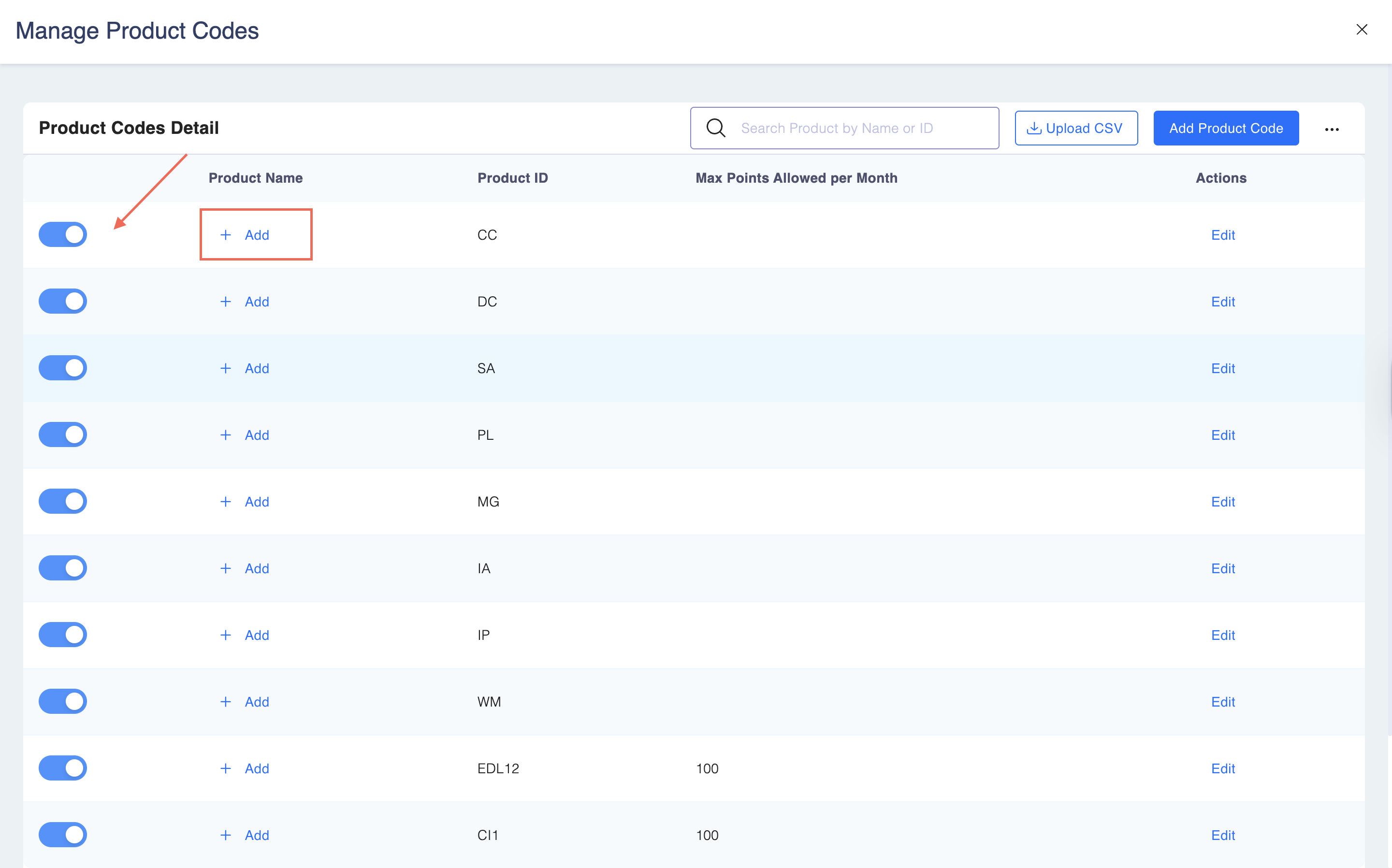
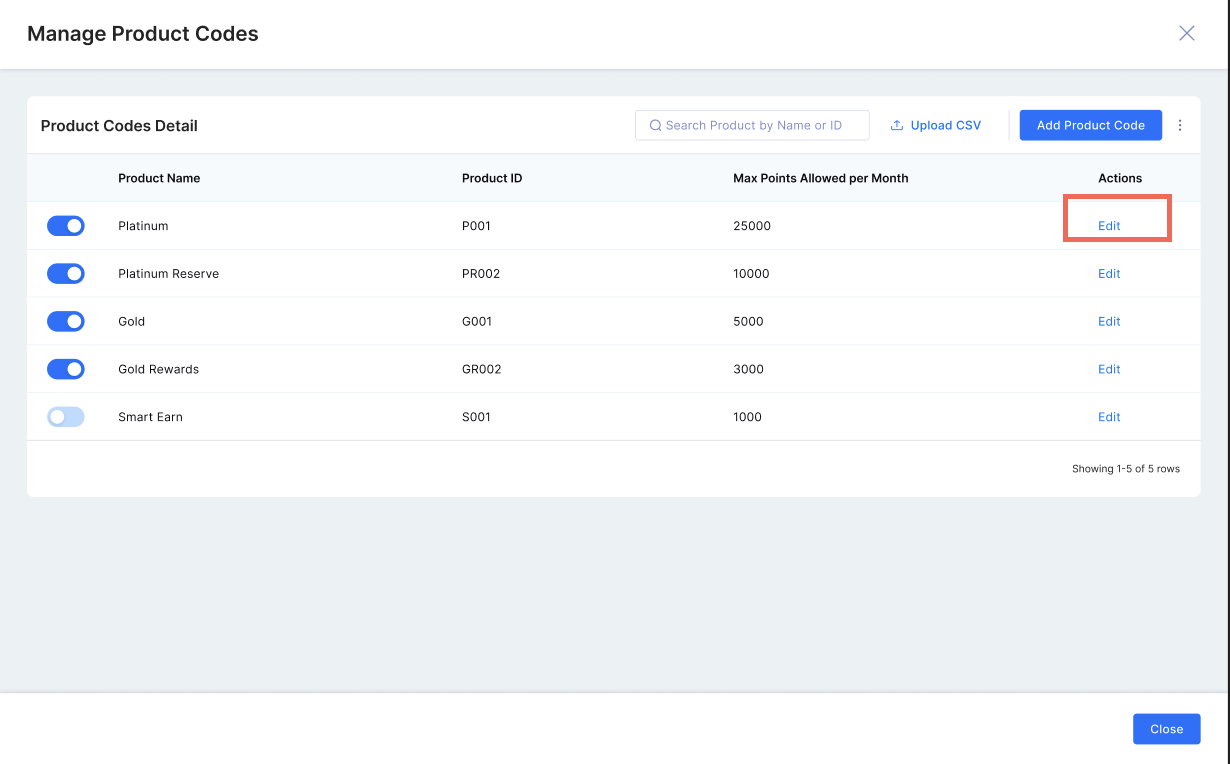
To find a specific product code or product name use the search bar at the top of the page.
- You can search using either the product name or the product code.
-
-
4.2.2 Enable or Disable a Product Code
- To enable or disable a product code - Use the toggle switch next to the product code.
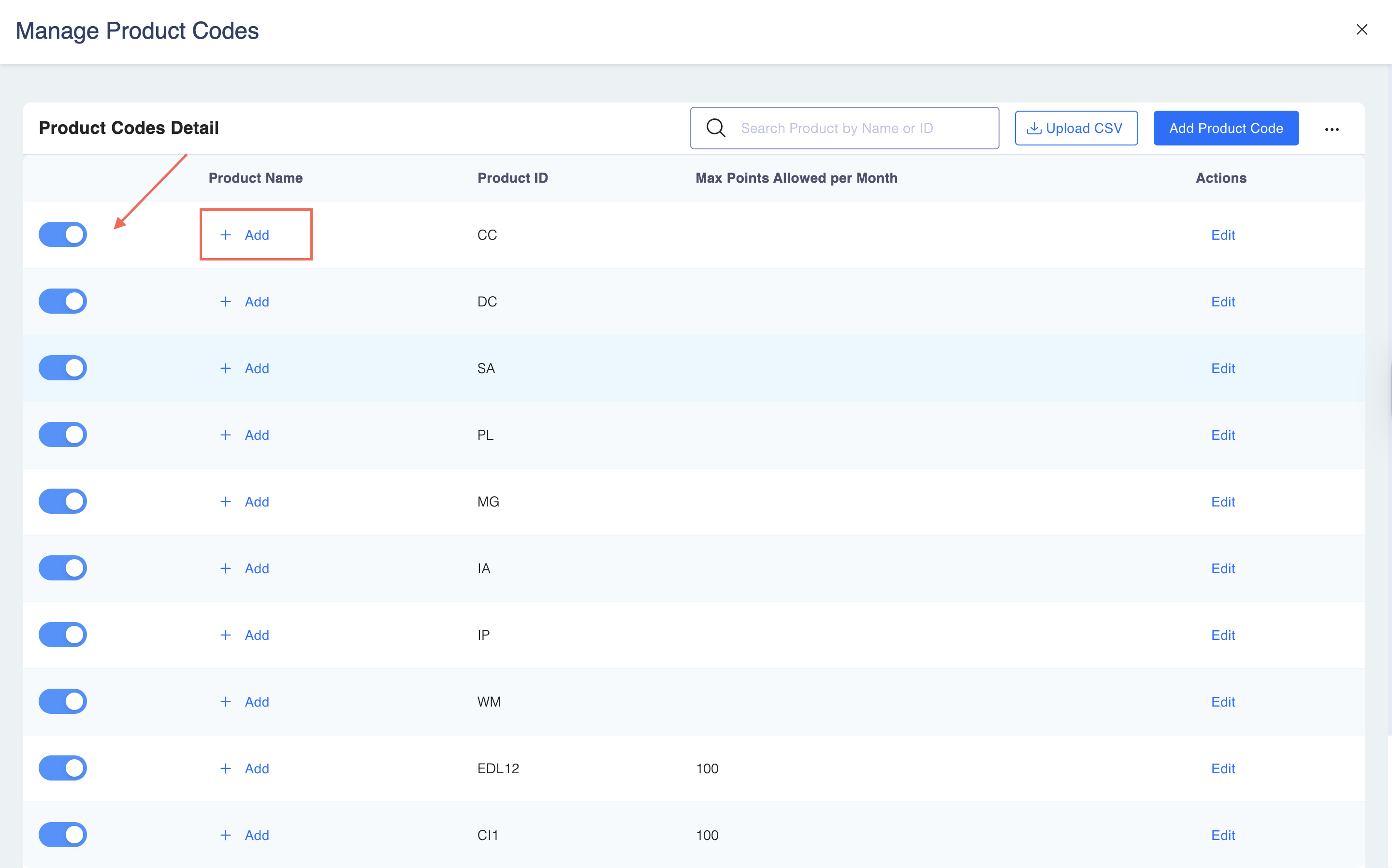
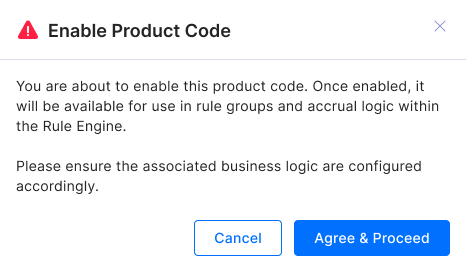
- You will see a pop up confirming whether the product code was enabled or disabled. Click "Agree and Proceed" to proceed with your selection.
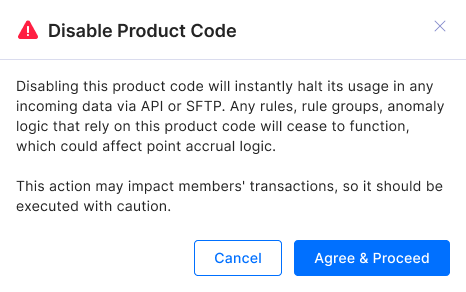
- What happens when a product code is disabled?
- It becomes non-selectable across all modules, including:
- Manual Points, Rule Engine, Anomaly Detection, Any other section where product codes are used.
- If used in:
- Transactions, CRD files, or API calls, the system will automatically reject the record.
- Manual Points bulk uploads, BNS files, or BNS APIs, the system will accept the record, even if the code is disabled. This allows flexibility in batch processing.
- It becomes non-selectable across all modules, including:
-
4.2.3 Editing a Product Code
- To edit a product - Click the Edit button next to the desired product code.
-
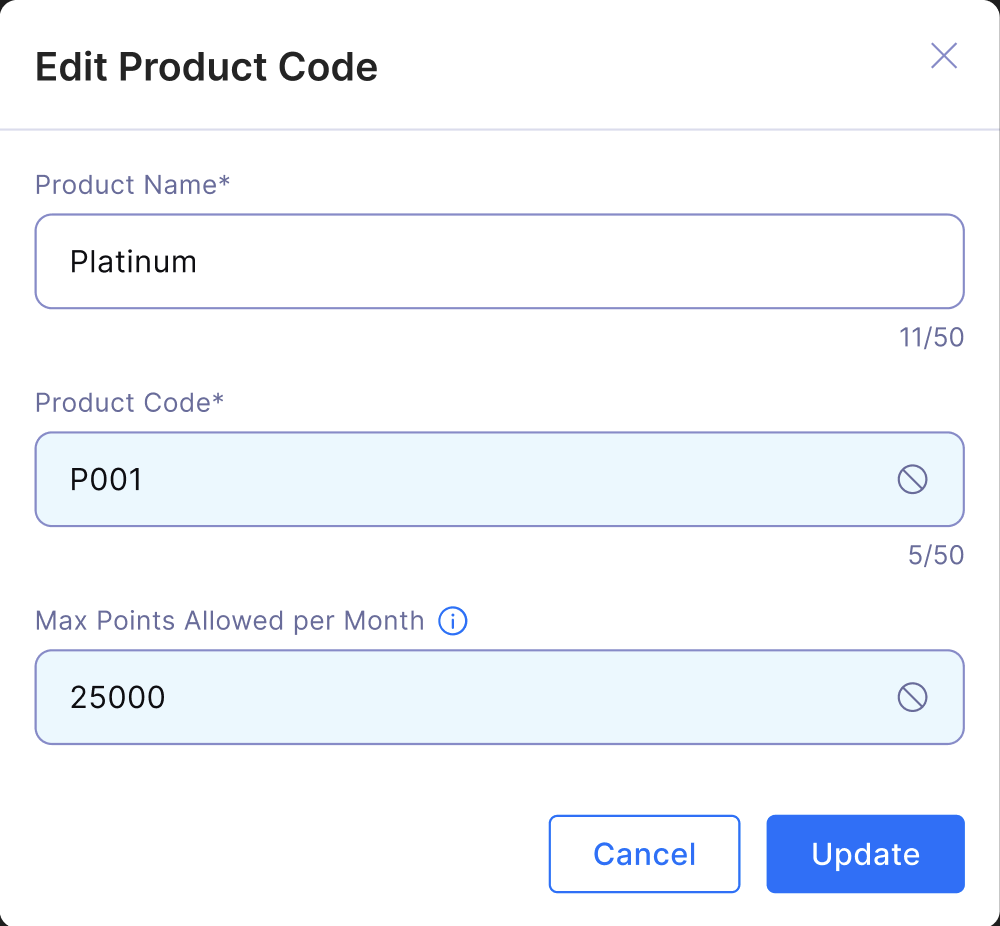
Editable Fields:
- Product Name – Editable
- Duplicate names are allowed.
-
Non-Editable Fields:
- Product Code
- Max Points Allowed per Month
Note: Any changes made (editing product names, adding new codes, or enabling/disabling product codes) are not tracked in the audit trail.
User with only View rule engine permission will not be able to see the product codes.
User with Edit rule engine permission will be able to enable/disable product code, edit product name and also create/upload product codes
4.3 Steps to Manage Sub-Product Codes:
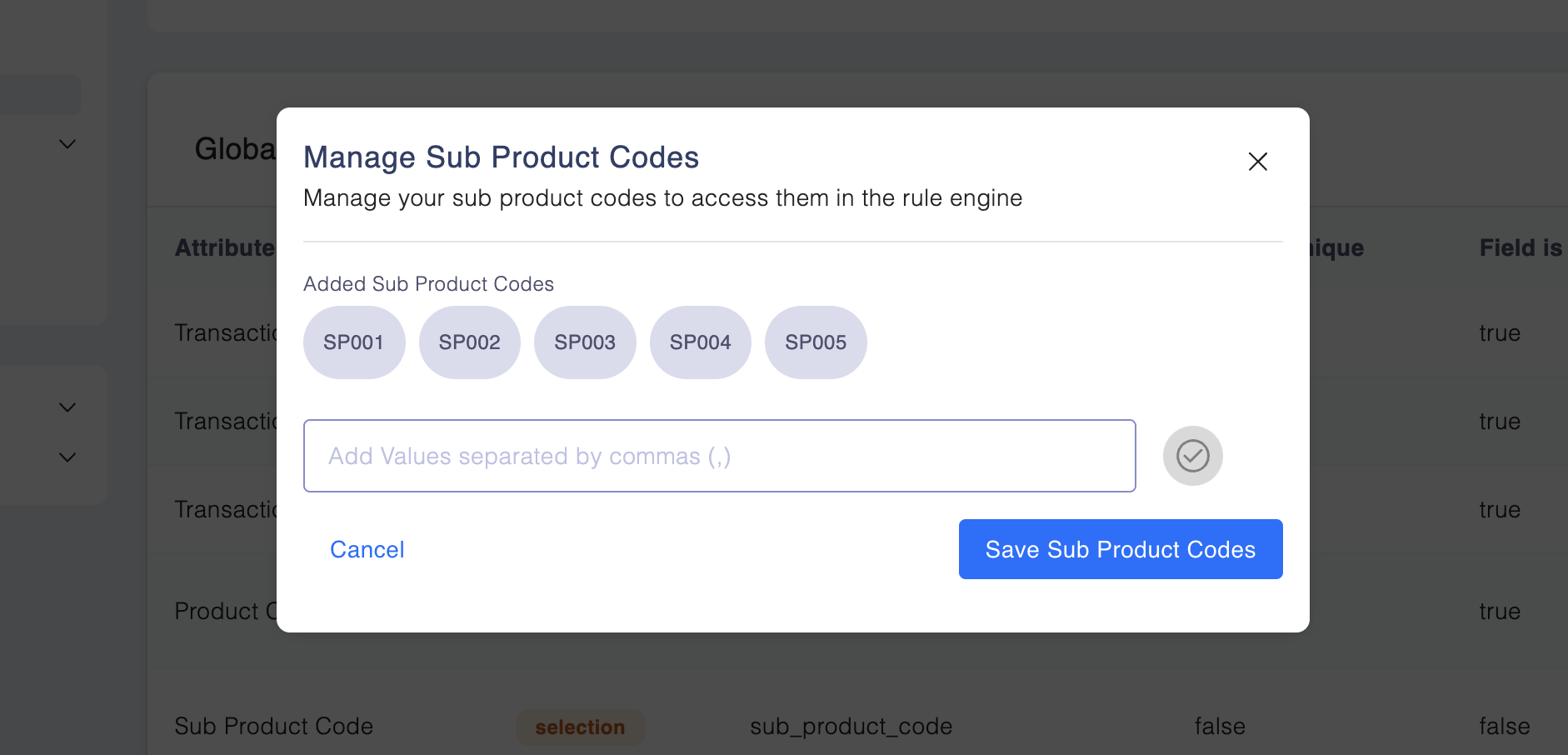
Step 1: In the Manage Attributes screen, click on the "..." next to Sub Product Code. Then, select Manage Sub Product Codes.
Step 2: Enter or add sub-product codes, separated by commas. Once done, click on Save Sub Product Codes.