
Pre-Processing Logic
Learn about the pre processing logic on Loyalife
What is Preprocessing Logic?
Preprocessing Logic lets you set rules on how files should be cleaned, adjusted, or transformed before the system processes them.
Example:
- Flip a transaction type from Credit to Debit.
- Create a second record from the same transaction (so both customer and merchant are rewarded).
- Hide private information like phone numbers or emails.
This means you can control data behavior without needing engineering help.
Who Should Use This?
- Business Admins – to manage client-specific rules.
- Loyalty Program Managers – to adjust data processing for their program.
No coding experience is required. The system provides a guided editor.
Where to Find It
- Go to Configuration >> Advanced Configuration.
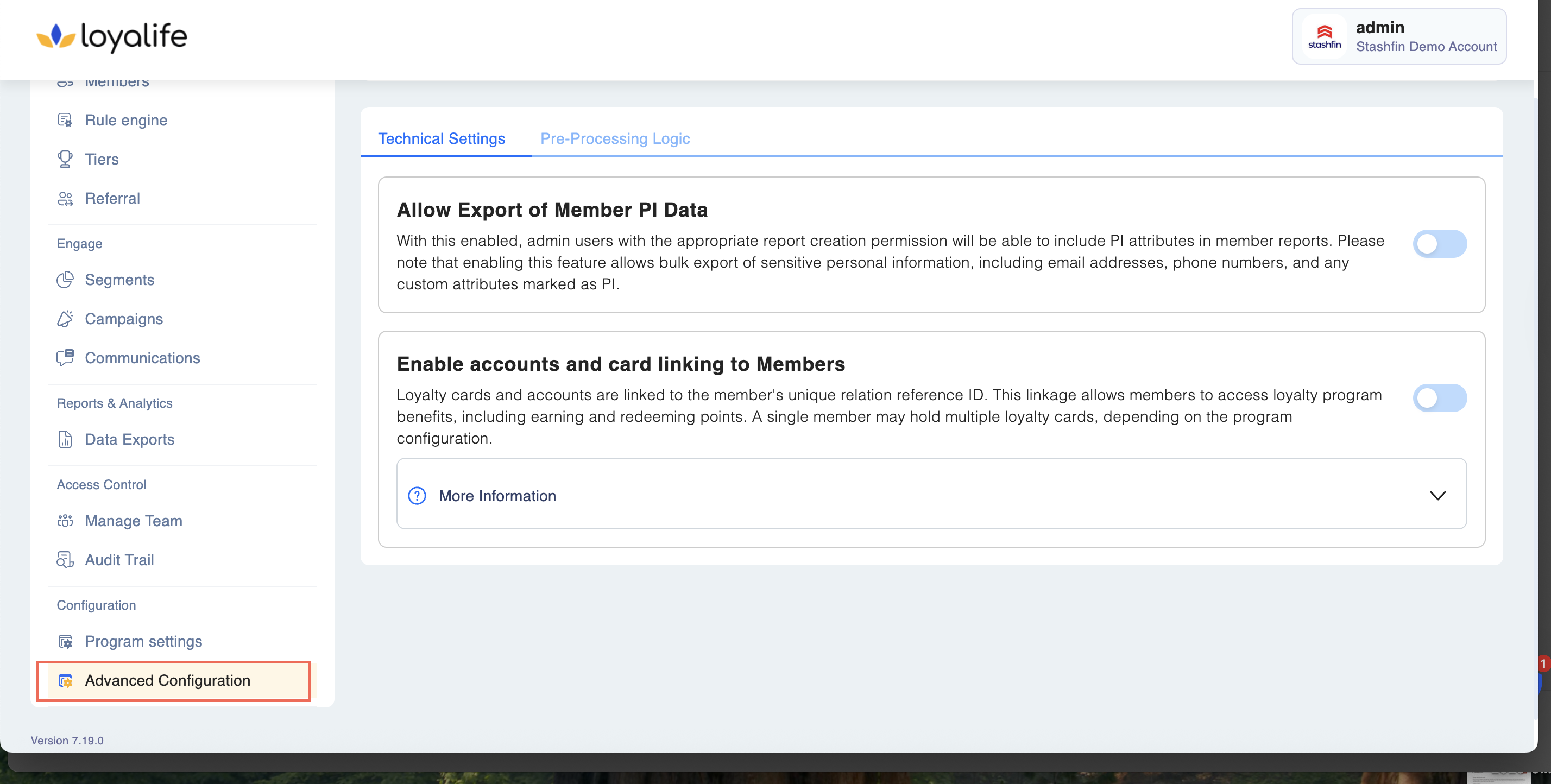
- Select the Preprocessing Logic tab.
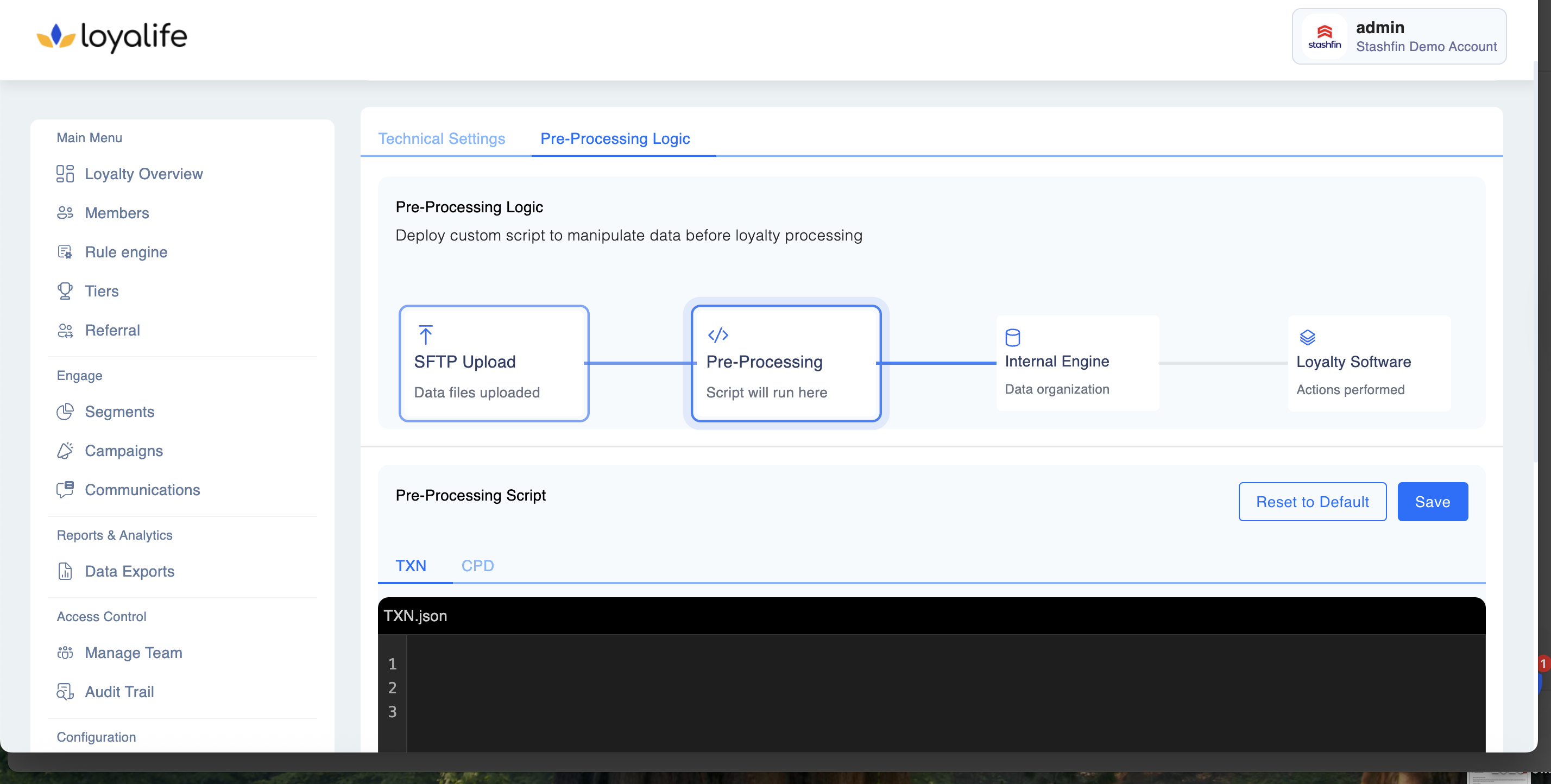
You’ll see a default setup. You can edit this to add your own rules.
What You Can Do
a. View Current Rules
- See the current logic applied to uploaded files.
- Default: No changes made to files.
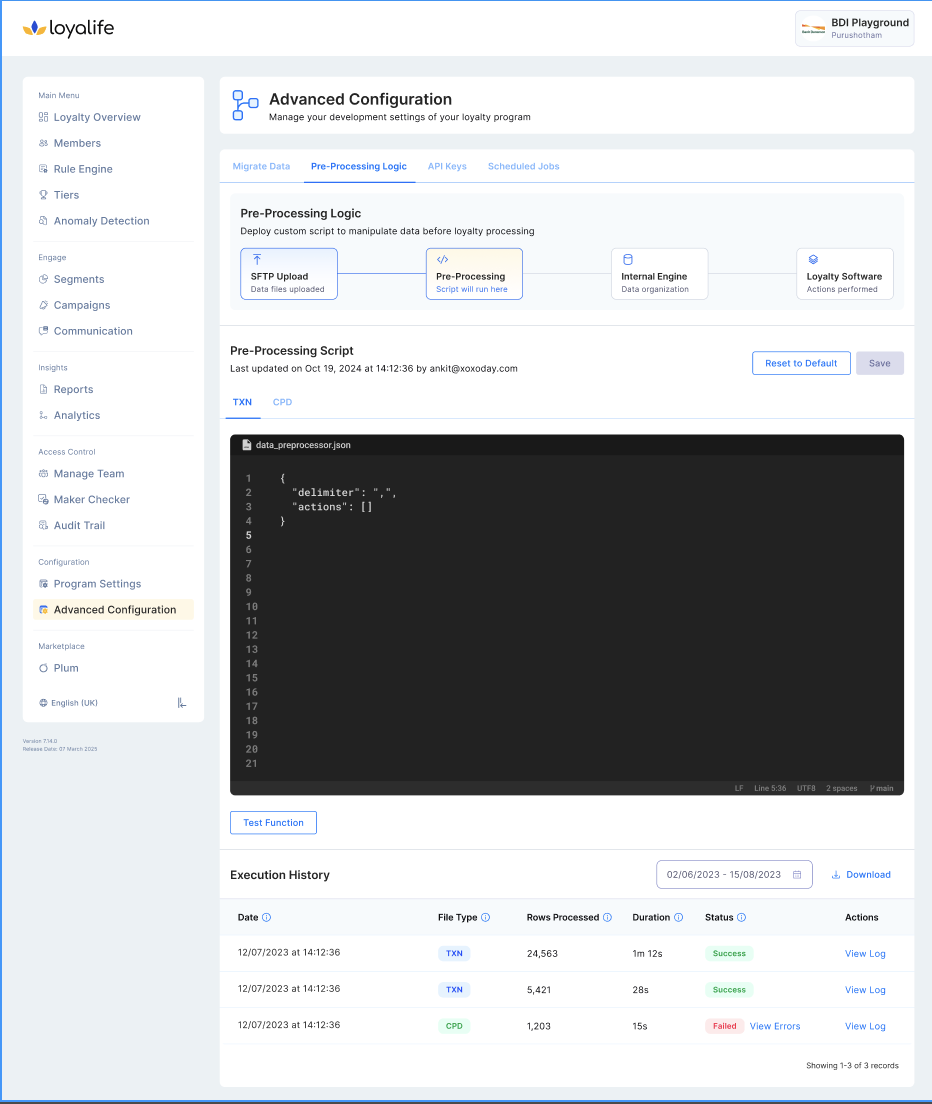
b. Edit Rules
- Long press to make edits
- Make your changes using the guided editor.
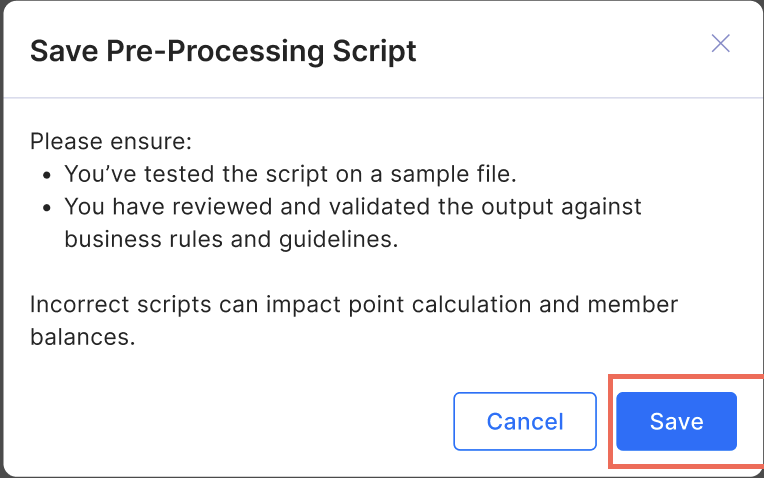
- Save when done → your rules apply to all future file uploads.
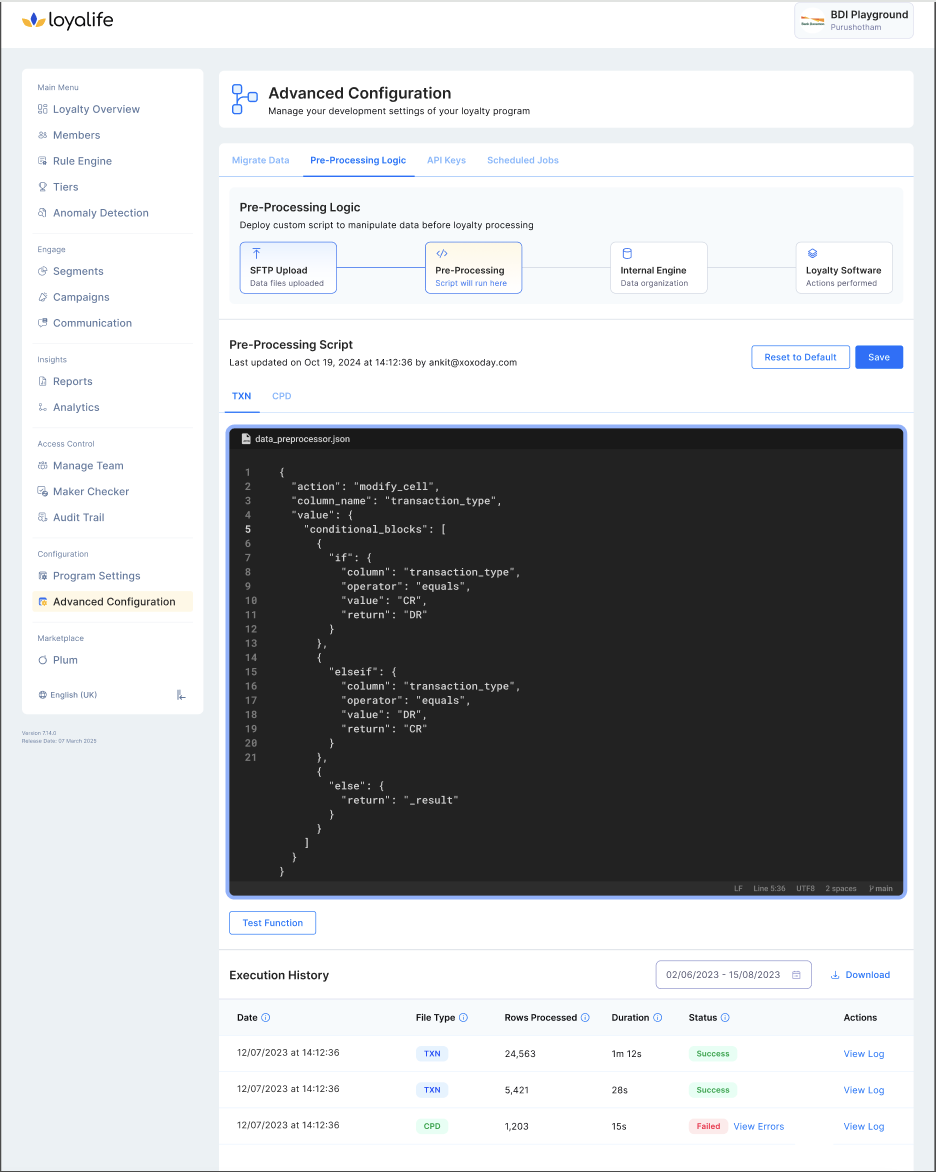
c. Test Your Rules
- Upload a small test file (up to 100 rows) by clicking on "Test Function"
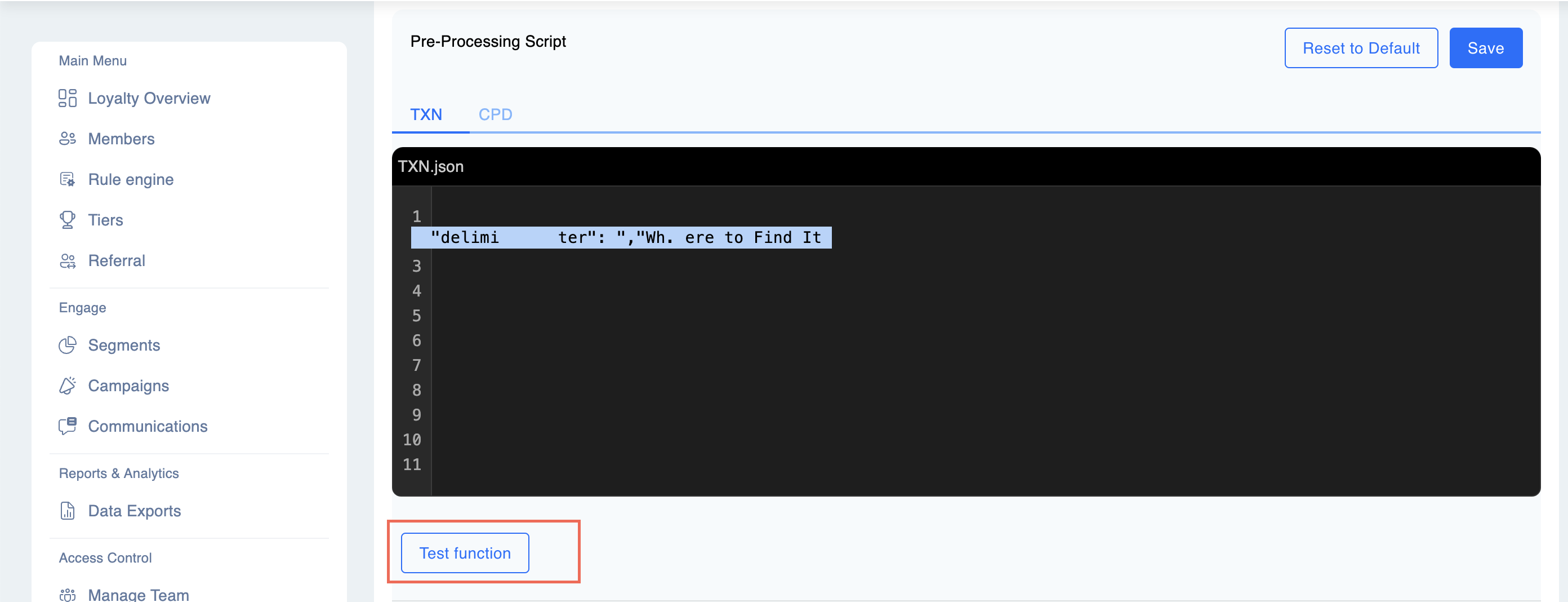
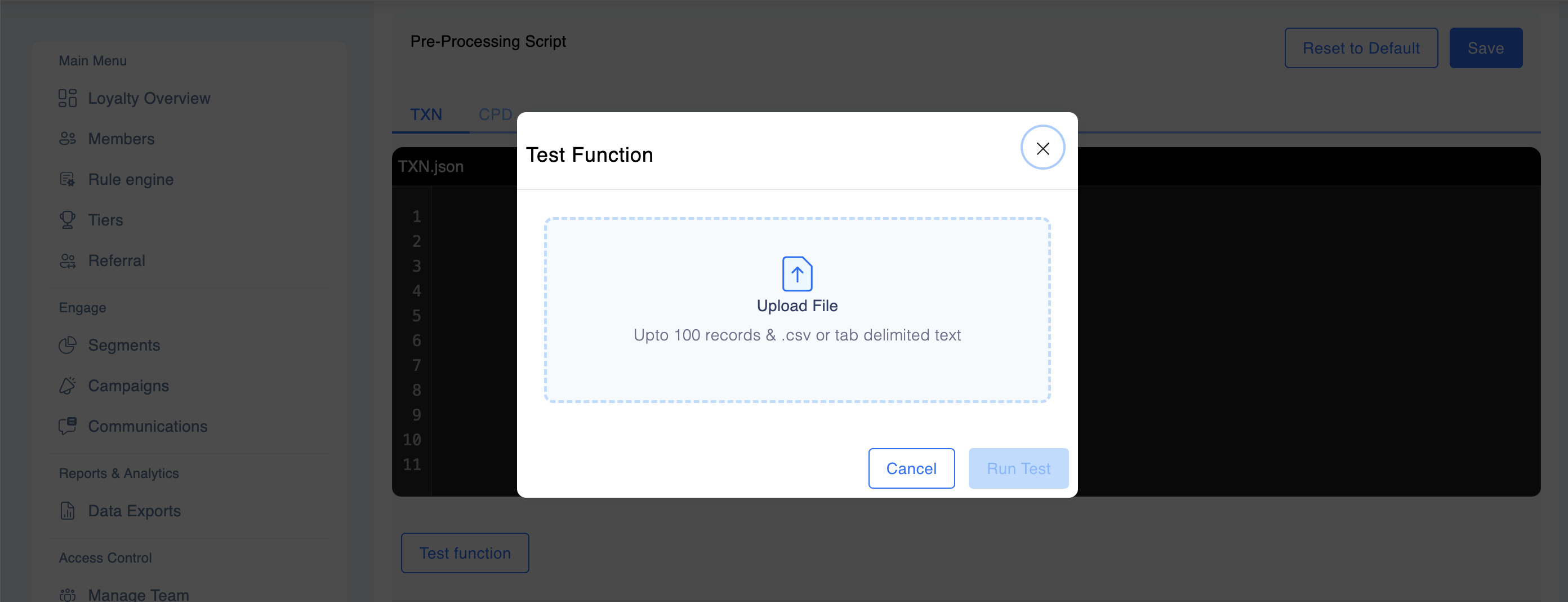
- Choose the file type (TXN, CPD).
- Click on **View Data Changes. **
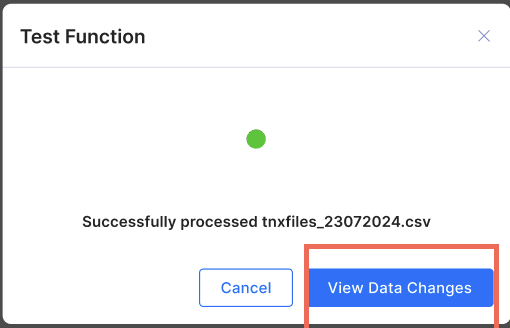
- See the results side-by-side: original vs processed.
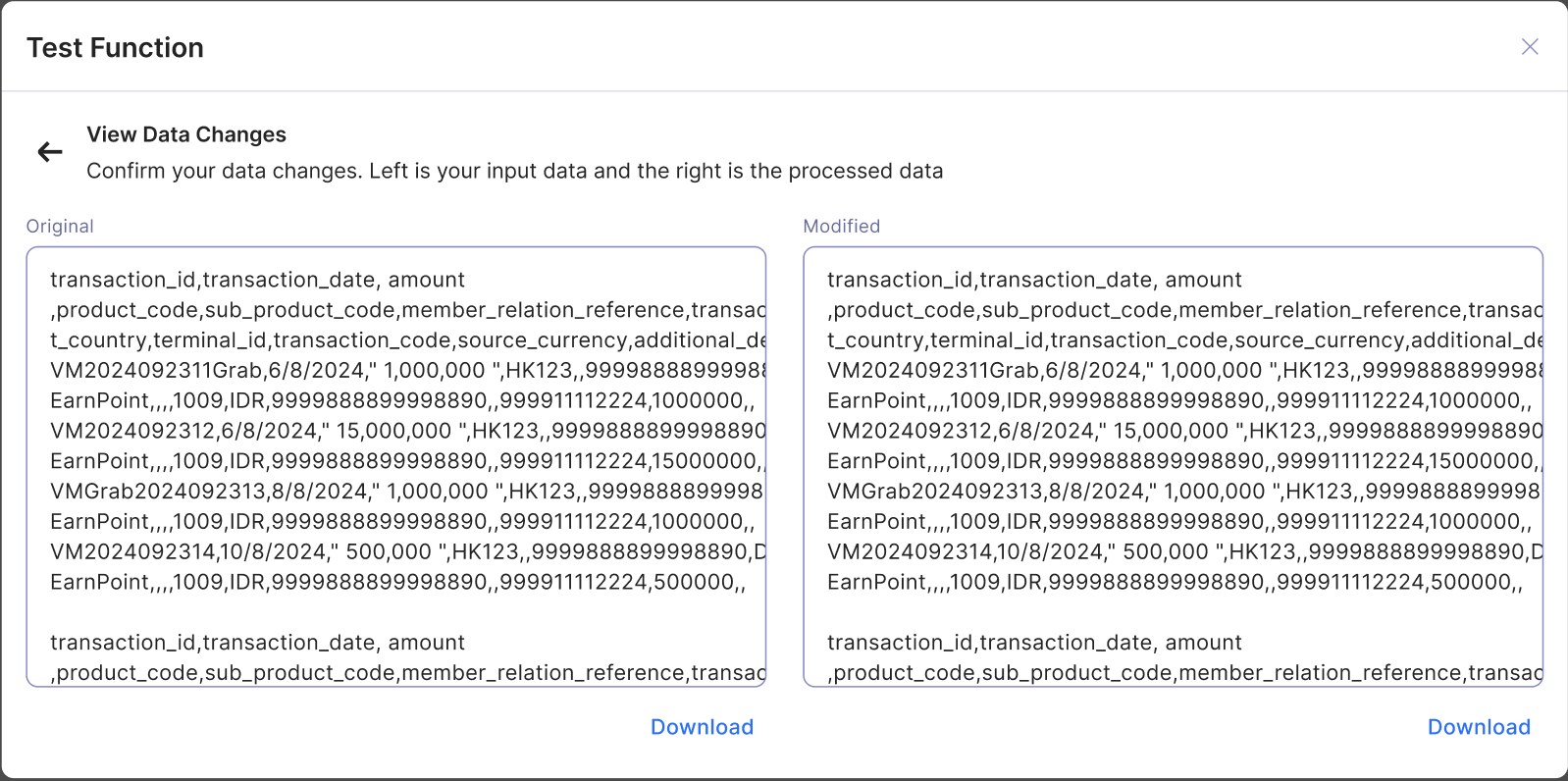
- Save the File. Fix errors if shown before saving.
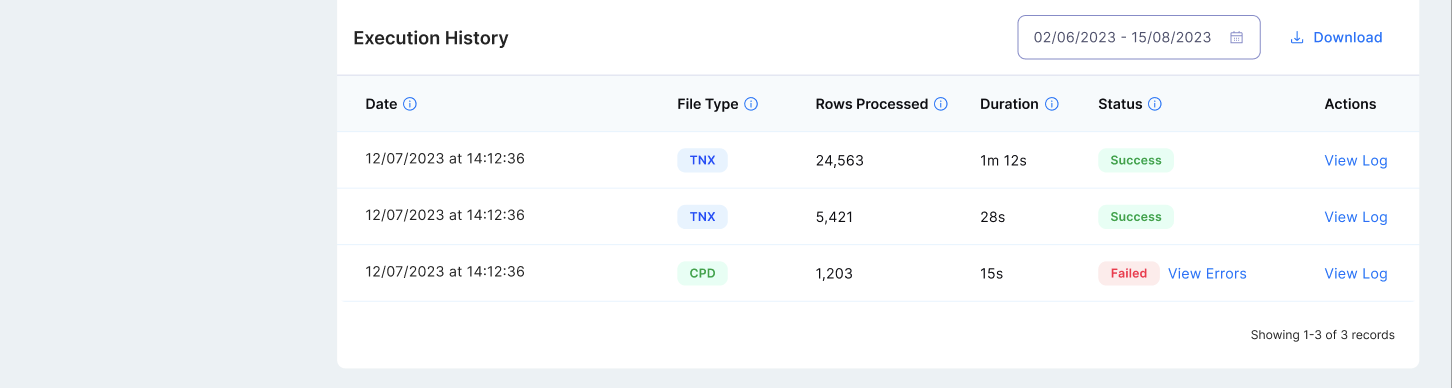
d. Checking Past Activity (Execution History)
- You can see:
- Which files were processed
- When and how long they took
- How many rows were processed
- Status (Success/Failed)
- From here, you can:
- View Logs → Compare original vs processed files.
- Download Logs → For your records.
e. Reset to Default
- If something goes wrong, click Reset to Default.
- This clears your rules and sets them back to the safe “no-op” (no processing) setup.
f. Advanced Data Scrubbing (Regex) For complex data cleaning, you can now use Regular Expressions (Regex). This allows for precise pattern matching and automated text transformation without custom code.
- Validation (matches_regex): Use this in conditional if blocks to verify if data (like an Email or Date) follows the correct format. If the pattern doesn't match, you can trigger an error or skip the row.
- Transformation (regex_replace): Automatically reformat strings.
- Example: Convert a date from DD/MM/YYYY to YYYY-MM-DD.
- Example: Strip dashes and brackets from phone numbers to leave only digits.