
Member Current Balance
Learn more about the different member balances on the View Member page.
As you scroll down the individual member details card, you will see the different balances available for the member.

Click inside the box for detailed overview:
1. Points Accrued:
The total number of points earned by the member. Click on the box for a detailed summary of accrual transactions, where you can view:
- Description
- Amount
- Points
- Transaction Date
- Processing Date
- Transaction Type
- Narration
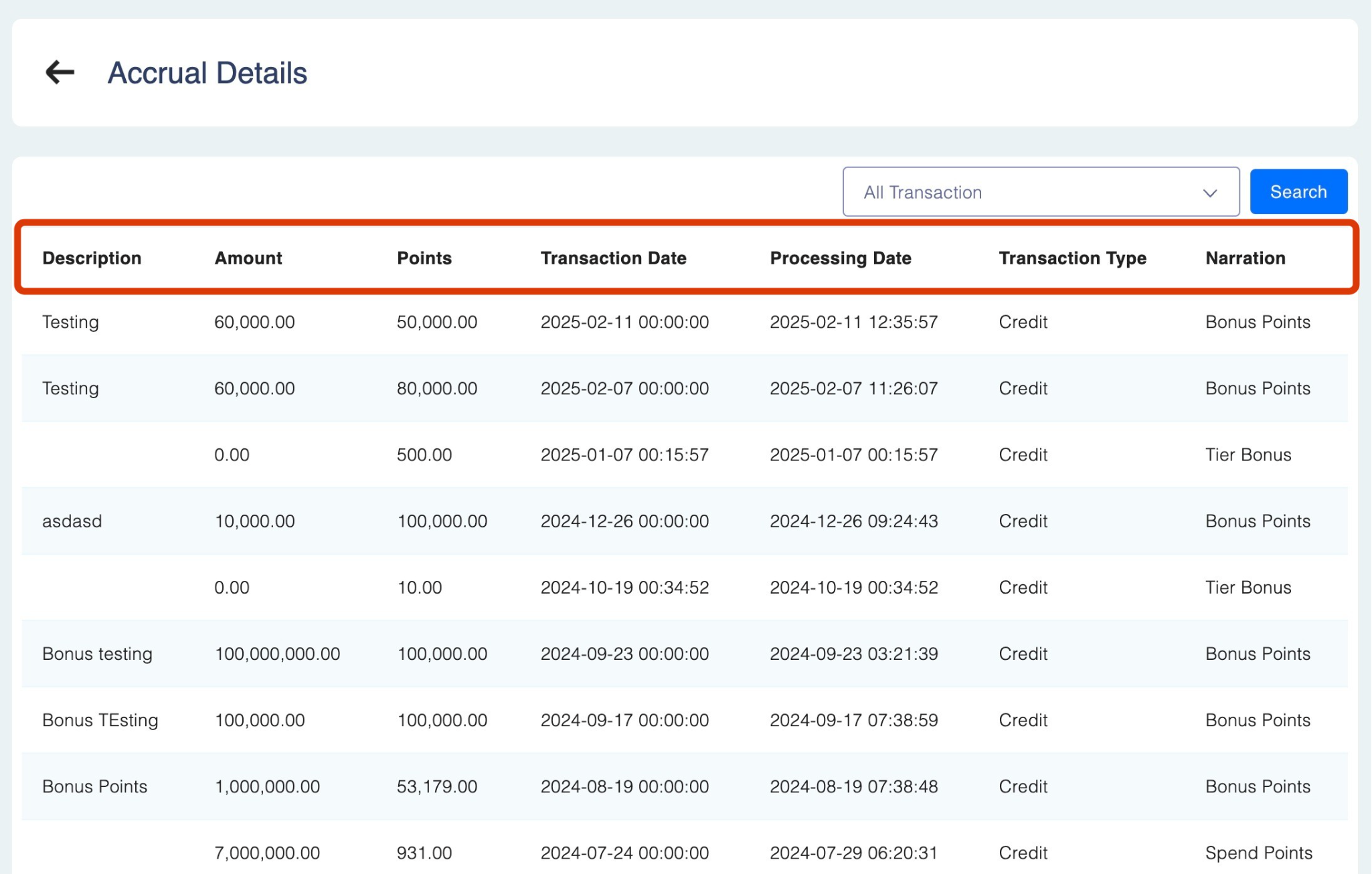
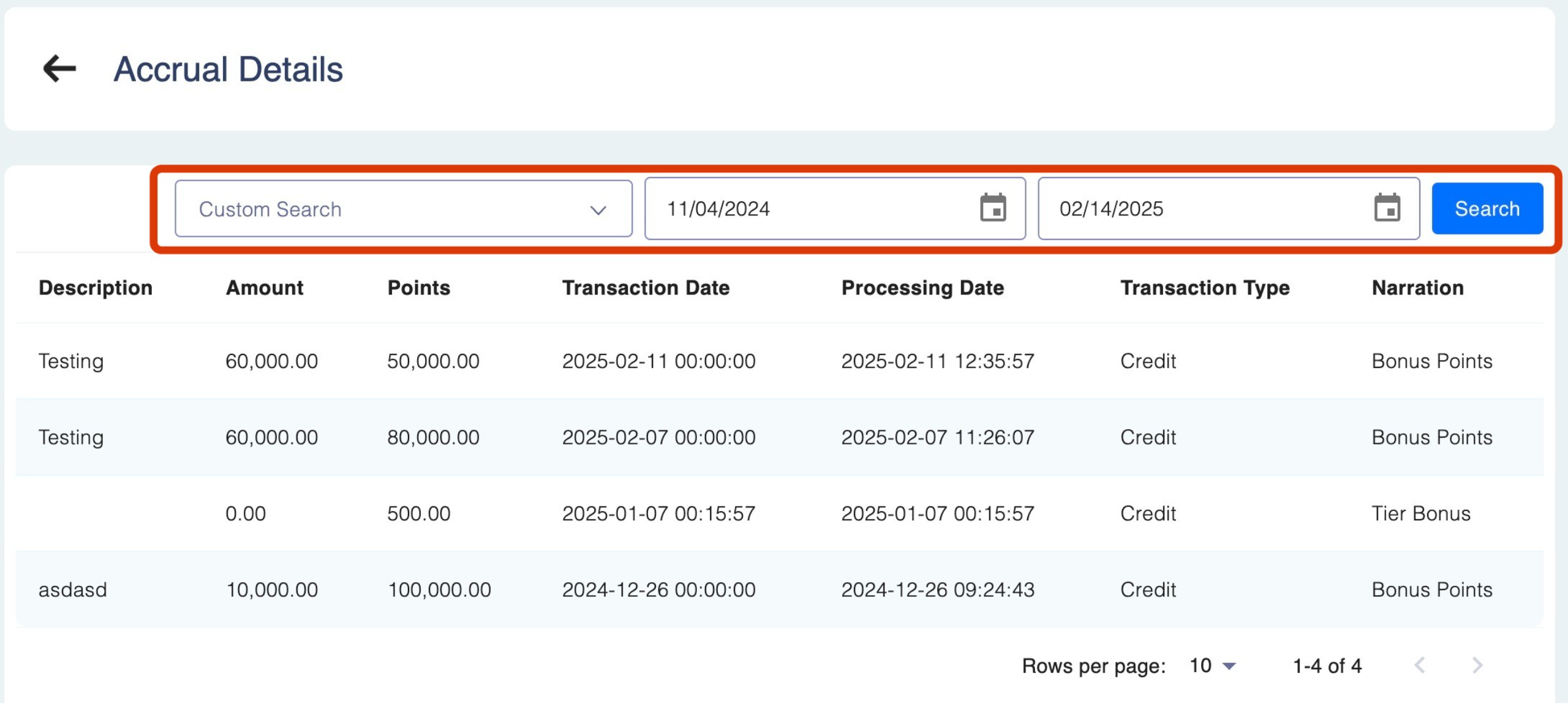
You can further filter transactions using the drop-down menu:
- All Transactions: Lists all accrued points for the member.
- Custom Search: Select a time frame using the calendar icons and click Search.
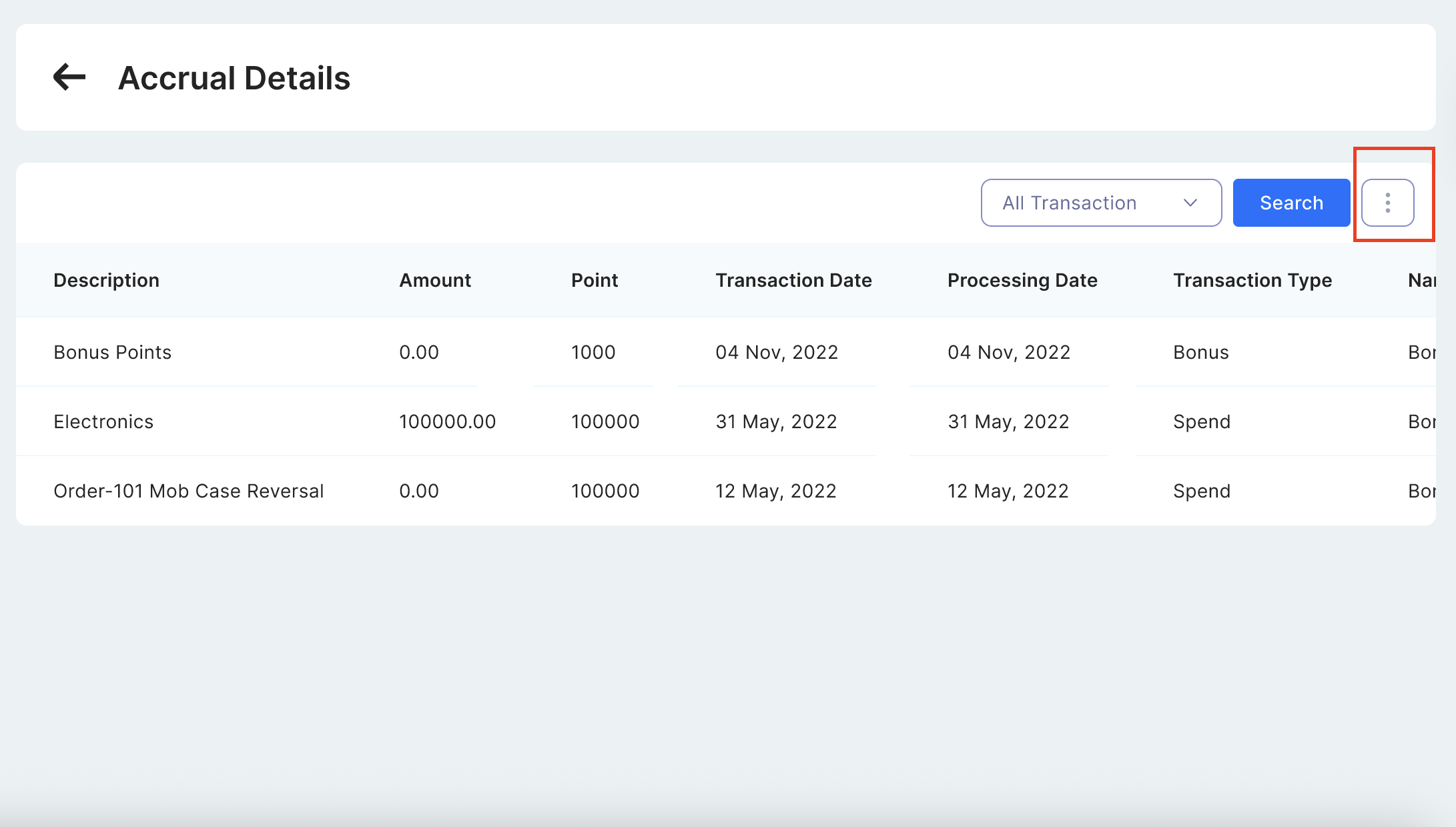
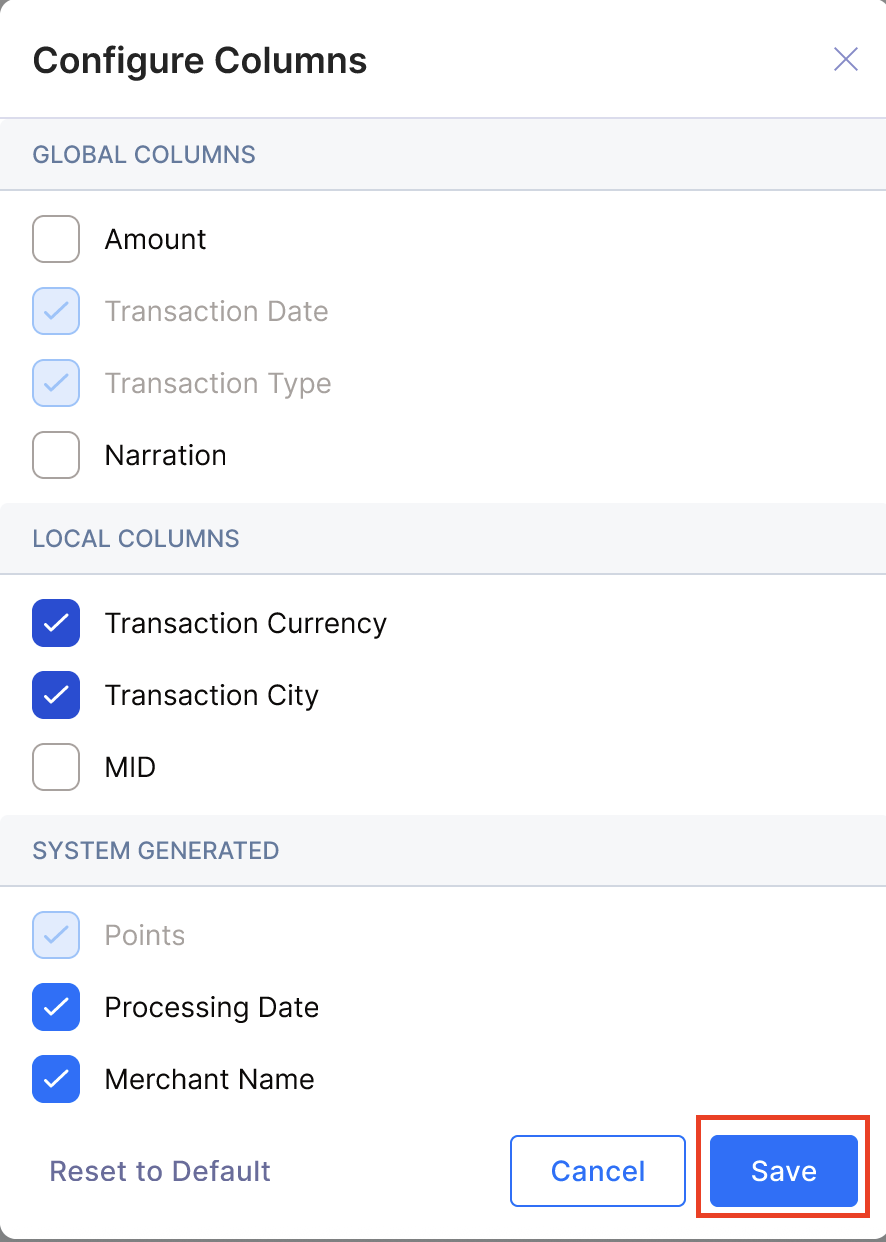
Configure Columns
You can customize the Points Accrued table to display specific data relevant to your current session.
- Click the Gear icon (Settings) at the top-right of the table.
- Select the attributes you wish to add from the Global, Local, or System categories.
- Note: Default columns cannot be deselected.
- Close the panel to view your updated table.
Note: Column selections are session-specific. The view will reset to defaults if you refresh the page or log out.
2. Points Redeemed: The total number of points that the member has used.
Clicking on the box will take you to a detailed summary of points redeemed, where you can view:
- External Reference
- Description
- Points
- Transaction Date
- Processing Date
- Transaction Type
- Narration
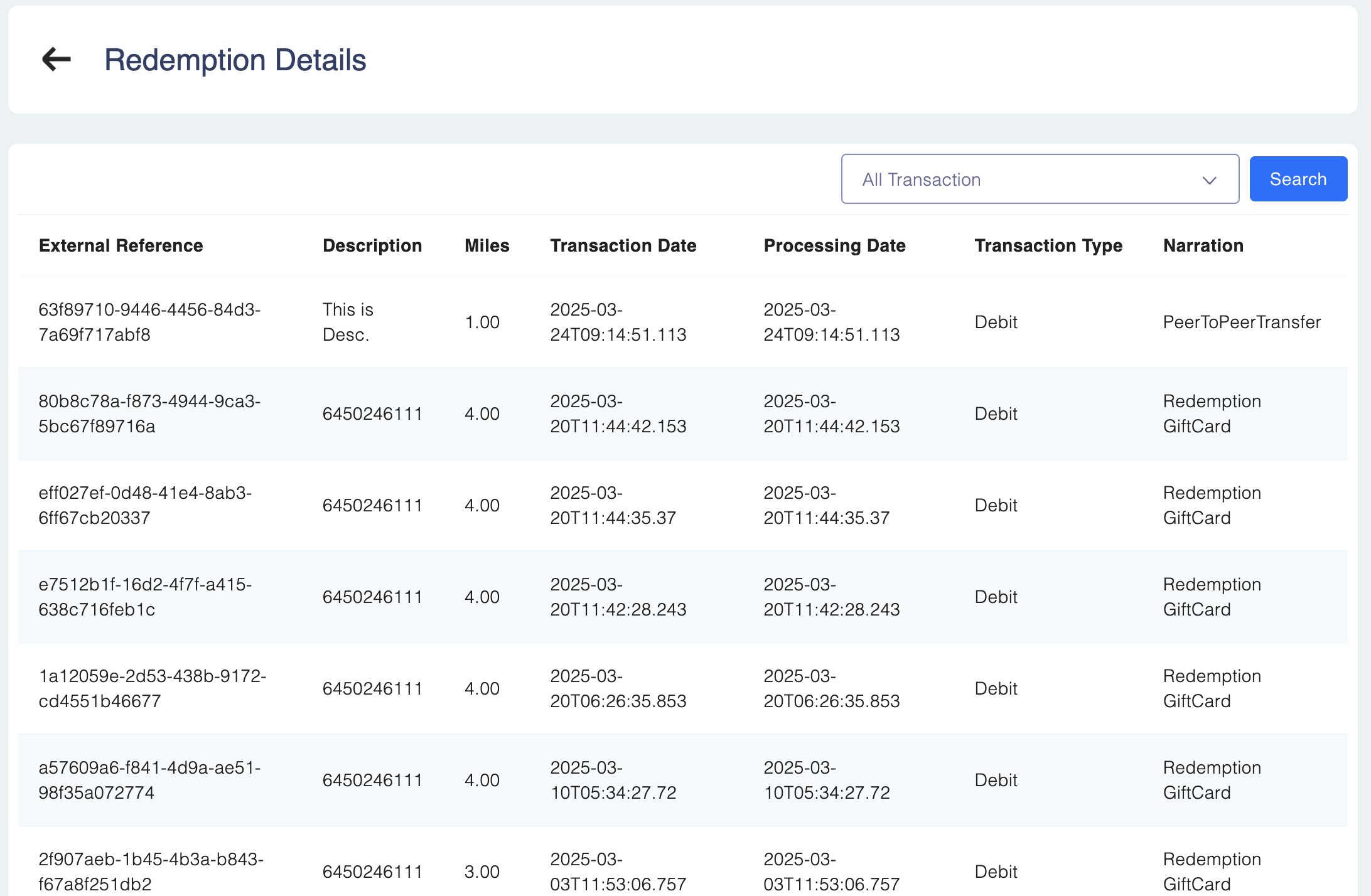
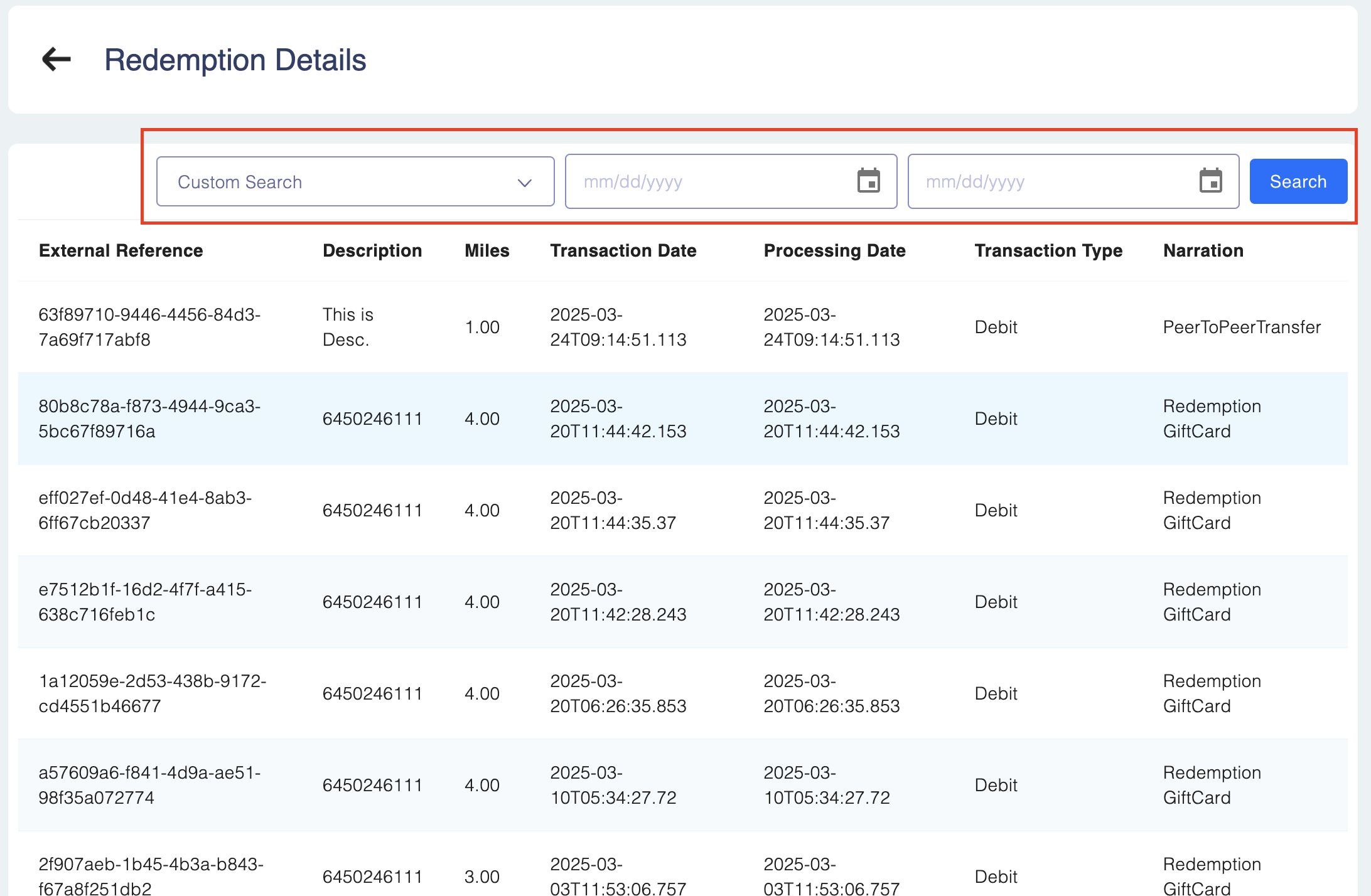
You can further filter transactions using the drop-down menu:
- All Transactions: Lists all accrued points for the member.
- Custom Search: Select a time frame using the calendar icons and click Search.
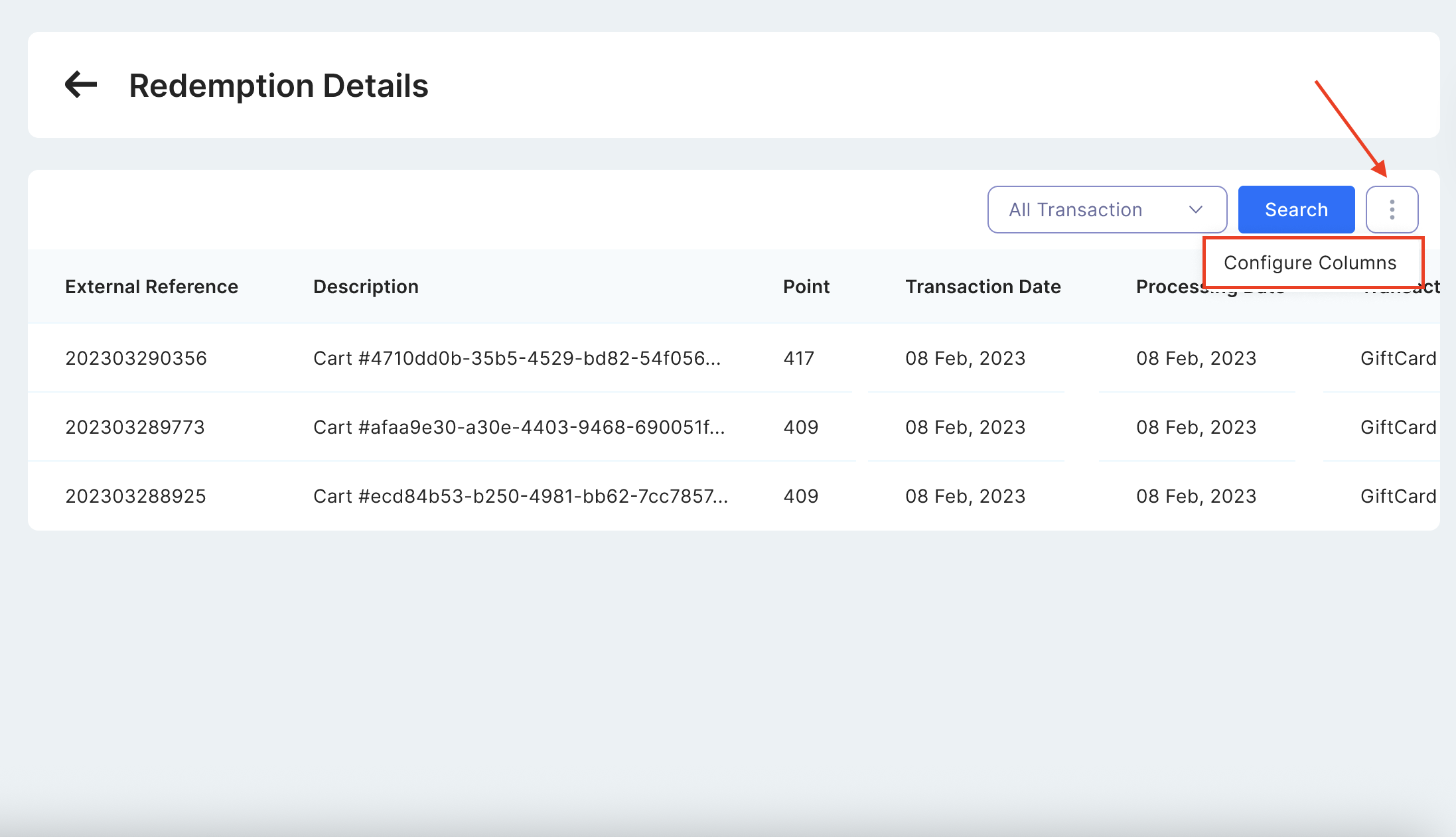
Configure Columns
You can also customize the Points Redeemed table layout:
- Click the Gear icon at the top-right of the table.
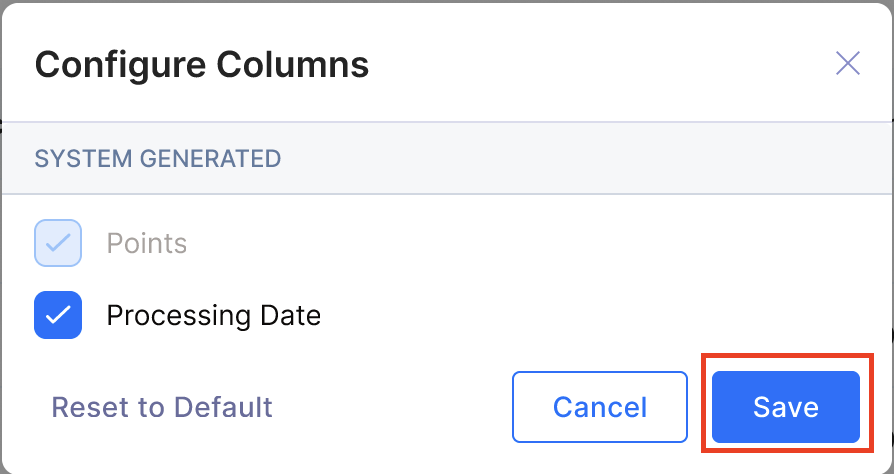
- Check the boxes for the additional attributes you want to view.
- Close the panel to update the list.
Note: Just like the Accrued table, these changes persist only for your current session.
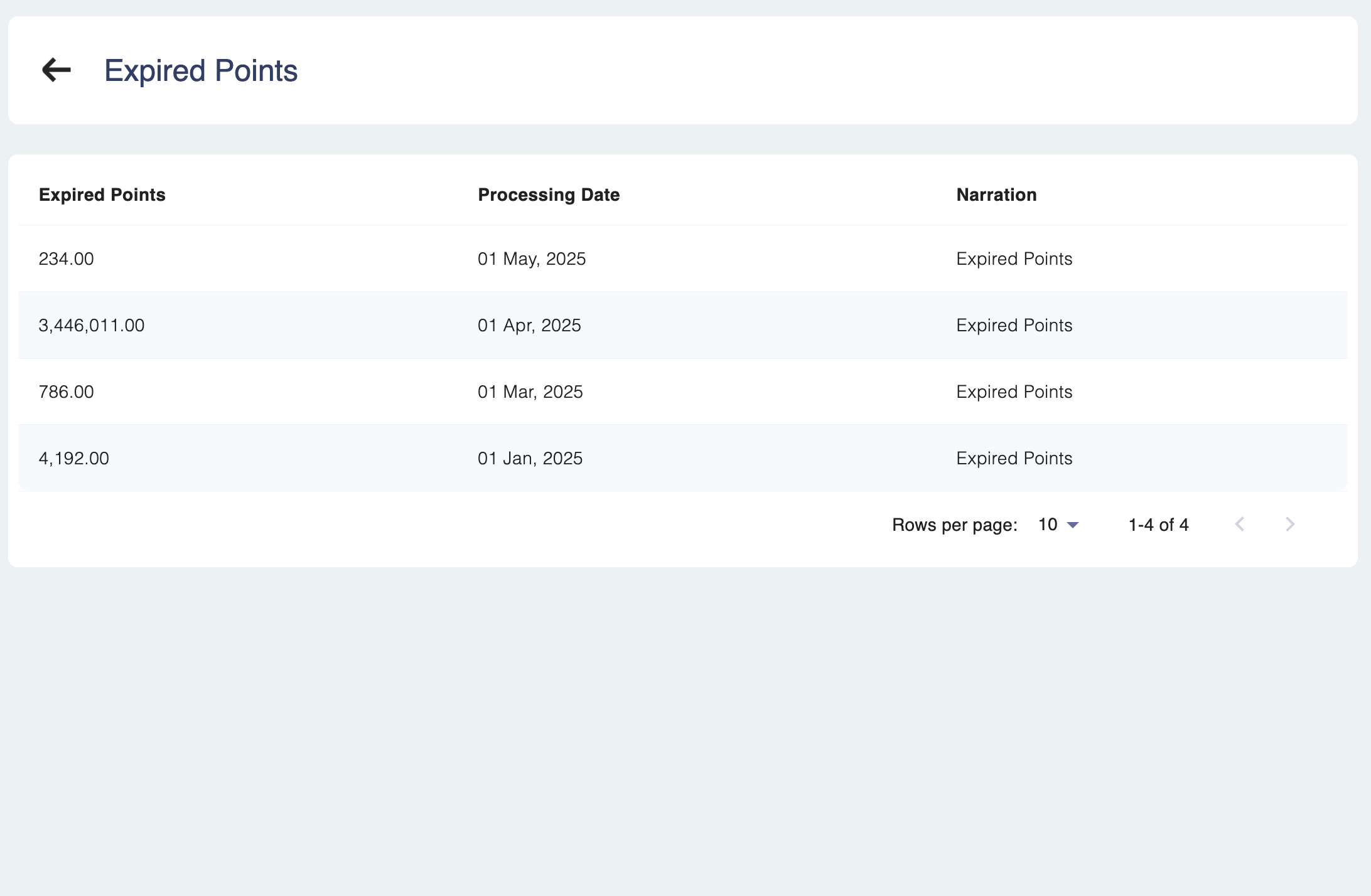
3. Points Expired:
The total number of points that have expired according to the program's configuration. Clicking on the box will take you to a detailed summary of points redeemed, where you can view:
- Description
- Points
- Transaction Date
- Processing Date
- Transaction Type
- Narration
You can further filter transactions using the drop-down menu:
- All Transactions: Lists all accrued points for the member.
- Custom Search: Select a time frame using the calendar icons and click Search.
4. Pending Points:
Points that are awaiting approval from the maker/checker. 📘How available points are calculated?
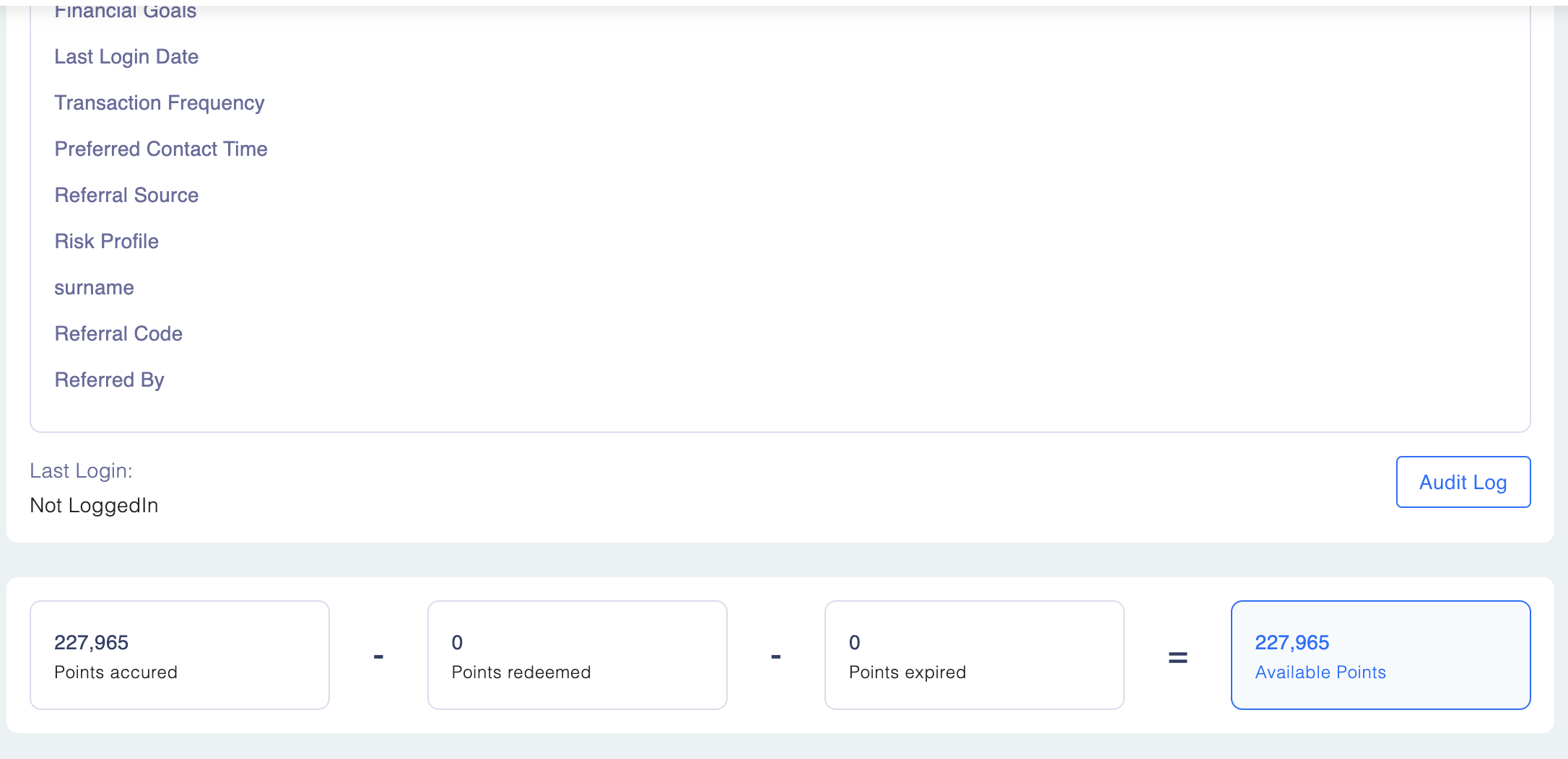
Points Available (Current Balance) = Points Accrued - Points Redeemed - Points Expired
How available points are calculated?Points Available (Current Balance) = Points Accrued - Points Redeemed - Points Expired
You can easily review a member's current point balance, accumulated points, redeemed points and expired points in Members → Member Profile
4.1 Column Configuration in Member Transaction Summary Table
The Dynamic Column Configuration feature allows users to customize the Transaction Summary table under a member’s profile. Users can select which columns they want to view during their session, enabling a tailored and efficient experience. This configuration is session-specific and resets after logout or browser refresh.
Steps to Configure Columns in Transaction Summary
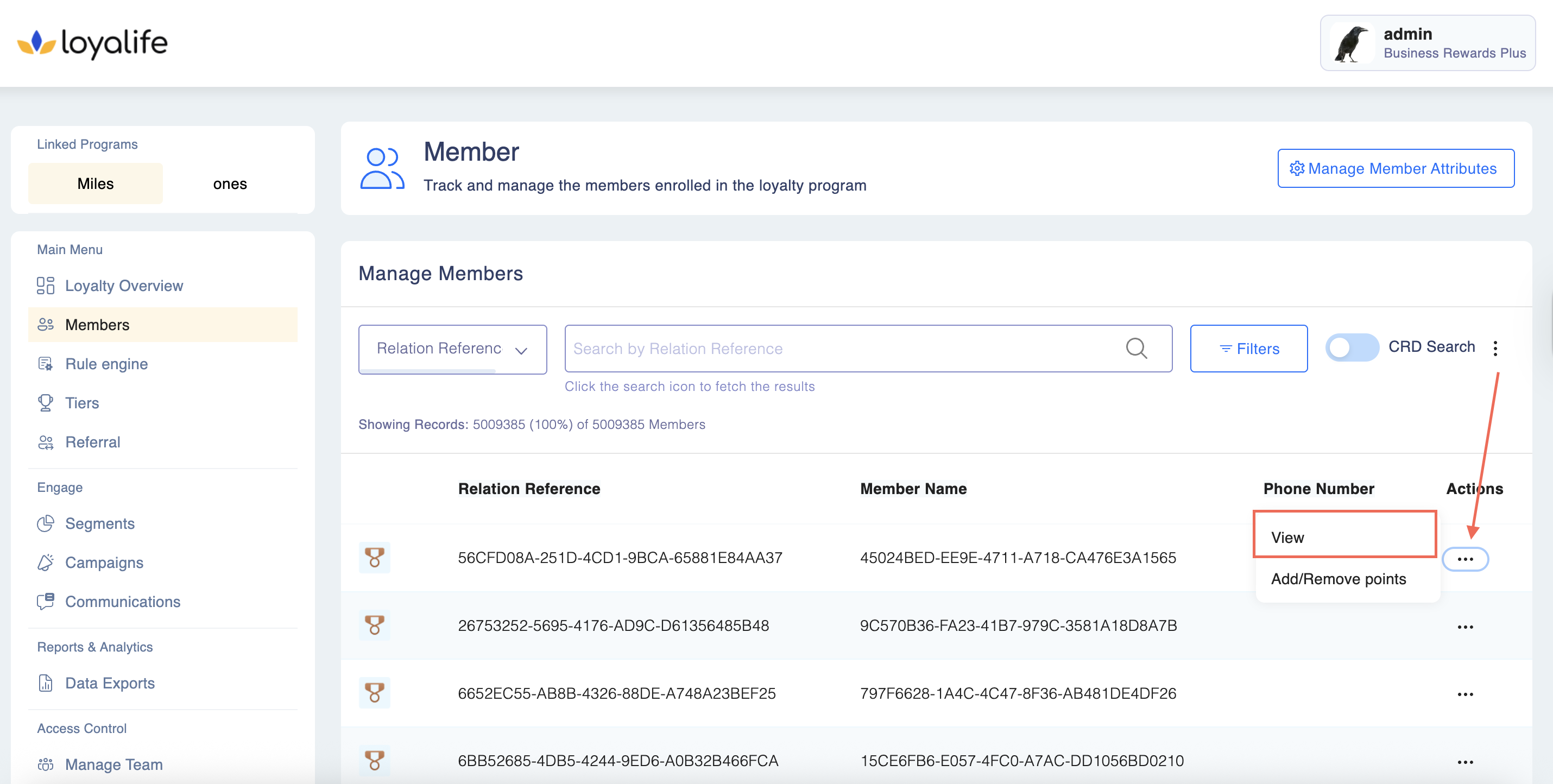
Step 1: Access Member Profile
- Log in to your account.
- Navigate to the Member Profile of the member whose transactions you want to view.
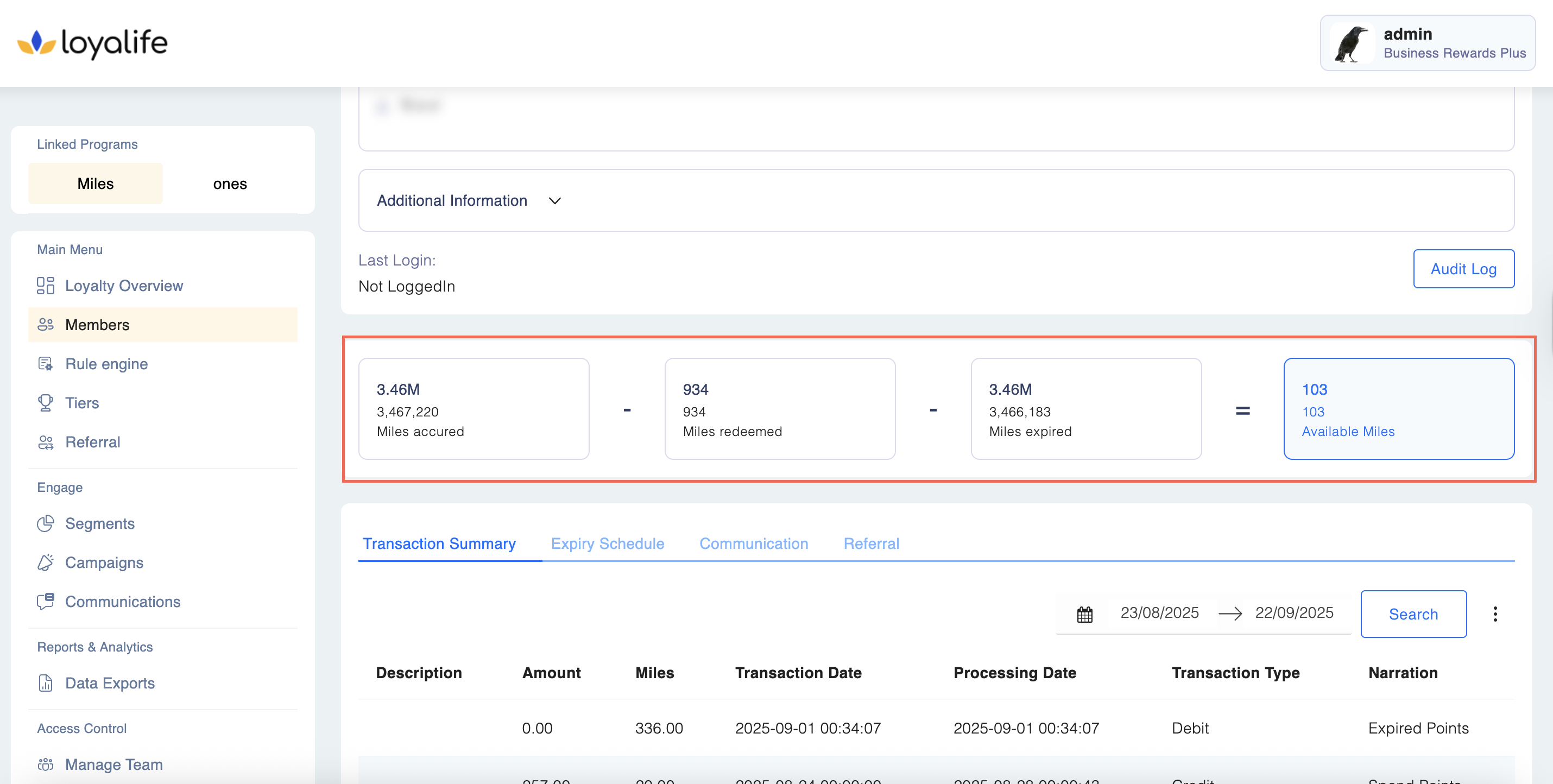
Step 2: Open Transaction Summary
- Scroll to the Transaction Summary section.
Step 3: Open Column Configuration Panel
- Locate the Configure Columns option at the top-right of the table (gear icon or button)
- Click the gear icon or Configure Columns button.
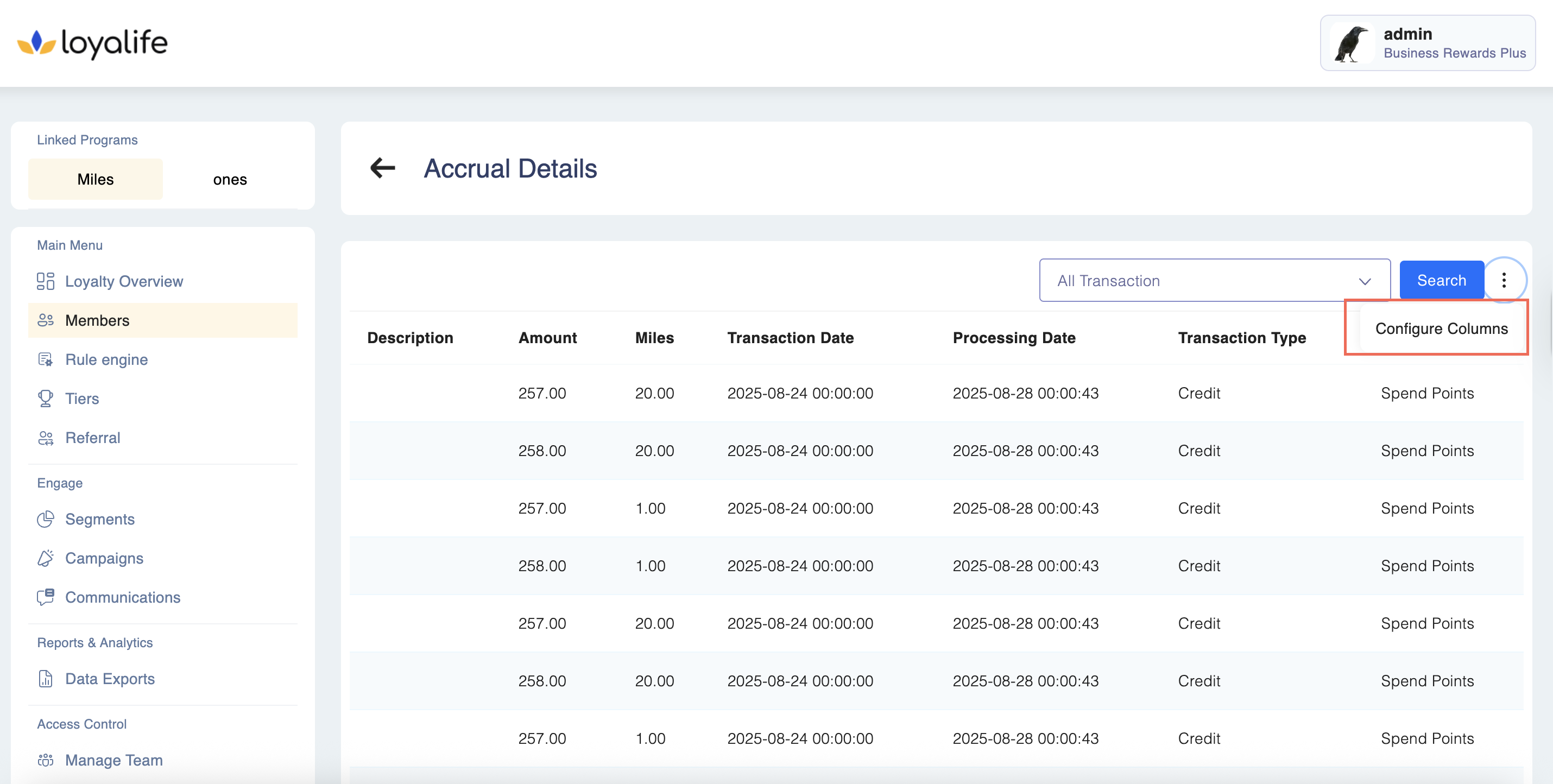
- A dropdown panel appears showing a list of available attributes grouped into:
- Global Attributes
- Local Attributes
- System Attributes
Step 4: Select Columns
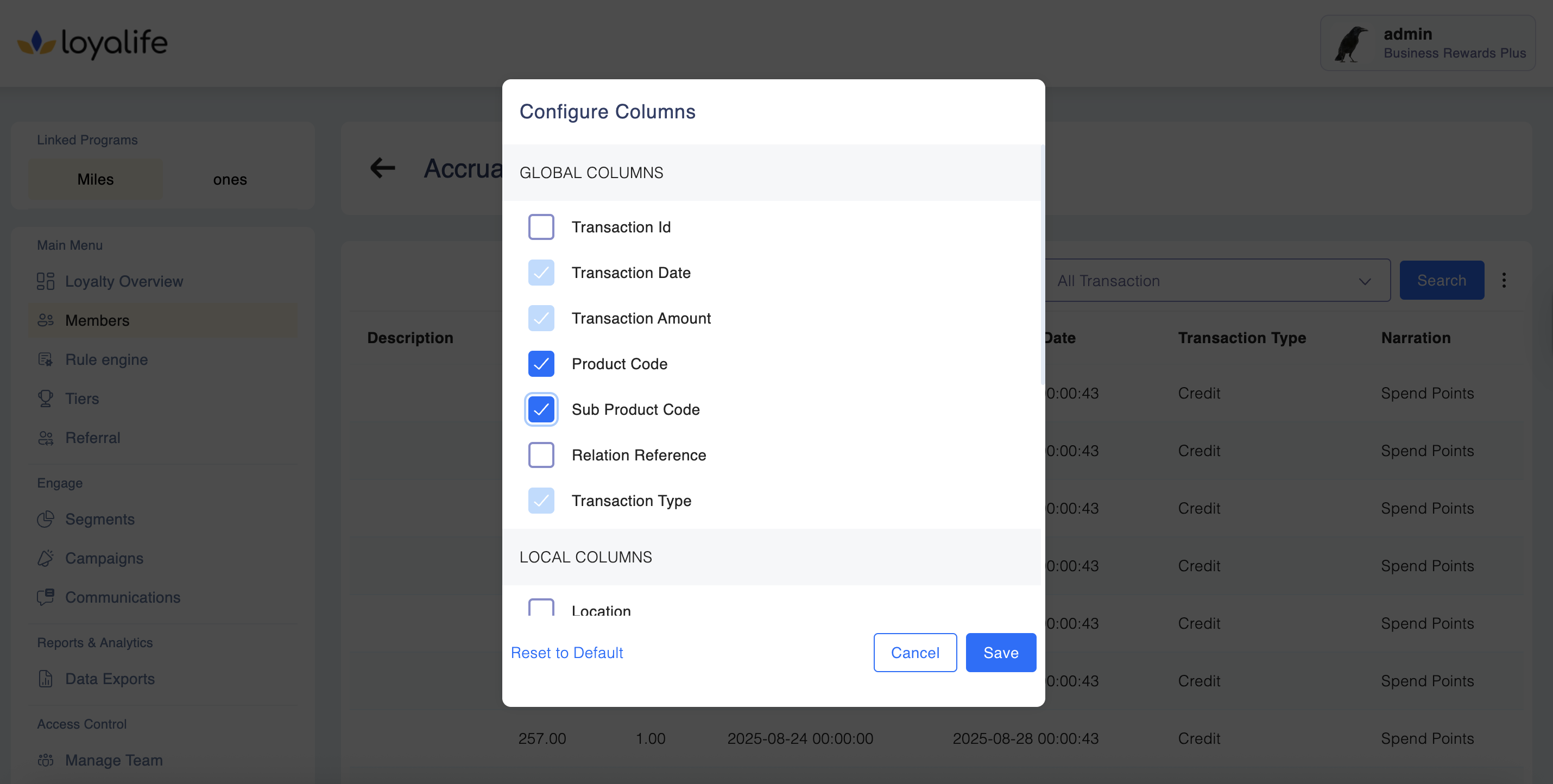
- Check the boxes next to the attributes you want to add as columns.
- Uncheck any previously added attributes you want to remove (except default columns, which cannot be deselected).
- Columns are immediately added or removed in the table.
Step 5: View Updated Table
- The table updates instantly with the selected columns appearing to the right of default columns.
Step 6: Optional – Reset to Default
If available, click “Reset to Default” in the panel to revert the table to show only default columns.