
Local Attributes
What are Local Attributes?
Local attributes are a set of attributes that can be used to store and retrieve information that is relevant to the business logic required to run the loyalty program.
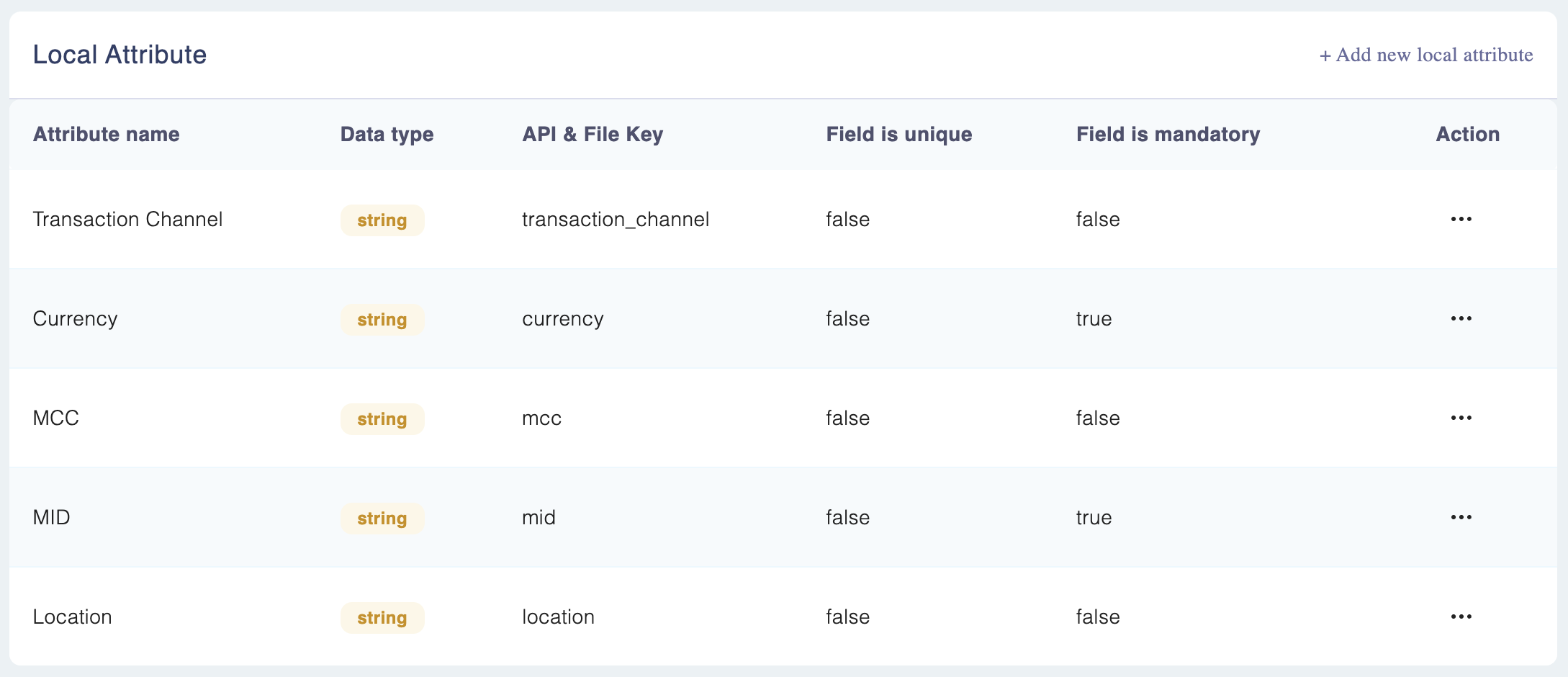
For example, for the airline use case we refer to earlier in this documentation, the local attributes would be as follows:
Attribute Name | API/file_key | Date type | Is Mandatory | Default Values (If any) |
|---|---|---|---|---|
Flight destination | flight_destination | String | True | |
Passenger age | passenger_age | Int | False | |
Flight time | flight_time | Float | True | |
Ticket class | ticket_class | Selection | True |
|
Accessing Local Attributes
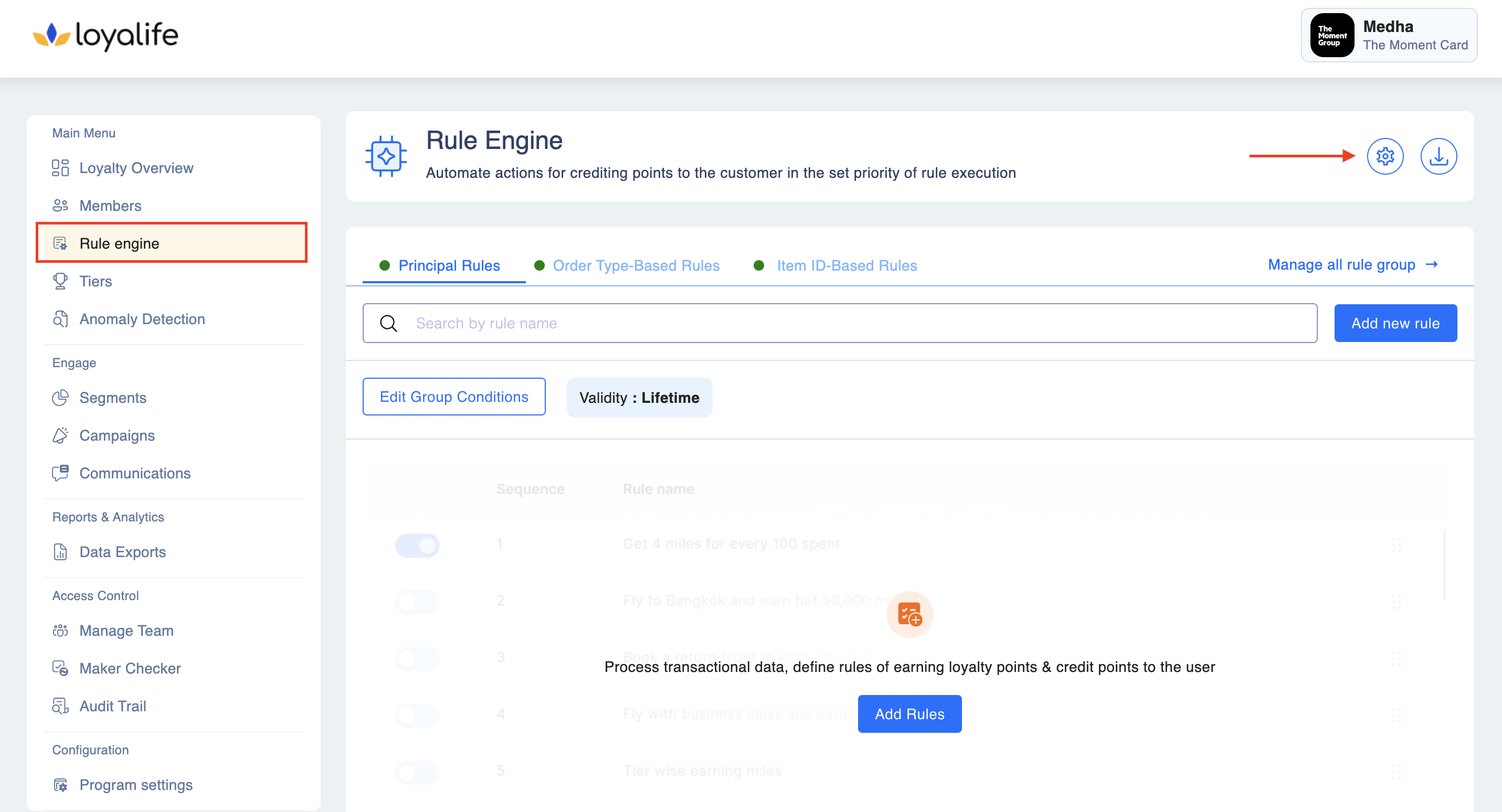
Step 1: Navigate to Rule Engine > Manage Attributes (using the settings icon at the top).
Step 2: Scroll down to the Local Attributes.
Adding a Local Attribute
Step 1: To add local attributes, go to Rule Engine ➝ Manage Attributes ➝ local attributes➝ Add new local attributes.
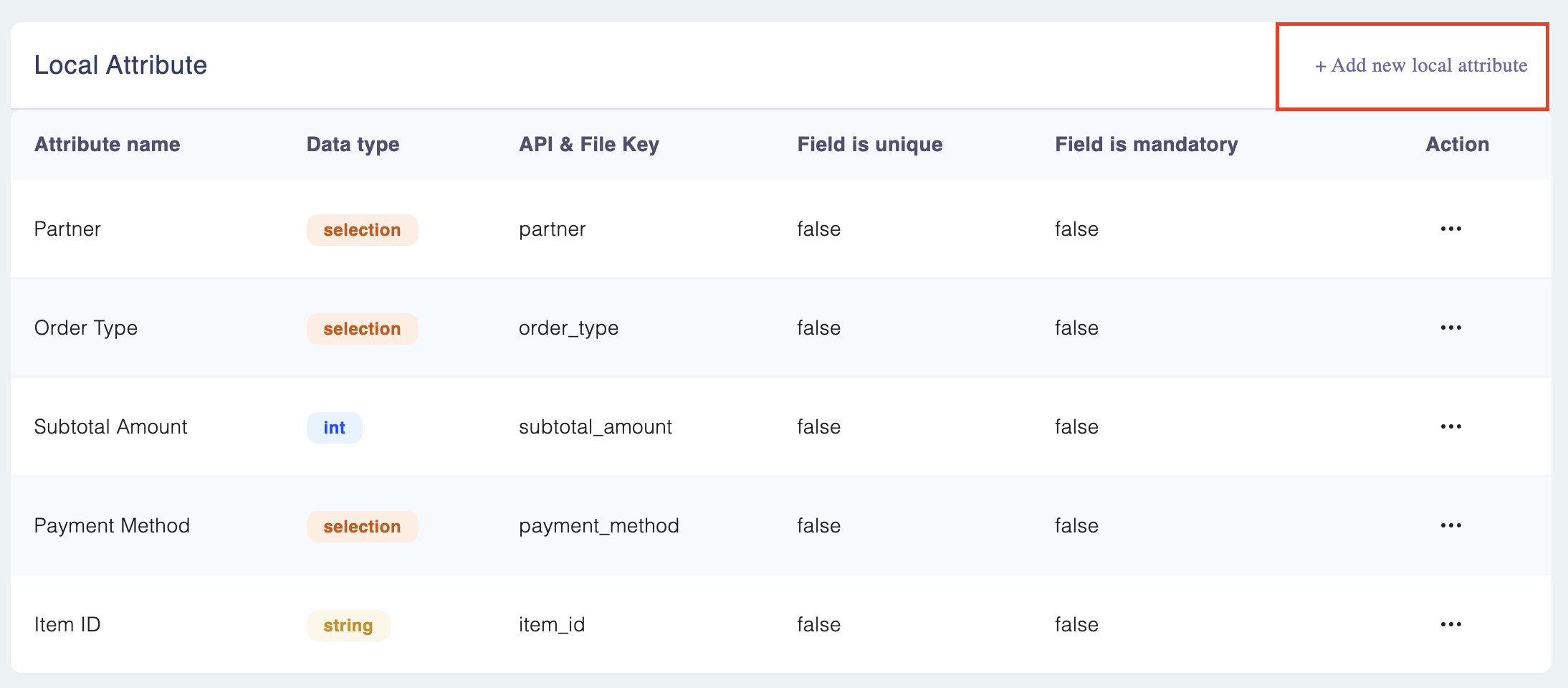
Step 2: Add the information such as
- Attribute name: This is the label or name given to the local attribute, describing the data it represents.
- API/file_key name: This is the unique key identifier used in APIs or files to reference the attribute.
- Data Type: This defines the kind of data the attribute stores, such as String, Number, Float, Date, or Selection.
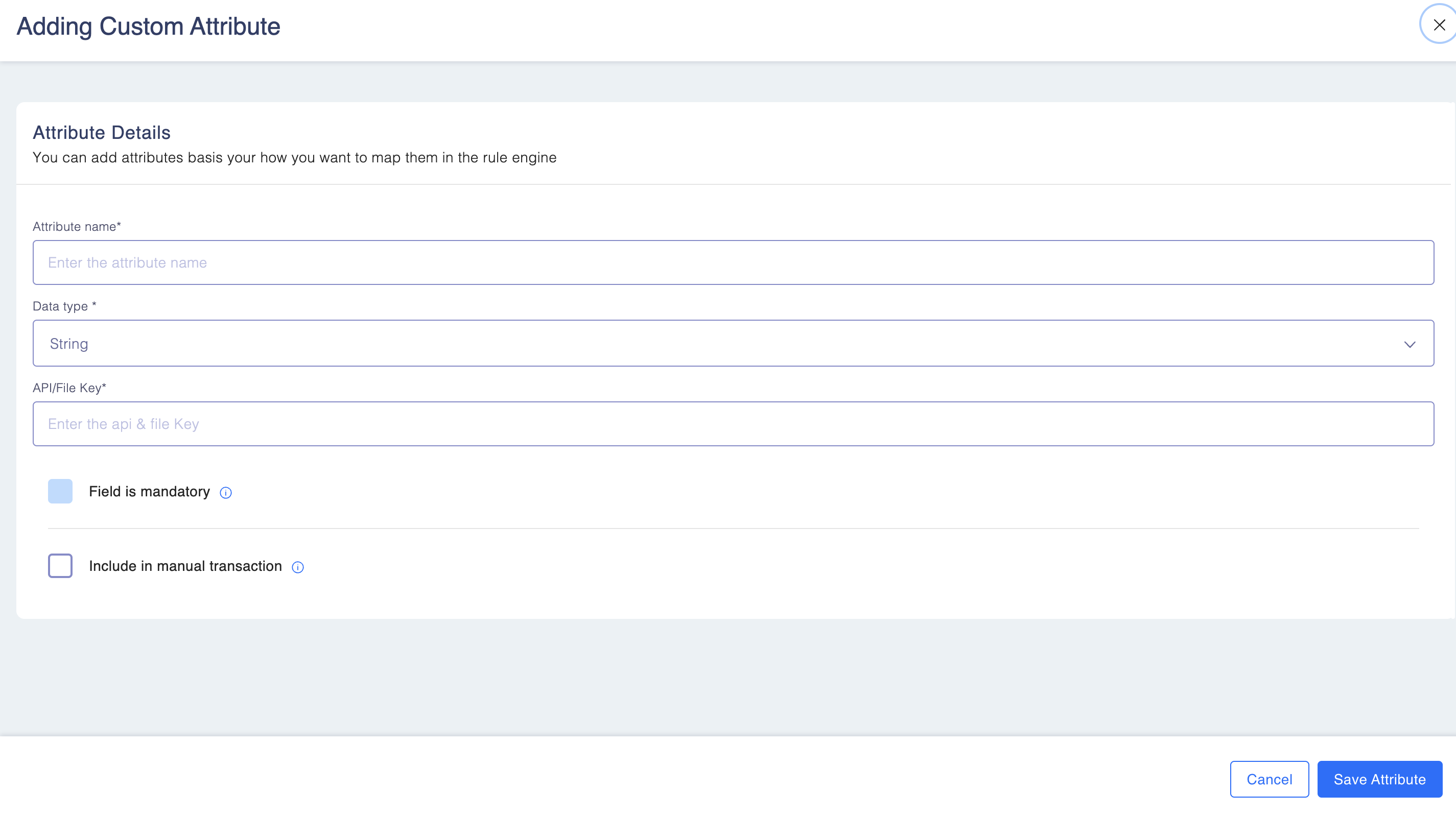
Learn more about Data Type below
- **String:**This is used to store text or words.
- Int: This is used to store whole numbers, like 1, 2, 3.
- **Float:**This is used to store decimal numbers, like 1.5, and 2.7.
- **Selection:**This is used to store choices or options, like "yes" or "no".
- **Date:**This is used to store dates, like January 1, 2022.
- DateTime: This is used to store both date and time (e.g., 2023-10-27 14:30:00). This is useful for capturing precise timestamps like appointment times or transaction events.
Editing a Local Attribute?
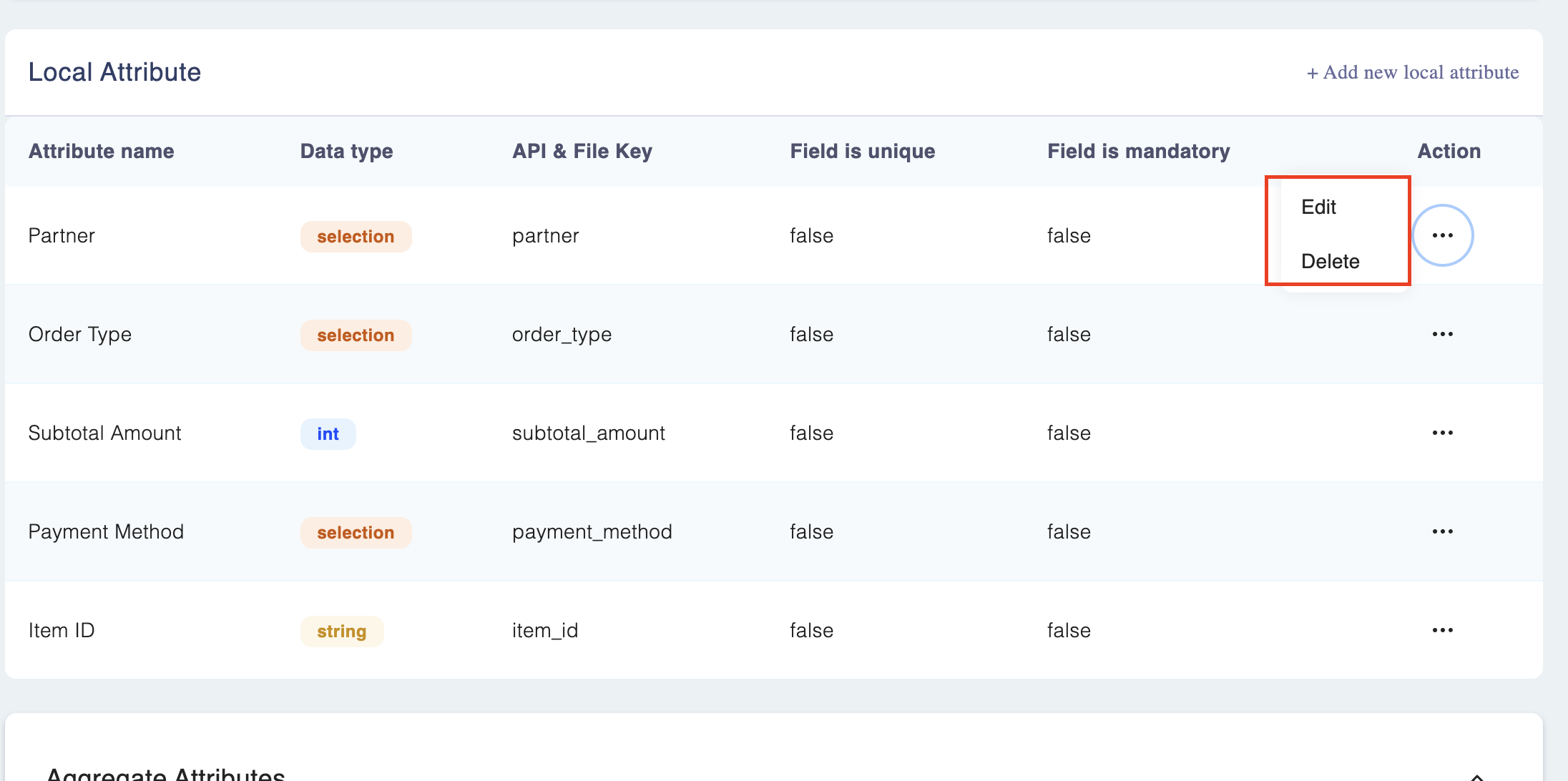
To edit/delete a local attribute, go to Rule Engine ➝ Manage Attributes ➝ local attributes➝ select the attribute you would like to edit ➝ Edit/delete.
A local attribute which is getting used in a rule, cannot be deleted.
Selection data type attribute?
The selection data type attribute is a string attribute internally. The values can be added at the time of creating or editing the selection attribute.
Multiple values can be added by using comma-separated values.
Keep in mindA local attribute which is getting used in a rule, cannot be deleted.
Managing Attribute Groups
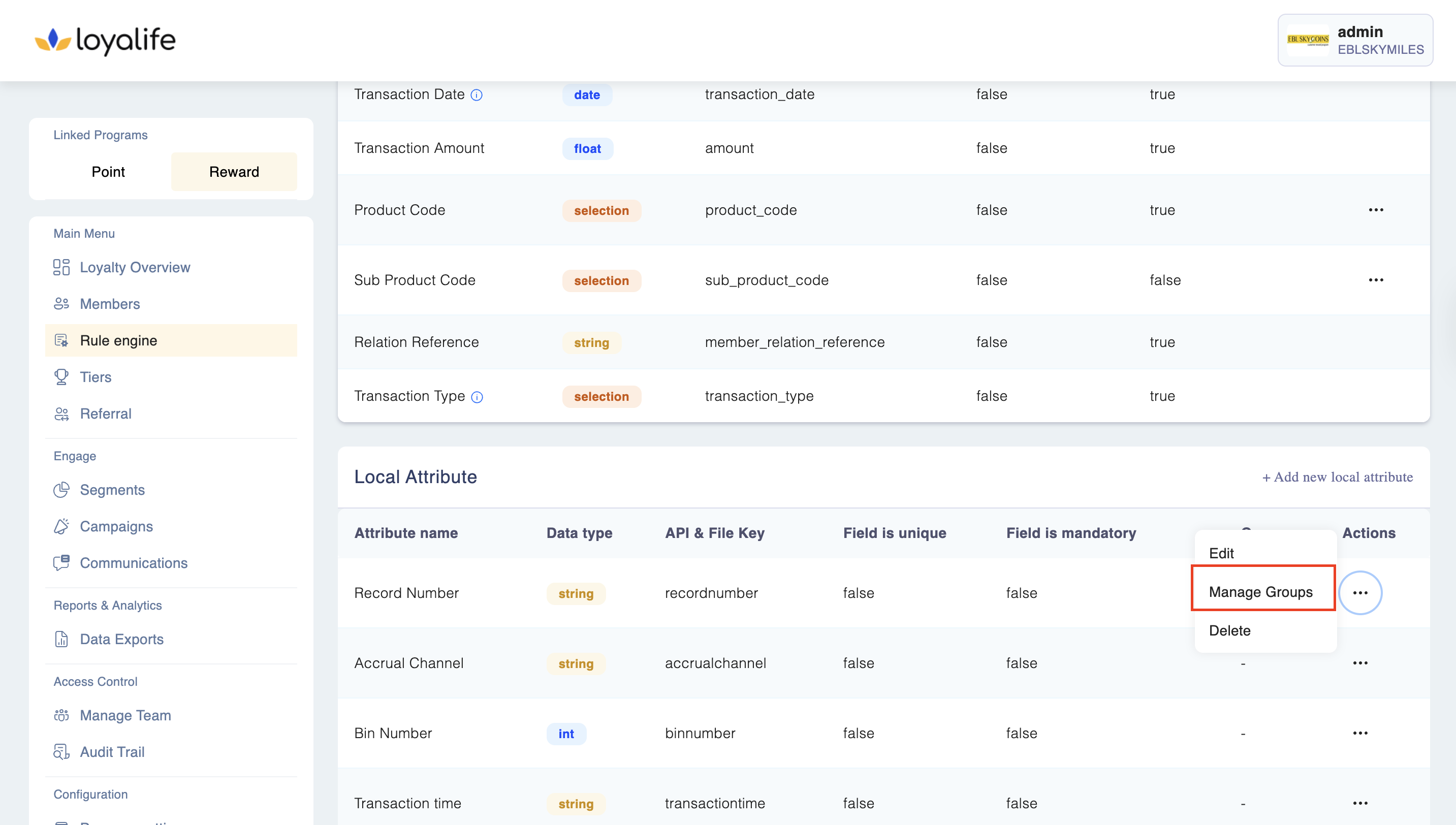
- To manage a group navigate to Action next to a Local Attribute and click on "Manage Groups" for a local attribute.
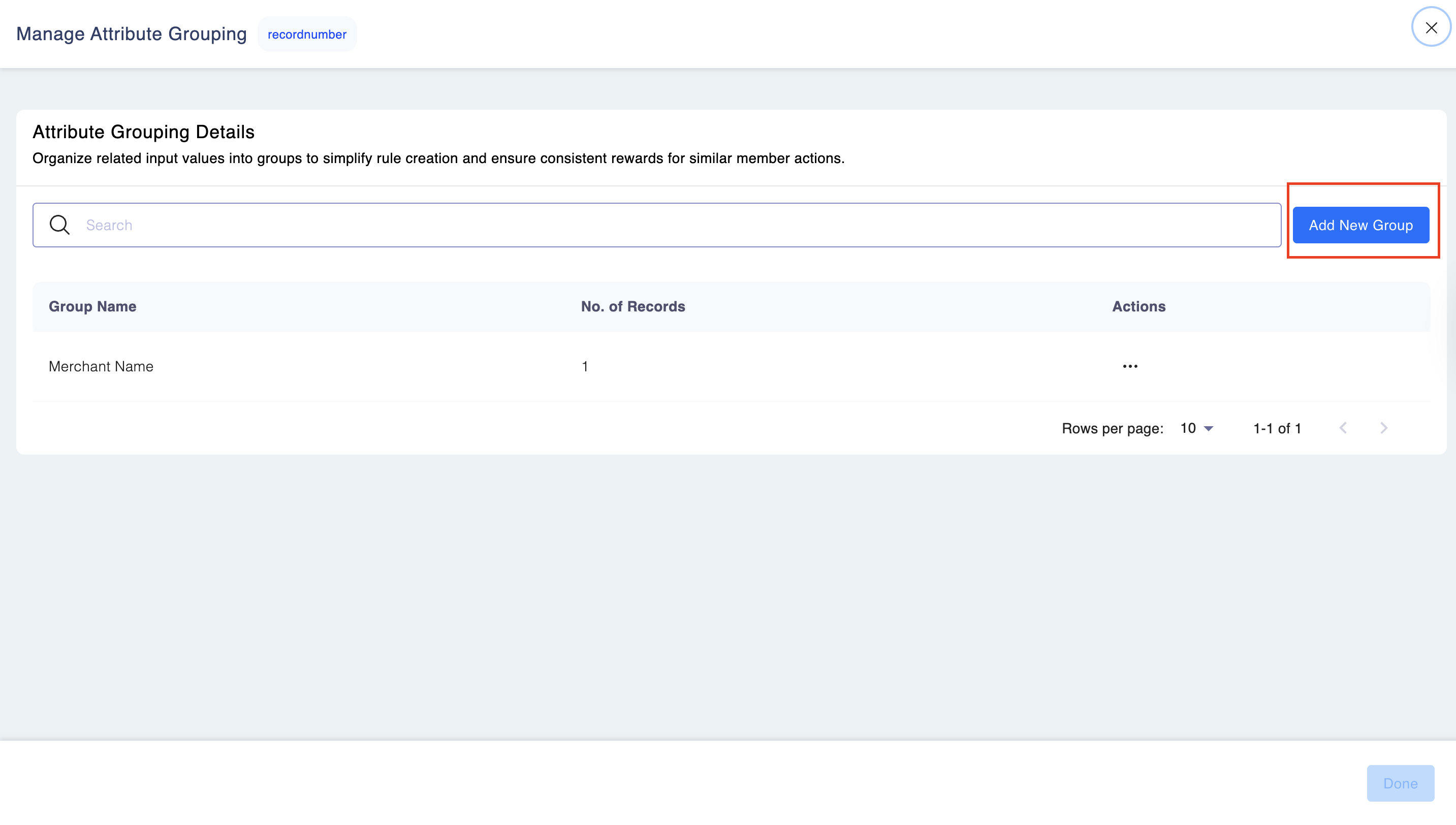
- Click on Add a New Group on the top right of the page.
- Add the details
- Name of the Attribute Group:
- Group Constraints
- Group names must be unique
- Groups are non-editable and non-deletable after creation
- Only visible for eligible attribute types
- Audit log will capture group creation events
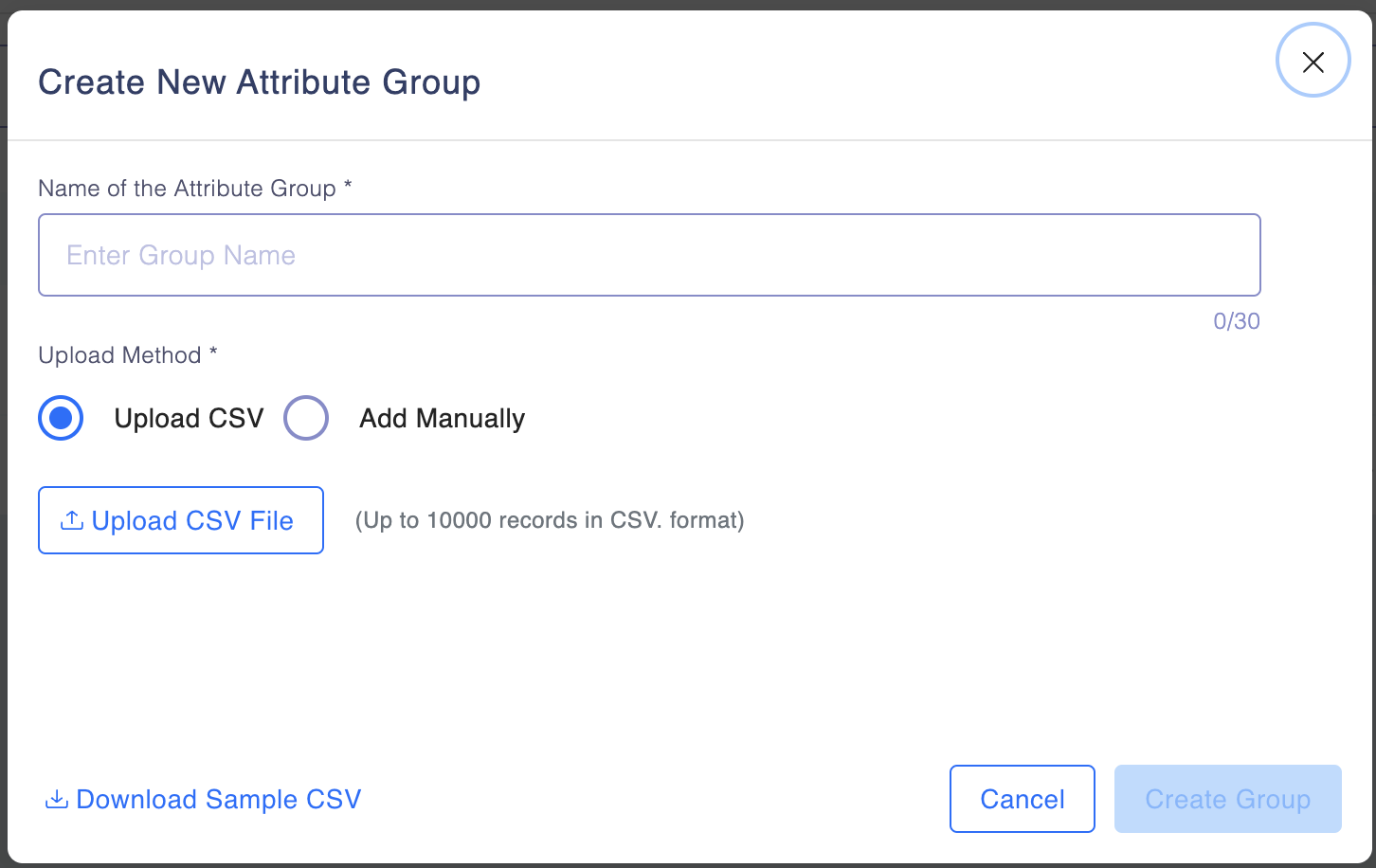
- Select the upload method:
- Upload CSV
- Click “Upload CSV” tab in the Manage Attribute Grouping modal
- Upload a .csv file with up to 10,000 values
- Ensure: The file is not empty, Values are not blank or duplicated, No special characters are present
- Add Manually
- Click “Manual Entry” tab
- Paste or enter up to 500 comma-separated values
- Example:
123456, 789101, 112131, 141516 - ⚠️ Manual entry limit: 500 values and ⚠️ Duplicate and blank values are not allowed
- Creating Attribute Groups: Attribute Grouping is supported for these attribute types:
- Integer
- String
- Selection (Dropdown/Option-based attributes)
- Rule Import/Export Support: Grouped conditions are supported in:
- Rule Import
- Rule Export
- Ensure group names in imports exactly match existing group names
- Upload CSV
Please note that currently the attribute rule grouping does not support deletion or editing capabilities.
The system supports comprehensive attribute group management for local attributes including Integer, String, and Selection data types.
The "In Group/Not In group” operator is visible to the user during rule creation for global attributes and aggregate attribute
For any feedback or query reach out to [email protected].