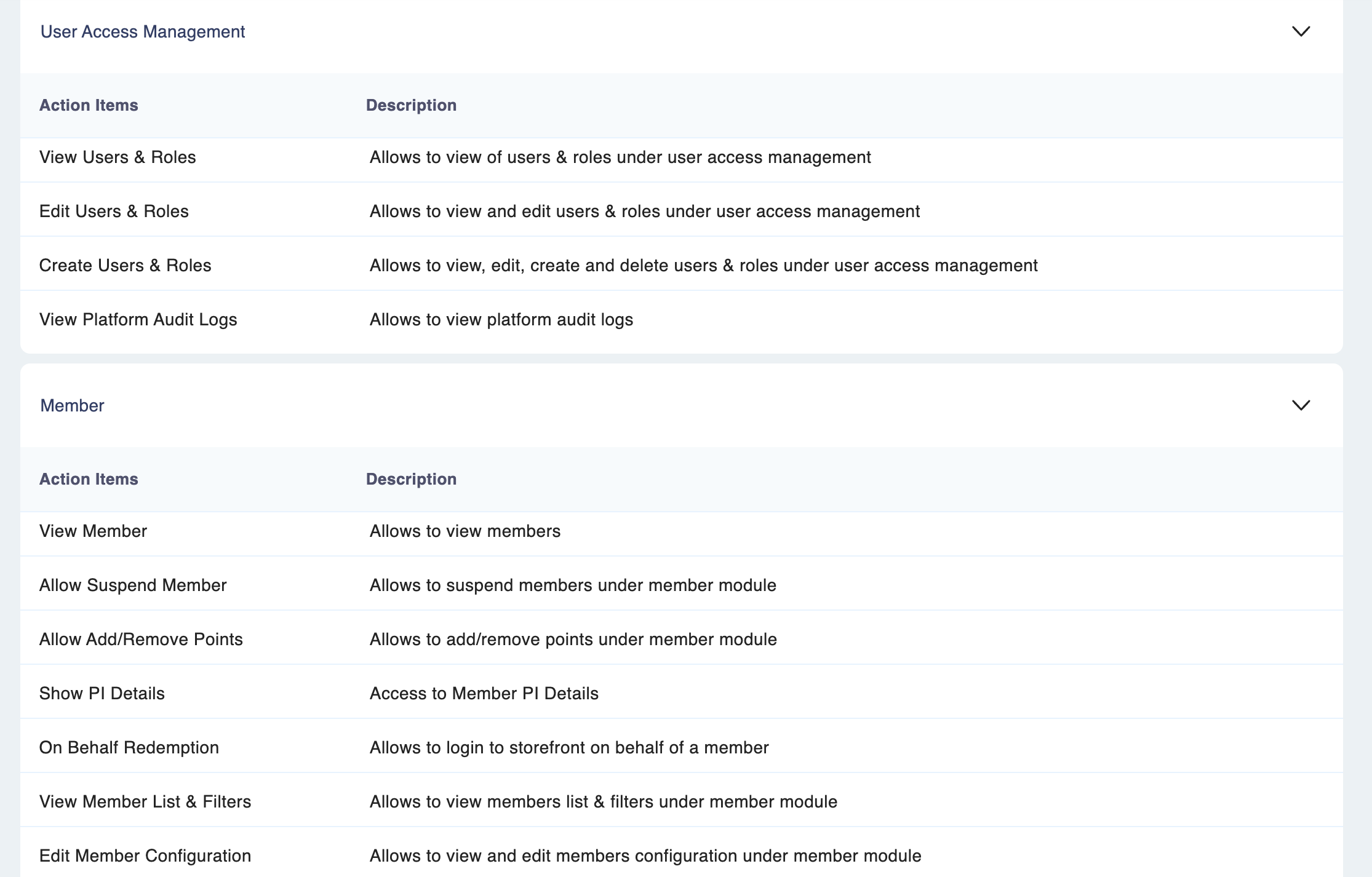
View User Role
Learn how to view user roles on Loyalife
Introduction
This guide provides step-by-step instructions on how to view user roles in the Loyalife platform through the User Access Management module.
Viewing User Roles
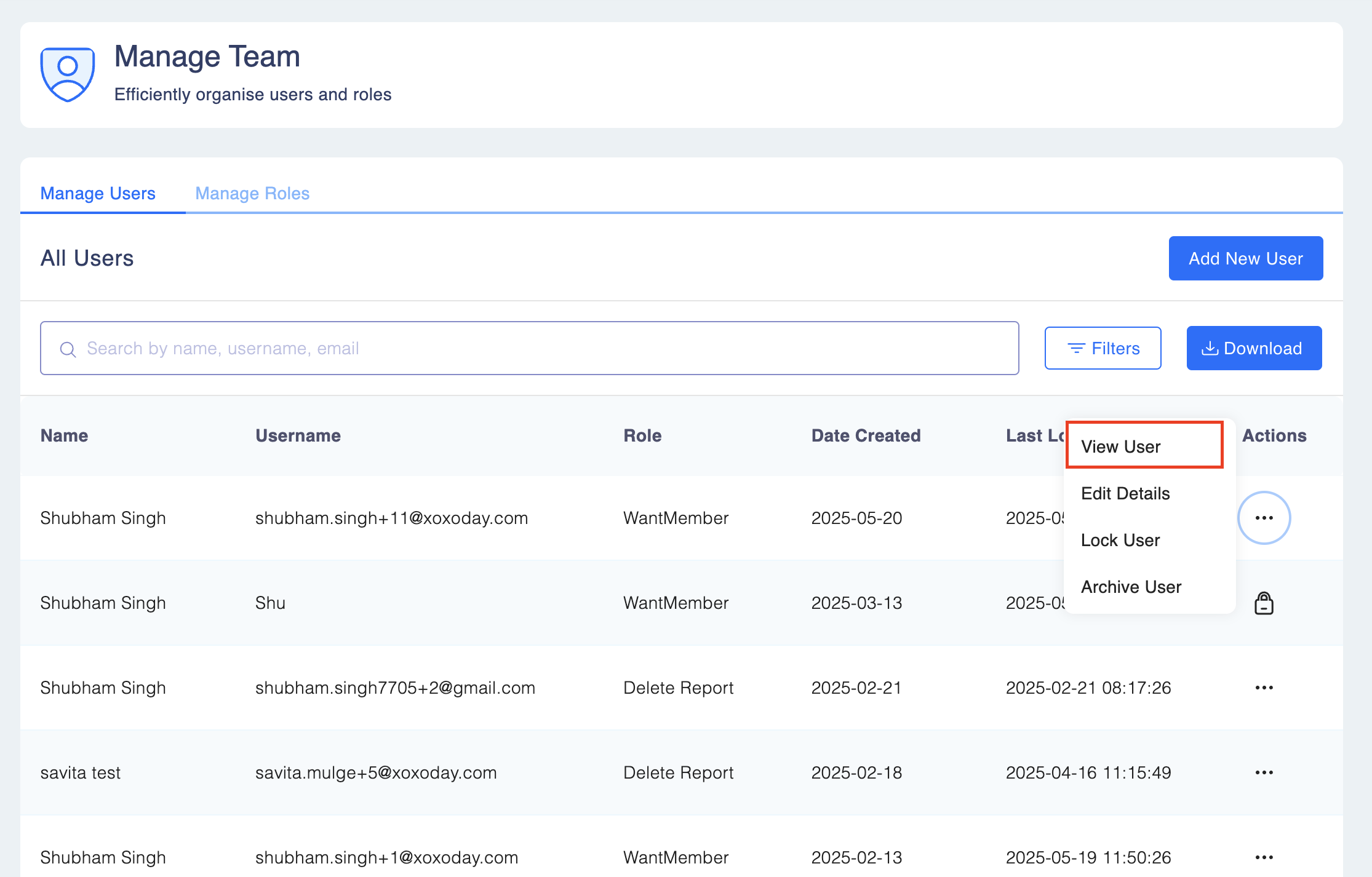
Step 1: Navigate to Access Control > ManageTeam > Manage Users to view the list of registered users.
Step 2: Locate the specific user whose roles you want to view. Click on three dots icon next to the user’s name. Select View from the listed options.
User Information Display
Once you access the user details, you will be able to view:
- User Information: Basic details such as name, email, and account status.
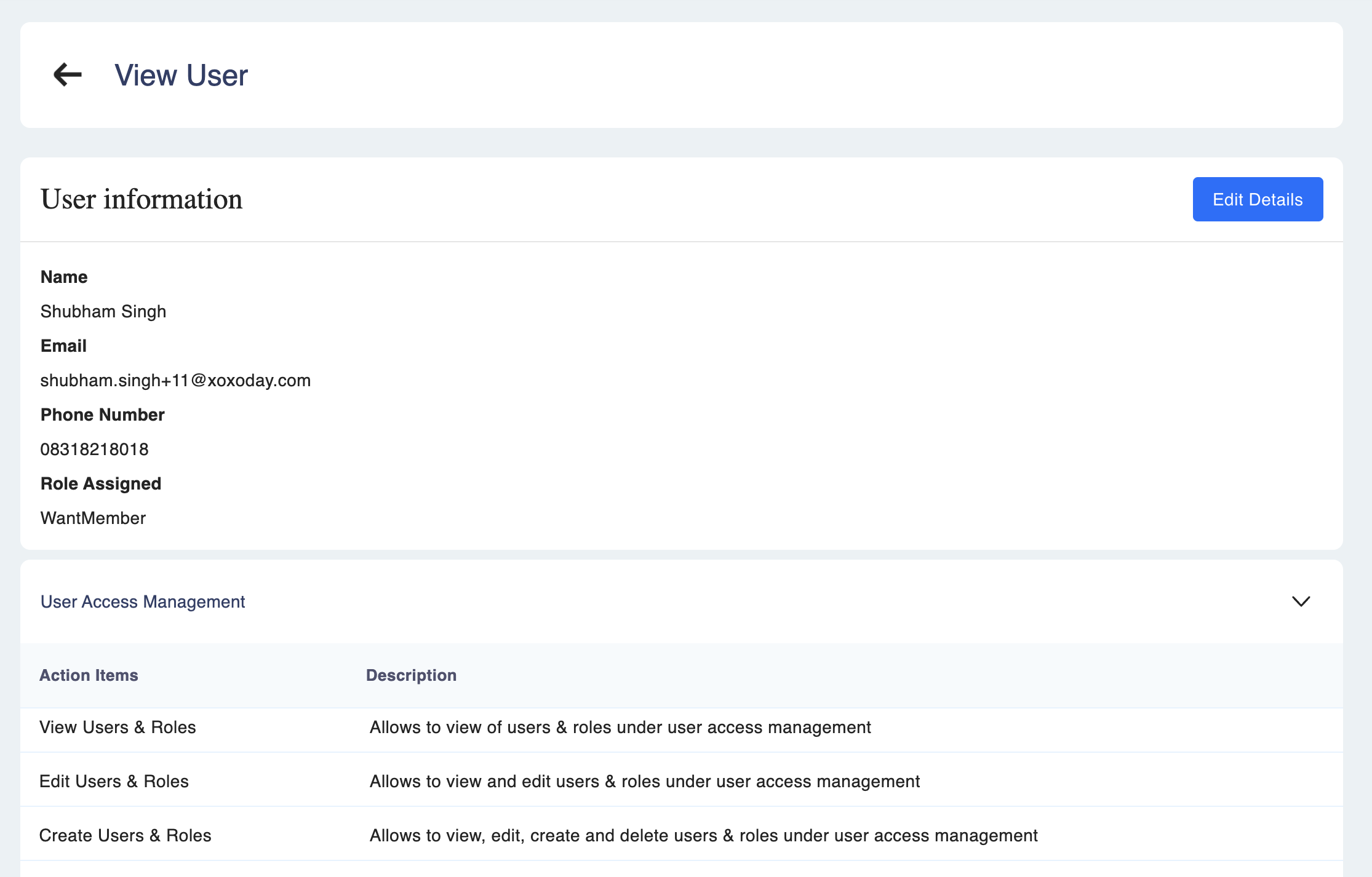
- User Roles: The assigned roles and permissions for the user within the organization.