
Marketplace
Integrate and manage redemptions seamlessly with marketplace.
How to View Marketplace Configuration:
Follow these steps to view and manage your Marketplace Configuration in the Loyalife platform:
Step 1: Navigate to Program Settings
- Log in to the Loyalife platform.
- Go to Configurations > Program Settings.
- Click on the Marketplace tab.
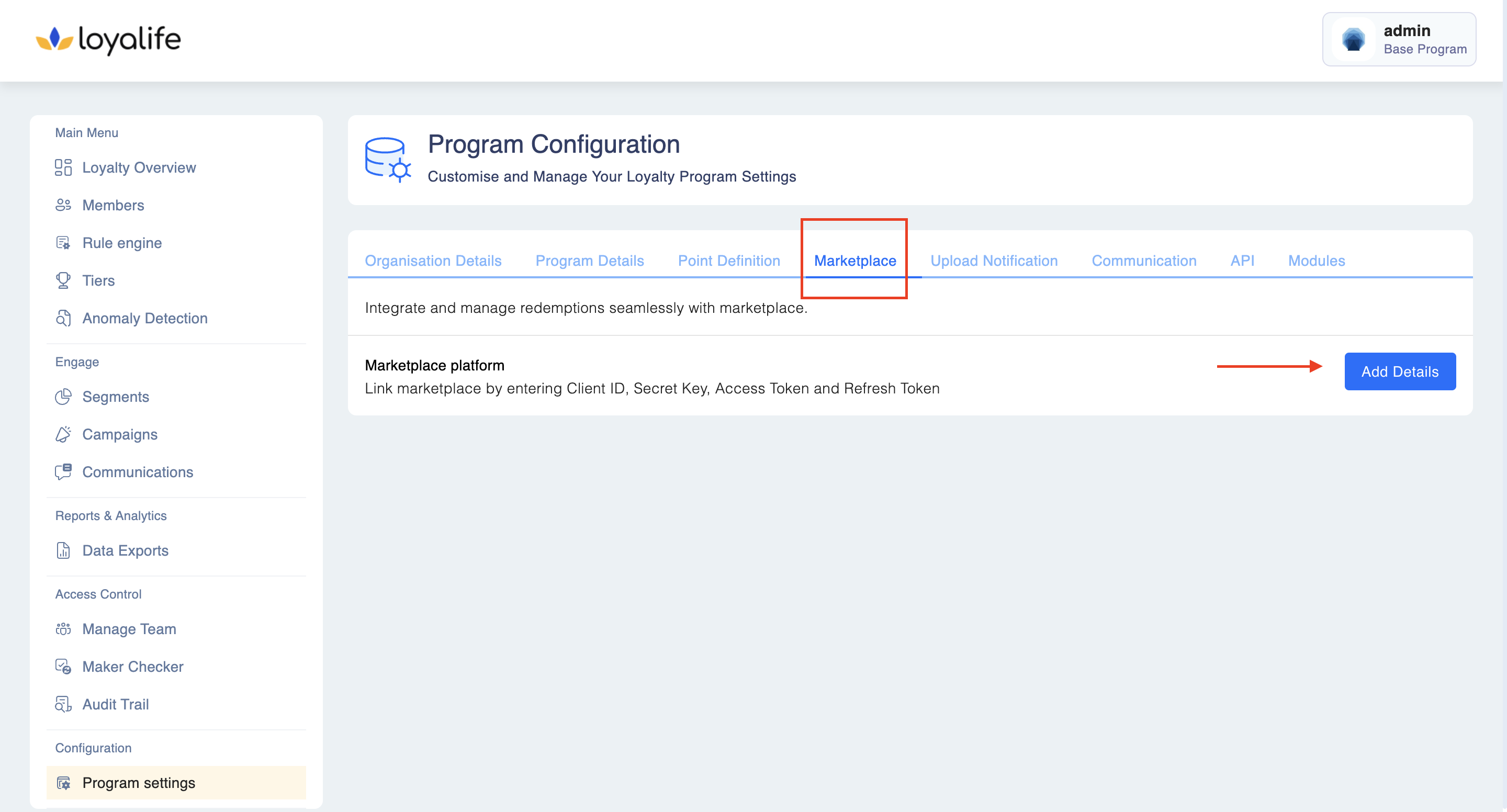
Step 2: Add Marketplace Details
- Click on the Add Details button.
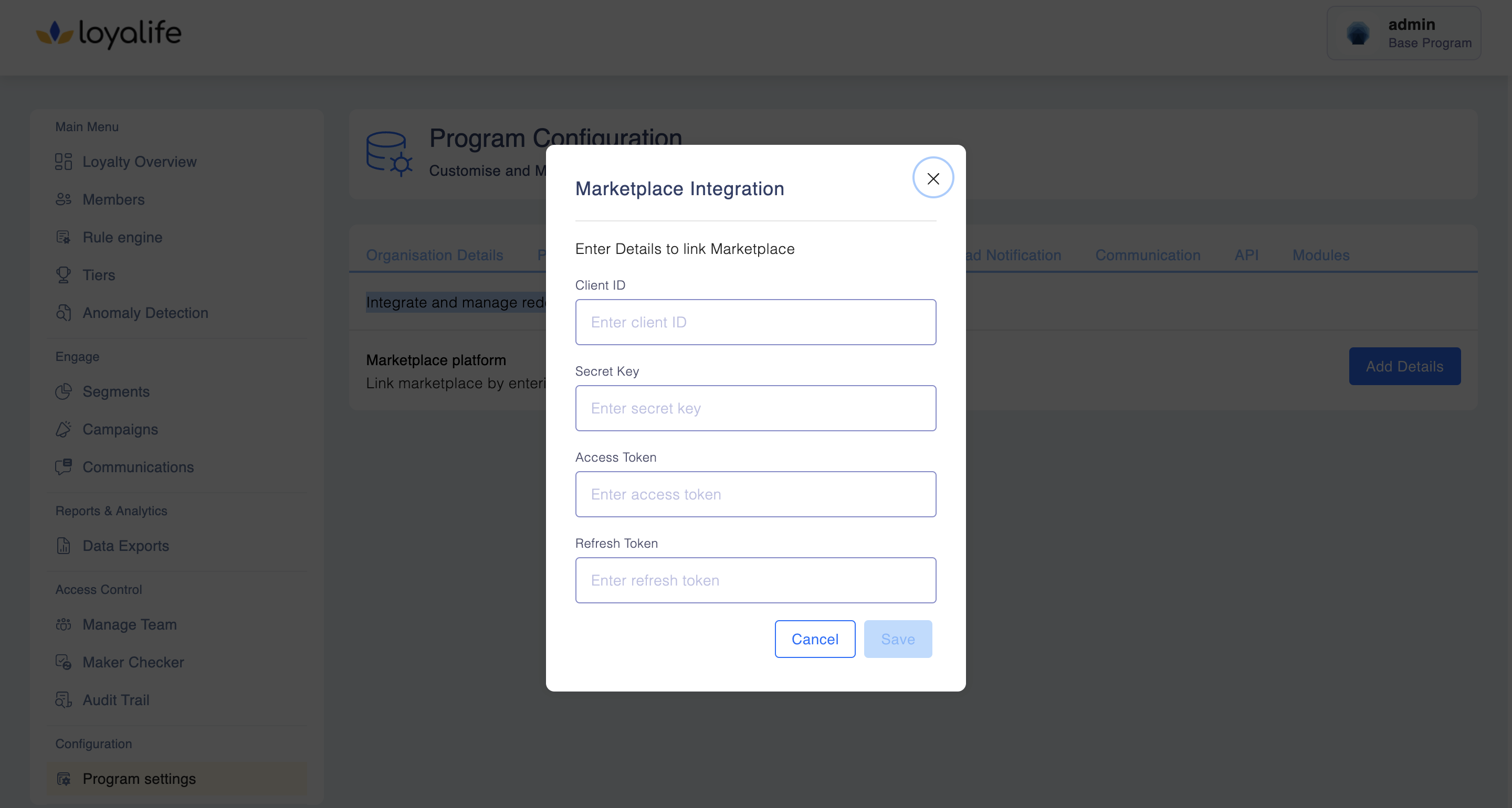
Step 3: Enter Marketplace Information
The following information will be visible and can be configured:
- Client ID
- Secret Key
- Access Token
- Refresh Token
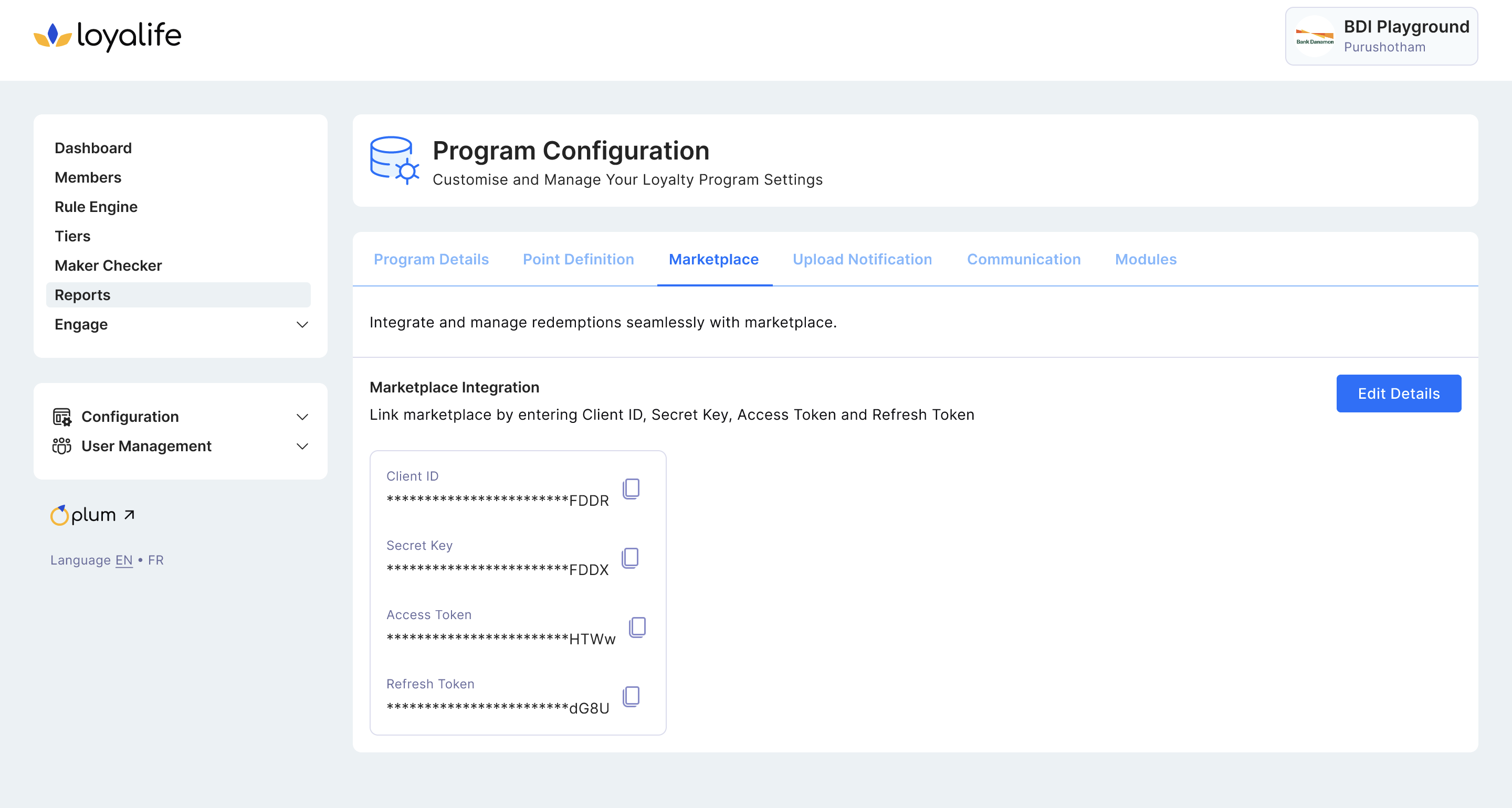
Important Behavior Notes
- Only users with Platform View and Edit Configuration permissions can add or edit marketplace details.
- Once configured, users will see the Plum option on their dashboard. Clicking it will redirect them to the Plum Admin Portal, based on their registered access level.
Access Scenarios:
| User Role on Plum | Redirection Behavior |
|---|---|
| Super Admin | Redirected to Admin Portal |
| Admin | Redirected to Marketplace/End User Section with option to switch to Admin from Profile |
| Not Registered | Redirected to Plum as a Member with no Admin access |
Login and Token Behavior
- Password resets must be done on the Loyalife side. Plum does not allow resetting your credentials.
- Incorrect credentials entered during configuration are not validated at this step. The error will be shown only when attempting to log in to Plum.
- Refresh Token is used to generate the Access Token for redirection.
- If the access token is valid, redirection will work—even if the refresh token is later incorrect.
- Once the access token expires, an invalid refresh token will prevent redirection to Plum.
Summary
This section lets you configure the marketplace integration, view the marketplace platform name and URL, and manage redirection to Plum based on user access. Be sure to enter accurate credentials and understand access-level redirection behavior for a smooth experience.